Controlling the layout during a conference
Conference participants have a range of options available to them during a conference to control aspects of the conference layout and how they receive presentation content. They can:
- Change the layout of an ongoing conference.
- Apply a personal layout for a specific endpoint or participant.
- Toggle multiscreen participant display for dual-screen endpoints.
- Control how presentation content is displayed when using an Adaptive Composition layout.
- Toggle the display of participant names when using a Pexip app.
- Spotlight a participant when using a Pexip app.
Changing the conference layout
The layout used in a conference can be changed dynamically during the conference by the conference participants. See Conference layouts and speaker names for full details about all of the available layouts and how to configure the initial default layout settings for a conference.
Hosts can apply layout changes to all participants in a Pexip conference, and individual participants can request a personal layout. Not all layouts are supported on dual screen endpoints; these endpoints will revert to displaying the 1+7 layout in place of unsupported layouts.
Hardware endpoint participants (SIP/H.323)
Host participants on video endpoints can change the layout that is seen by all participants by sending DTMF / keypad commands to the conference.
-
By default the layout changes every time the endpoint sends *8 to the conference, and it cycles through most of the available Pexip layout types in this order: 1+7, Adaptive Composition, 1+21, 2+21, 2x2, 3x3, 4x4, 5x5, 1+0, 1+33.
- The ability to change the layout, the layouts that are used, the sequence in which they are displayed, and the DTMF keypad control used to change the layout, are all customizable via themes.
For more information see Using a DTMF keypad to control a conference and Theme configuration.
In addition, participants on Cisco endpoints can also use the Pexip Layout Controls macro.
Host participants using the web app or Pexip app for Windows can dynamically change the layout during a conference. To do this, from the top right of the screen, select .
Bespoke client applications could also make use of the transformLayout function in the PexRTC client API.
Applying a personal layout
Host and Guest participants can choose the layout they receive without affecting the conference-wide layout received by other participants.
Enabling personal layouts for a participant
Each participant must be explicitly enabled via participant policy to receive personal layouts before they can request a personal layout. Administrators do this by setting their can_receive_personal_mix participant configuration response field to true.
A conference can contain a mix of participants who are, and are not, enabled for personal layouts.
Requesting a personal layout
Participants can request a personal layout via the web app or using DTMF tones.
Using the web app
To select a personal layout, from the top right select . For full details, see Meeting layout.
Using DTMF tones
Hardware endpoint participants (SIP/H.323) can request a personal layout by sending a *1 DTMF tone.
This cycles through the same list of layouts available to the conference as described above.
What's noteworthy?
When using personal layouts, note that:
- A personal layout cannot be applied while the main conference layout is either Adaptive Composition or the Teams-like layout. However, if a Host selects a different main layout, participants can then select a personal layout.
- Participants that are enabled for personal layouts have extra connection resources reserved (approximately another ⅓ HD).
- Only the layout and the visibility of the layout notch indicators can be personalized; the conference-wide settings for all other visual elements such as text overlay or spotlight are applied to the personal layout.
- Features such as dual screen and receiving the presentation stream as part of the layout mix are supported — providing they are generally supported in the requested layout.
Multiscreen participant display
If you have a dual screen endpoint you can display conference participants across both screens, allowing you to show more participants than if you have a single screen. This display mode is available for the following meeting, layout and endpoint types:
- Conferences hosted in a VMR or Virtual Auditorium.
- Calls into a Microsoft Teams or Google Meet conference.
-
Where the conference layout is 1+7, 1+0, 2x2, 3x3, 4x4, 5x5,
- If you are using any other layout when multiscreen is enabled then the 1+7 layout is used on both screens.
- If you are using a 4x4 or 5x5 layout when multiscreen is enabled then each screen will display 3x3 on both screens (this means that when using a 5x5 layout you will see fewer participants in total if multiscreen is enabled).
- SIP and H.323 endpoints.
Multiscreen participant display is used automatically on endpoints that are known to have dual screens
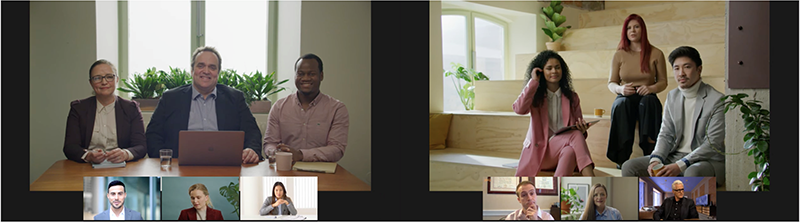
Note that:
- The same layout format is used on both screens
- As each video participant is displayed they are added alternately to each screen (until the layout on that screen is full).
- If a participant starts presenting, the second screen shows the presentation content.
- In-conference indicators are displayed on the primary screen only.
- When multiscreen is in use, a VTC touch panel will show there is presentation in progress, even if there is no current presentation (this is because the multiscreen feature uses the content channel to display participants on the second screen).
-
If there are only two video participants in a meeting (including the VTC) the presentation screen will turn on and
You can disable multiscreen entirely by adding "disable_multiscreen": true to your themeconfig.json file.
You can toggle multiscreen display mode on and off by a using a DTMF keypad command sent from the endpoint. This command defaults to *9 but it can be customized via themes. This command can also be used to apply multiscreen display mode to a dual screen endpoint that has dual screens but the additional screen has not been detected.
When toggling the multiscreen mode, it only applies to the endpoint sending the enable/disable command, and not to all participants in the conference.
If you are a meeting Host and want to view an unsupported layout on a dual screen endpoint, you can use this option to disable dual screen on the endpoint, and then use the layout option to cycle through the conference layouts. Note that if you do this, the selected layout will appear on the dual screen endpoint's main screen only.
For more information see Using a DTMF keypad to control a conference.
Receiving the presentation stream as part of the layout mix (Adaptive Composition)
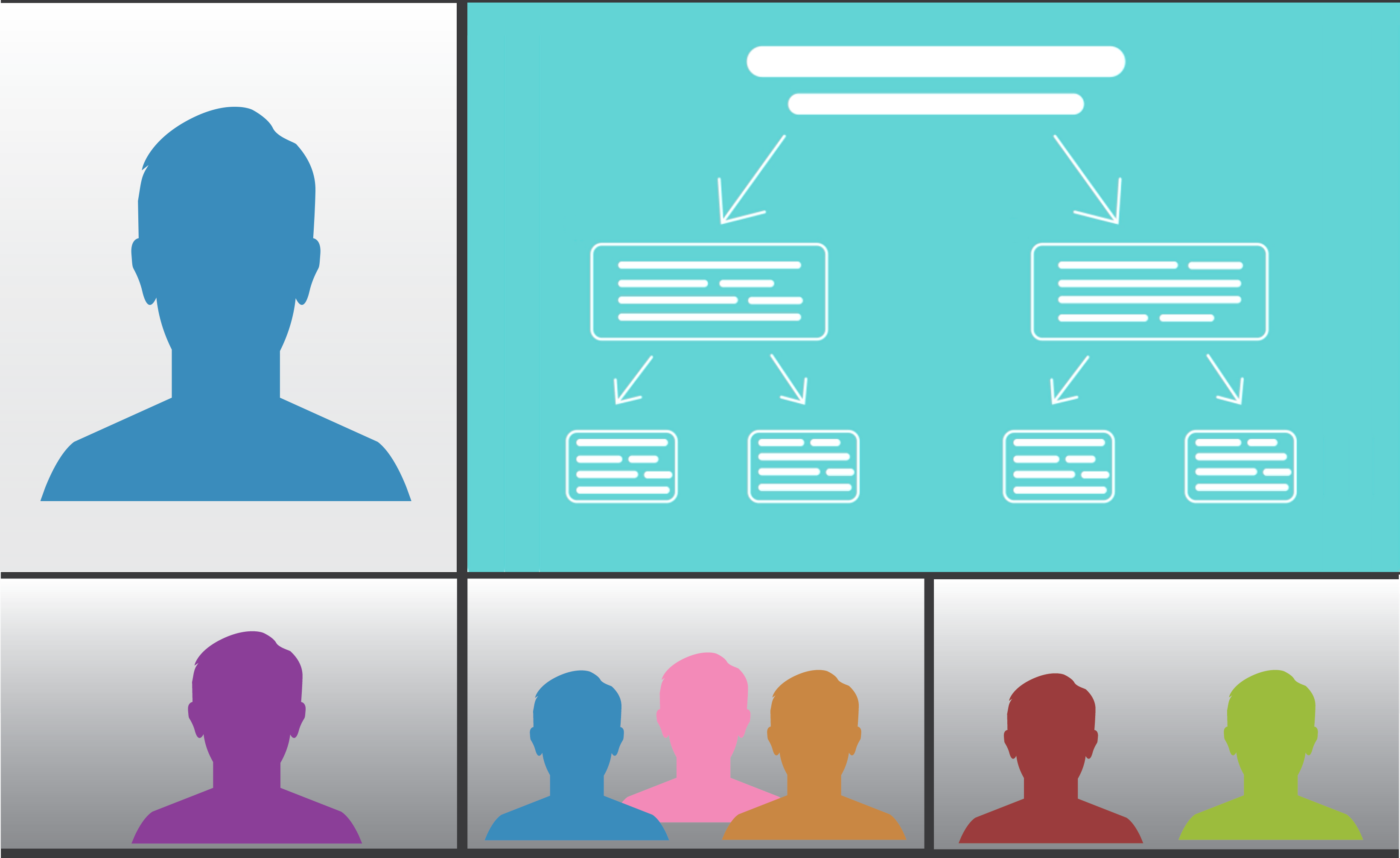
When using Adaptive Composition or the Teams-like layout, most single-screen endpoints will automatically receive the presentation stream as part of the layout mix (replacing some of the other video participants), but you can choose to switch to receiving it as a separate stream.
Note that:
- Cisco endpoints with 2 (or more) HDMI outputs, but that are installed with only a single screen, do not automatically receive the presentation as part of the layout mix. In these cases you need to manually switch to that mode (via the endpoint's keypad / DTMF tones)
- If the call bandwidth is less than 1.2 Mbps then the presentation is always sent as a separate stream.
When the presentation is received in the layout mix:
- The person presenting is shown alongside the presentation. Note that the "presenter" is the participant that the artificial intelligence driving the layout has decided is the person who is actually presenting (this is based on activity — such as speaking frequency — and not necessarily the device/person that is physically sharing the content).
- A maximum of 12 other video participants are included in the layout, as well as the presentation content.
- If the "presenter" is a group of people, then the presentation occupies the entire top row and the presenter group is shown in the bottom row instead, plus up to 8 other participants.
- The presentation is pillarboxed or letterboxed to fit into its position in the layout.
- The presentation segment has its own framerate regardless of the source framerate of the presentation stream. For example, even though the presentation input stream is 5 fps, the framerate of the presentation in the layout could still be 30 fps.
Dual-screen endpoints automatically receive the presentation stream on the second screen, and the primary screen shows the video participants.
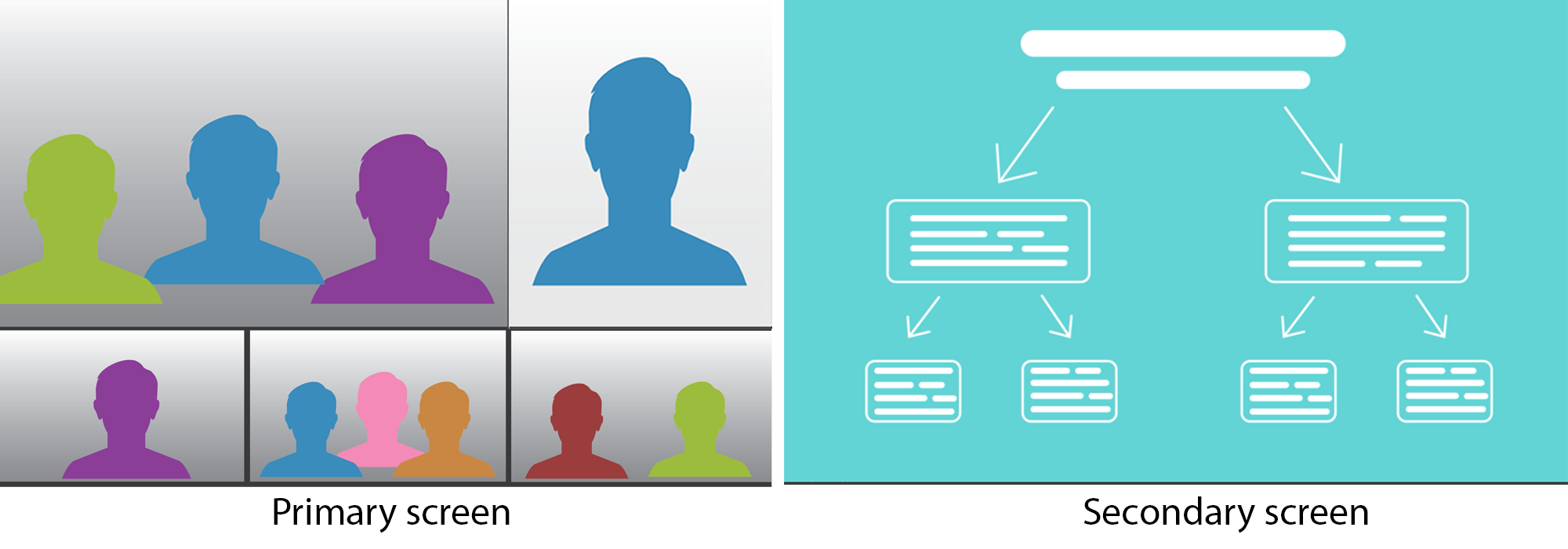
The primary screen shows the person presenting closer to the second screen.
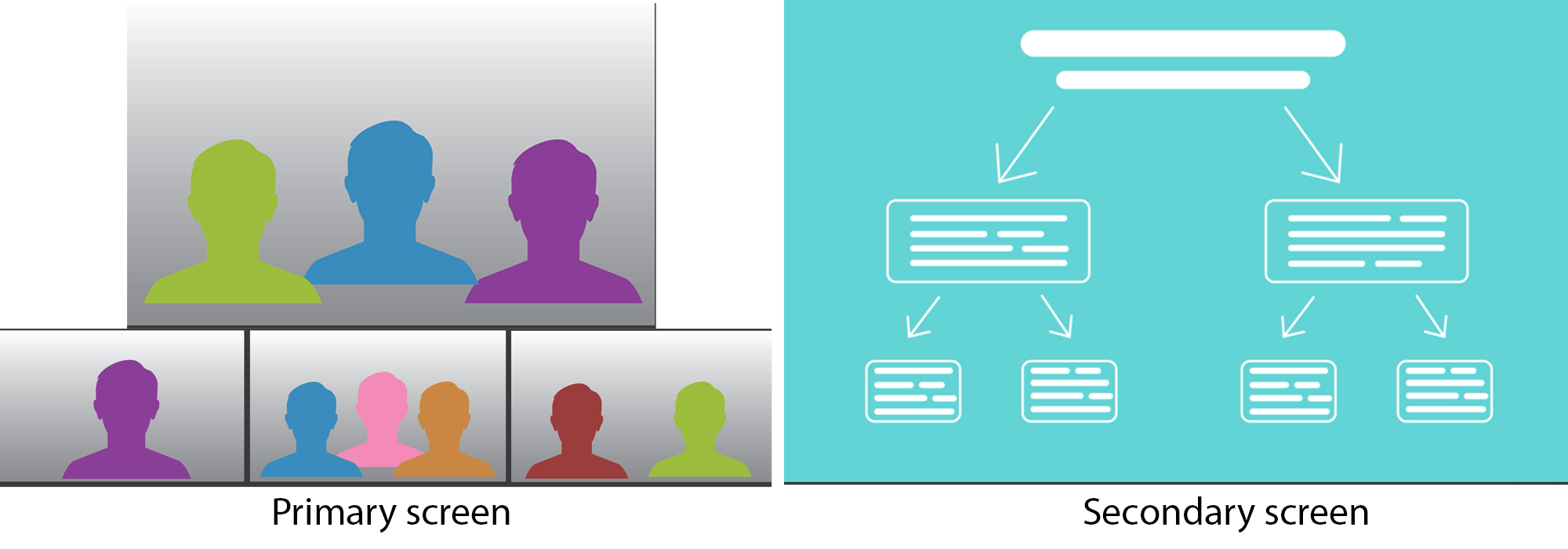
If the "presenter" is a group of people, then the "presenter" occupies the entire top row of the primary screen.
Hardware endpoint participants (SIP/H.323)
The presentation mode can be toggled between receiving it in the layout mix and receiving it as a separate stream by a using a DTMF keypad command sent from the endpoint. This command defaults to *4 but it can be customized via themes.
- Single-screen endpoints receive the presentation as part of the layout mix by default, and it always resets to this mode when the endpoint joins a new conference. However, within a conference, the current state is remembered if one presentation stops and a new presentation starts.
- When toggling the presentation mode, it only applies to the endpoint sending the enable/disable command, and not to all participants in the conference.
- It does not apply to SIP endpoints with multiple screens — they always receive a separate presentation stream.
See Determining if an endpoint has single or multiple screens for more information.
- Web app: Participants can elect to receive a presentation stream as part of the layout mix in an Adaptive Composition layout by enabling the Prefer presentation in mix option (). When disabled, presentation and main video is received as two separate streams in all layouts, and the user can toggle between the two.
- Pexip app for Windows: Participants can elect to receive a presentation stream as part of the layout mix in an Adaptive Composition layout by enabling the Prefer presentation in mix option (). When disabled, presentation and main video is received as two separate streams in all layouts, and the user can toggle between the two.
Enabling and disabling the display of participant names
Each Virtual Meeting Room and Virtual Auditorium can be configured to show the names of the participants in a text overlay along the bottom of their video image. See Showing the names of active speakers and participants for full details about how to enable or disable participant names by default for a conference, and how the display name is determined.
Host participants using the web app can dynamically show and hide participant names during the conference by selecting Settings > Advanced and toggling the Show name labels option.
Spotlighting a participant (classic layouts only)
Host participants using the Pexip app can "spotlight" themselves or other participants in the meeting.
The spotlight feature locks any spotlighted participants in the primary positions in the stage layout, ahead of any current speakers. When any participants have been spotlighted, the first one to be spotlighted has the main speaker position, the second one has the second position (leftmost small video, for example), and so on. All remaining participants are arranged by most recent voice activity, as usual.
When Lock presenter as main speaker is enabled, a spotlighted participant appears in the main video ahead of any presenters.
To spotlight a participant:
- Web app / Pexip app for Windows: From the Participants panel, hover over the participant's name, select
 and then select Spotlight.
 - Mobile apps: From the Participant list, tap the participant and then select Spotlight.
Note that:
- Endpoints that support Far-End Camera Control can also be spotlighted while the FECC dialog is open.
- Spotlighting is not supported in the Adaptive Composition layout.
- In a Virtual Auditorium, where Guests cannot see other Guests, if a Guest participant is spotlighted they only appear in the main video for Host participants; other Guests do not see the spotlighted Guest.
Also see Pinning participants to the layout during a conference.