Disconnecting participants from a conference
There are several ways to disconnect a participant from a conference: Using the Administrator interface, Using Pexip apps and Using DTMF. Each of these options is described below.
Using the Administrator interface
You can use the Administrator interface to disconnect a single participant or all participants.
Disconnecting a single participant
To use the Pexip Infinity Administrator interface to disconnect a single participant from a conference:
-
Select the participant. You can do this in two ways:
- Go to and select the participant to disconnect.
- Go to and select the Virtual Meeting Room or Virtual Auditorium that the participant is in. From the tab, select the participant to disconnect.
- At the bottom right of the screen, select .
Disconnecting all participants
To use the Pexip Infinity Administrator interface to disconnect all of the participants from a conference:
- Go to and select the Virtual Meeting Room or Virtual Auditorium that the participants are in.
- At the bottom right of the screen, select .
- Select to confirm.
All participants will be disconnected and the conference will end.
Using Pexip apps
You must be a Host participant in the conference to use this feature.
Disconnecting a single participant
To use a Pexip app to disconnect a participant:
From the Participants panel, hover over the participant's name, select  and then Disconnect. You are asked to confirm that you want to disconnect that participant.
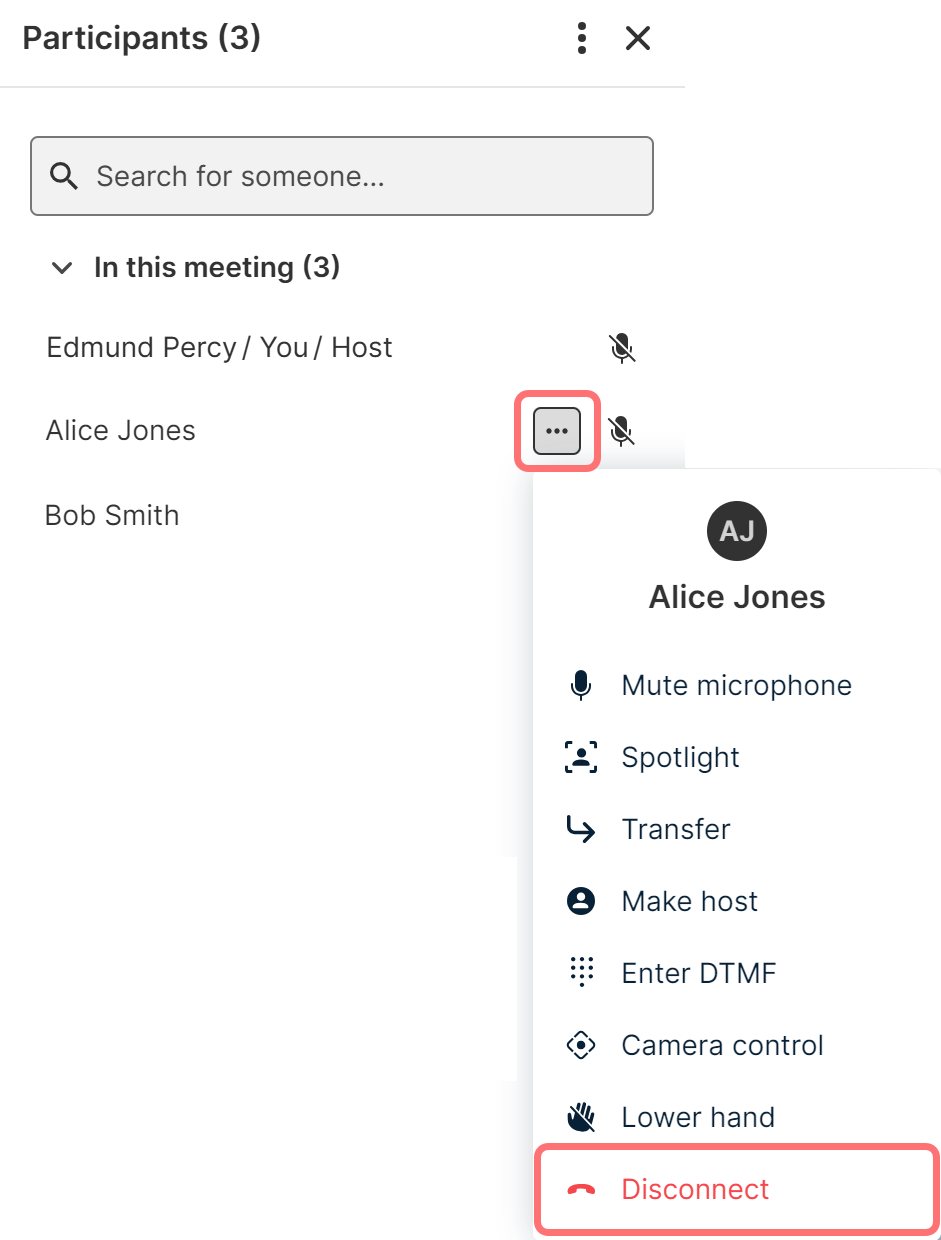
The participant who is disconnected sees a message saying that another participant disconnected them.
Disconnecting all participants
To use a Pexip app to disconnect all participants, including yourself:
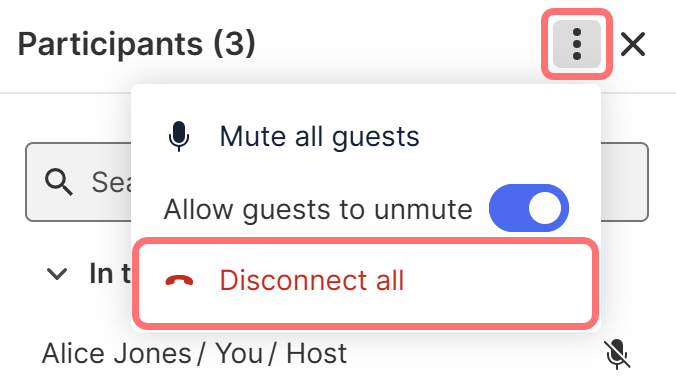
From the top of the panel select  and then .
Using DTMF
If DTMF controls are enabled, Host participants can terminate the conference by disconnecting all participants, including themselves. The default DTMF entry to do this is ## but this may have been customized. For more information, see Using a DTMF keypad to control a conference.