Installing Teams Connectors in multiple Azure regions
Large enterprises may want to install a Teams Connector in multiple regions to provide local capacity/resources.
As with your initial Teams Connector installation, you must follow the same guidelines when deploying additional Teams Connectors:
- The Azure region for the new Teams Connector must support Automation and our specified series instance types. Ensure that you have sufficient resource quota and capacity for those instance types in that region.
- We recommend that you continue to follow a blue-green deployment strategy i.e. you deploy a pair of Teams Connectors in each region.
- Each Teams Connector that you deploy needs a unique DNS name and requires a certificate that matches that identity.
- You may also be deploying a new pool of Conferencing Nodes to use with the new Teams Connector. These nodes would typically be in the same Azure region as the new Teams Connector, or in an on-premises datacenter in the same geographic area. You may want to use a different certificate (with a different pool name) for this set of Conferencing Nodes.
You do not need to create a new CVI app or perform any additional app authorizations when installing additional Teams Connectors — only one CVI app registration is required per tenant. However you do need to create a new API app for each new Teams Connector, as described here.
Installing the additional Teams Connector application into Azure
As with the initial installation, you deploy additional Teams Connector applications through PowerShell ISE commands and scripts:
- Create a new pair of variable initialization scripts (for your blue and green systems) for the new Azure region. You should do this by making a copy of an existing initialization script.
-
Update the regional variables in the new initialization scripts with the values for your new Azure region. The variables you need to update are:
- $PxVmssRegion: the short name that represents the blue or green system plus a code to represent the region in which you are deploying the new Teams Connectors.
- $PxTeamsConnFqdn: the hostname of the new Teams Connector.
- $PxNodeFqdns: the pool name or names of the Conferencing Nodes that will communicate with the new Teams Connector.
- $PxAzureLocation: the name of the Azure region into which you are deploying the new Teams Connector.
- $PxPfxCertFileName: the filename of the PFX certificate file to upload to the new Teams Connector.
- $PxNodesSourceAddressPrefixes: the IP addresses of the Conferencing Nodes that will communicate with the new Teams Connector instances.
- $TeamsConnectorApiApplicationId: this must be updated to hold an ID of the new Teams Connector API apps, and is described later in the process below.
-
Create the static and dynamic resource groups for the new Teams Connectors in the new region and ensure that the person performing the installation has the Owner role for them. (You do not need to create a resource group for the Azure Bot.)
These steps must be performed by the Owner of the Azure subscription used for the Teams Connector.
-
Run the following PowerShell command to connect to Azure:
-
In all standard deployments run:
Connect-AzAccount
-
If this is a high-security deployment (typically Azure GCC High / US Government) then use this command instead:
Connect-AzAccount -EnvironmentName AzureUSGovernment
Then follow the prompts to sign in to Azure.
-
- Run the blue variable initialization script (to set the required subscription, resource group name and blue/region variables).
-
Ensure that you are using the Azure subscription for the Teams Connector:
Set-AzContext -SubscriptionId $PxSubscriptionId
-
Run the following script to create the resource groups for static and dynamic resources:
Copy to clipboard# Resource group for static resources for the Teams Connector / region
New-AzResourceGroup -Name $PxTeamsConnStaticResourceGroupName -Location $PxAzureLocation -Force -Tag $tags
# Resource group for the Teams Connector VMSS (per region)
New-AzResourceGroup -Name $PxTeamsConnResourceGroupName -Location $PxAzureLocation -Tag $tags -
Ensure that the person who will perform all of the remaining steps has the Azure Owner role for the static and dynamic resource groups you have just created.
If the Owner of the Azure subscription will be performing
New-AzRoleAssignment -SignInName <email_name> -RoleDefinitionName "Owner" -ResourceGroupName $PxTeamsConnStaticResourceGroupName
New-AzRoleAssignment -SignInName <email_name> -RoleDefinitionName "Owner" -ResourceGroupName $PxTeamsConnResourceGroupName
where <email_name> is the email address / user principal name of the person who will perform the remaining steps; for example where alice@example.com will perform the upgrade/redeploy, the SignInName would be -SignInName alice@example.com for the commands listed above.
- Run the green variable initialization script (to set the required subscription, resource group name and green/region variables).
-
Run the following script to create the resource groups for static and dynamic resources for the green environment:
Copy to clipboard# Resource group for static resources for the Teams Connector / region
New-AzResourceGroup -Name $PxTeamsConnStaticResourceGroupName -Location $PxAzureLocation -Force -Tag $tags
# Resource group for the Teams Connector VMSS (per region)
New-AzResourceGroup -Name $PxTeamsConnResourceGroupName -Location $PxAzureLocation -Tag $tags -
Ensure that the person who will perform all of the remaining steps has the Azure Owner role for the static and dynamic resource groups you have just created. If the Owner of the Azure subscription will perform all of the remaining installation steps then you can skip to Create the Teams Connector API apps for your blue and green environments. below.
New-AzRoleAssignment -SignInName <email_name> -RoleDefinitionName "Owner" -ResourceGroupName $PxTeamsConnStaticResourceGroupName
New-AzRoleAssignment -SignInName <email_name> -RoleDefinitionName "Owner" -ResourceGroupName $PxTeamsConnResourceGroupName
where <email_name> is the email address / user principal name of the person who will perform the remaining steps.
Note:
- A static resource group ($PxTeamsConnStaticResourceGroupName) only has to be created when deploying each Teams Connector (blue, green or regional) for the first time — you do not have to repeat this when redeploying or for subsequent upgrades.
- A dynamic resource group ($PxTeamsConnResourceGroupName) has to be recreated whenever you upgrade or redeploy a Teams Connector.
- In the future, if another person were to upgrade or redeploy the Teams Connector, that person would also have to be granted the appropriate roles for these resource groups.
- You can use the Azure portal to check/assign permissions by selecting the resource group and using the Access control (IAM) option.
-
-
Create the Teams Connector API apps for your blue and green environments.
You must create in this region a Microsoft Entra ID application that is used to secure requests to the Teams Connector APIs.
Each Teams Connector in each region must have its own Teams Connector API app, and thus the variables initialization script for each Teams Connector must be updated to contain the API App ID for that Teams Connector.
-
Run the following PowerShell command to connect to Azure:
-
In all standard deployments run:
Connect-AzAccount
-
If this is a high-security deployment (typically Azure GCC High / US Government) then use this command instead:
Connect-AzAccount -EnvironmentName AzureUSGovernment
Then follow the prompts to sign in to Azure.
-
- Change directory to the folder into which you extracted the files from the Teams Connector ZIP.
-
Run the following PowerShell commands to connect to Microsoft Graph:
Copy to clipboard# Set execution policy for the current PowerShell process, when prompted type A (Yes to All)
Set-ExecutionPolicy -ExecutionPolicy Unrestricted -Scope Process
# The Unblock-File cmdlet lets you run PowerShell script files that were downloaded from the internet.
# By default, these files are blocked to protect the computer from untrusted files.
Get-ChildItem -Recurse | Unblock-File
# Import the PexTeamsCviApplication PowerShell module
Import-Module .\PexTeamsCviApplication.psm1
# Import Microsoft.Graph Powershell modules
Import-PexMicrosoftGraphPowershellModules -ErrorAction Stop
# Connect to Graph
Connect-PexTeamsMsGraph - Run your variable initialization script
-
Run the following command to create the Teams Connector API app
Copy to clipboard$teamsConnectorApiApp = New-MgApplication -DisplayName "${PxBaseConnName}-TeamsConn-${PxVmssRegion} Pexip Teams Connector API" -SignInAudience "AzureADMyOrg"Please allow one minute for this command to complete and propagate within Azure.
-
Run the following commands to obtain the Teams Connector API app ID.
Note that if the New-MgServicePrincipal command fails, this means that you have not waited long enough for the previous command to complete.
Copy to clipboard$teamsConnectorApiSp = New-MgServicePrincipal -AppId $teamsConnectorApiApp.AppId -Tags {WindowsAzureActiveDirectoryIntegratedApp}
$TeamsConnectorApiApplicationId = $teamsConnectorApiApp.AppId
Write-Host
Write-Host
Write-Host "`n----------------------------------------`n"
Write-Host
Write-Host "### Teams Connector API App ID MUST be saved in the variables initialization script ###"
Write-Host
Write-Host "`$TeamsConnectorApiApplicationId = `"$($TeamsConnectorApiApplicationId)`""
Write-Host
Write-Host "`n----------------------------------------`n"
Write-Host
Write-Host -
When the command runs, it generates some output that lists the Teams Connector API App ID, similar to this:

-
Copy the output line that defines the API App ID and paste it into the
$TeamsConnectorApiApplicationId = ""
-
Now repeat the process for your green environment:
- Run your variable initialization script for the green deployment to set the required variables.
- Run the command to create the Teams Connector API app for your green environment and wait for one minute.
- Copy the output line that defines the API App ID and paste it into the green variable initialization script.
- If somebody else will be completing the deployment, ensure that the person who will perform all of the remaining installation steps has Owner permissions for the
Note that:
- This app does not have to be granted any permissions. It does not have access to any resources in the Microsoft Entra ID tenant. It has no associated credentials.
- This API app is different from the main Pexip CVI App which is created by the installation script.
-
- Run the redeploy script to install the blue Teams Connector into the new region, and then run it again to install the green system.
- Update DNS with the new Teams Connector's names and IP addresses.
Note that you do not need to create a new CVI app or perform any additional app authorizations when installing additional Teams Connectors.
Pexip Management Node configuration
To configure Pexip Infinity to use the new Teams Connector:
- If required, set up new Conferencing Nodes / locations that will use the new Teams Connector.
- Ensure that the Conferencing Nodes have suitable certificates installed (see Certificate and DNS examples for a Microsoft Teams integration).
- Configure a new pair of Microsoft Teams Connectors () where the addresses of the Teams Connectors are the names specified in $PxTeamsConnFqdn in your new variables initialization scripts for the new Azure region. As with your existing Teams Connectors, use one of them as your production system, and one as your test system.
- Assign the new production Teams Connector to the locations (and thus Conferencing Nodes) where you want that new Teams Connector to be used ().
-
Now that you have multiple production Teams Connectors you must ensure that calls are routed via your desired Conferencing Nodes to the appropriate Teams Connector. This assumes that GeoDNS or your call control system is routing incoming calls to the appropriate Conferencing Nodes / locations.
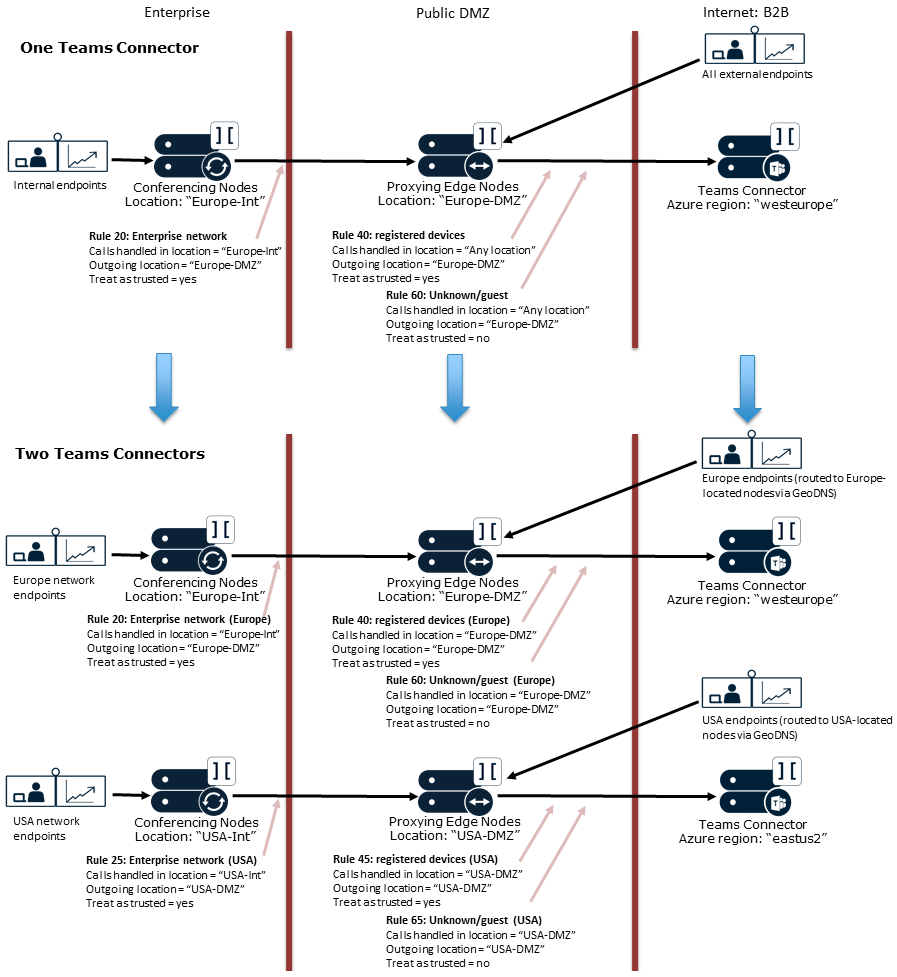
- When you have just one production Teams Connector, all of the Call Routing Rules handling calls to Microsoft Teams are typically all configured with an Outgoing location set to the one location containing your Conferencing Nodes that communicate with your Teams Connector.
- When you have two (or more) production Teams Connectors, you will also have two (or more) locations, where each location typically contains the Conferencing Nodes that are local to each Teams Connector.
To ensure that your calls are routed via the most appropriate Conferencing Nodes and Teams Connectors, you must modify your existing Call Routing Rules and also create some new rules. Typically the best way to do this is to use the Calls being handled in location setting on each rule, so that you can route calls via the appropriate Teams Connector based on where the incoming call was originally received.
For example, if you previously only had a single location (called "Europe-DMZ") containing all of your Conferencing Nodes and that location was also configured as the Outgoing location on all of your rules, then all calls would have been received in — and routed out of — those nodes to your single Teams Connector (also most likely deployed in a European Azure region).
Let's assume that you now add a second location (called "USA-DMZ") containing new Conferencing Nodes and you want to route calls local to America to a new Teams Connector that is deployed in an American region, and keep your other calls routed via the Europe nodes and Europe Teams Connector. You now need to have another set of Call Routing Rules that are based on (i.e. copies of) your existing rules but where you:
- keep the same rule settings for protocols, alias regexes and trust settings across each pair of rules
- assign a Priority value for each new rule that keeps it next to the rule it was based upon
-
specify the Calls being handled in location and Outgoing location fields as appropriate for each pair of rules, meaning that:
- your original rule now has Calls being handled in location = "Europe-DMZ" and Outgoing location = "Europe-DMZ"
- your new rule has Calls being handled in location = "USA-DMZ" and Outgoing location = "USA-DMZ"
Note that if you have many locations, you can specify some higher priority rules (lower numbers) with a specific location defined in Calls being handled in location, and have a lower priority rule with Calls being handled in location set to Any location to handle any calls that were not caught by the previous location-specific rules.
This means that Incoming calls will be routed via the Teams Connector that is local to the Conferencing Nodes that received the call.
This example diagram shows how your Call Routing Rules should evolve when moving from routing all calls via a single Teams Connector to deploying a second Teams Connector in another Azure region. Note that this example also includes locations/nodes in the enterprise internal network, in addition to the locations/nodes in the DMZ.
You do not have to change your existing Virtual Reception configuration — there is minimal performance overhead by always using a single location and Teams Connector to resolve Teams Conference IDs entered into a Virtual Reception.
Upgrade and testing
When you upgrade your regional Teams Connectors you can still follow the same testing process for blue-green deployments.
You can either set up an additional test Call Routing Rule for each region, using a different dial prefix in the regex match and specifying the test system in that region as the call target, or you can just modify the call target of your existing rule to point to each regional Teams Connector that you want to test (and thus use the same dial prefix each time).