Pexip app for mobile user guide
The Pexip app for mobile is an app optimized for Android and iOS devices, providing calendar integration and an improved meeting experience similar to that of the Pexip web app. Join meetings as an audio-only or full audio and video participant. Or, use your mobile device to view presentations if you have already joined the meeting from a room system.
In this guide:
- Getting started
- Integrating with your Calendar
- Allowing the Pexip app to access your device
- Configuring your mobile app
- Joining a meeting
- Using in-call controls
- Using conference controls
Getting started
When you open the Pexip app for mobile for the first time, you are presented with the Welcome screen and End User License Agreement (EULA). Select the EULA to agree, and then .
You must enter a display name so that other meeting participants know who is in the meeting. You can then choose to turn on the Pexip app for mobile notifications or skip this step. The landing page in the app is Calendar where you can view all scheduled video meetings from your integrated calendars.
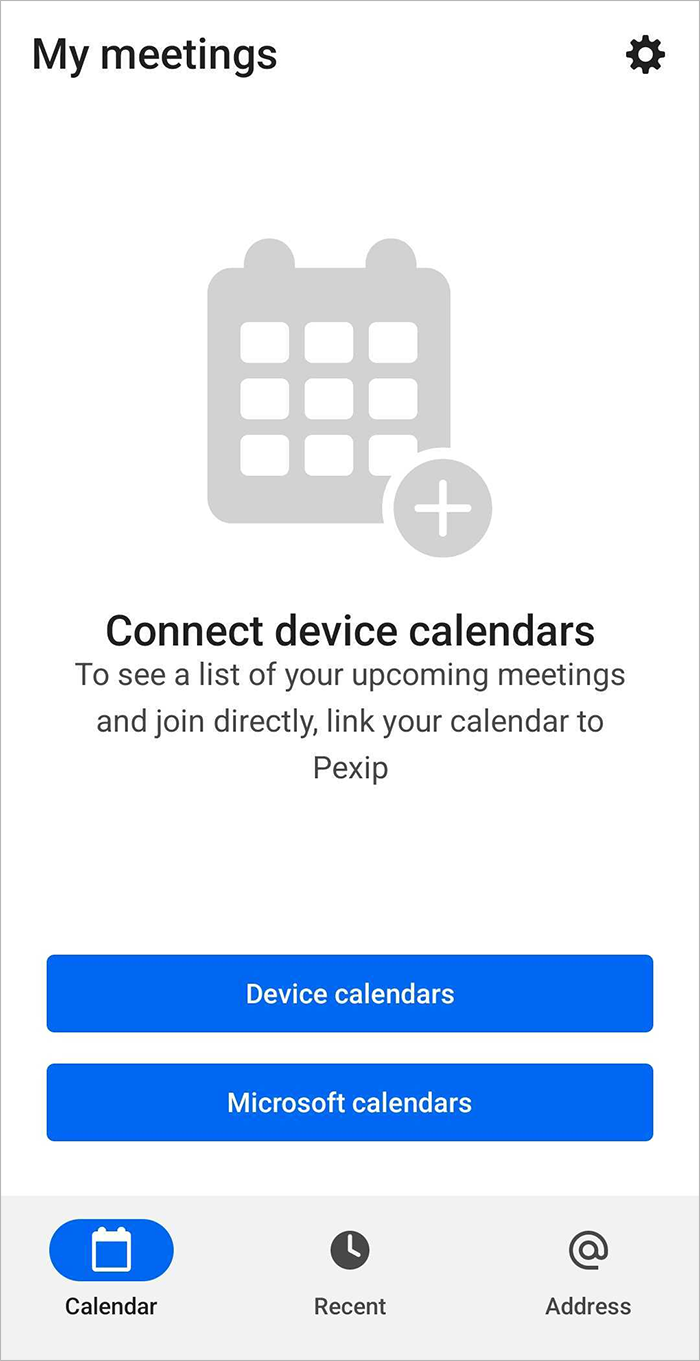
Integrating with your Calendar
Integrating your calendar with the Pexip app for mobile allows the app to display upcoming meetings from your personal or work calendars, so that you can join directly from these events. Select to choose the calendars you want to integrate with your Pexip app. Select to be directed through your Microsoft authentication process to connect your Microsoft calendar.
- Any calendar events with a Location in the form of a video address / URI (for example meet.sales@example.com) will automatically appear as an upcoming event in Calendar.
- If the location URI is followed by the word PIN and then the meeting PIN, this will be used automatically when you join the meeting.
Allowing the Pexip app to access your device
When you use the mobile app, it will request permission to access the camera, microphone and certain applications on your device. The following permissions are required:
| Permission/Description | Use |
|---|---|
| Camera / Take pictures and record video | Access is required if you want to send video. |
| Microphone / Record audio | Access is required if you want to send audio. |
| Calendar | Allows you to integrate your meeting invitations with Pexip app for mobile. |
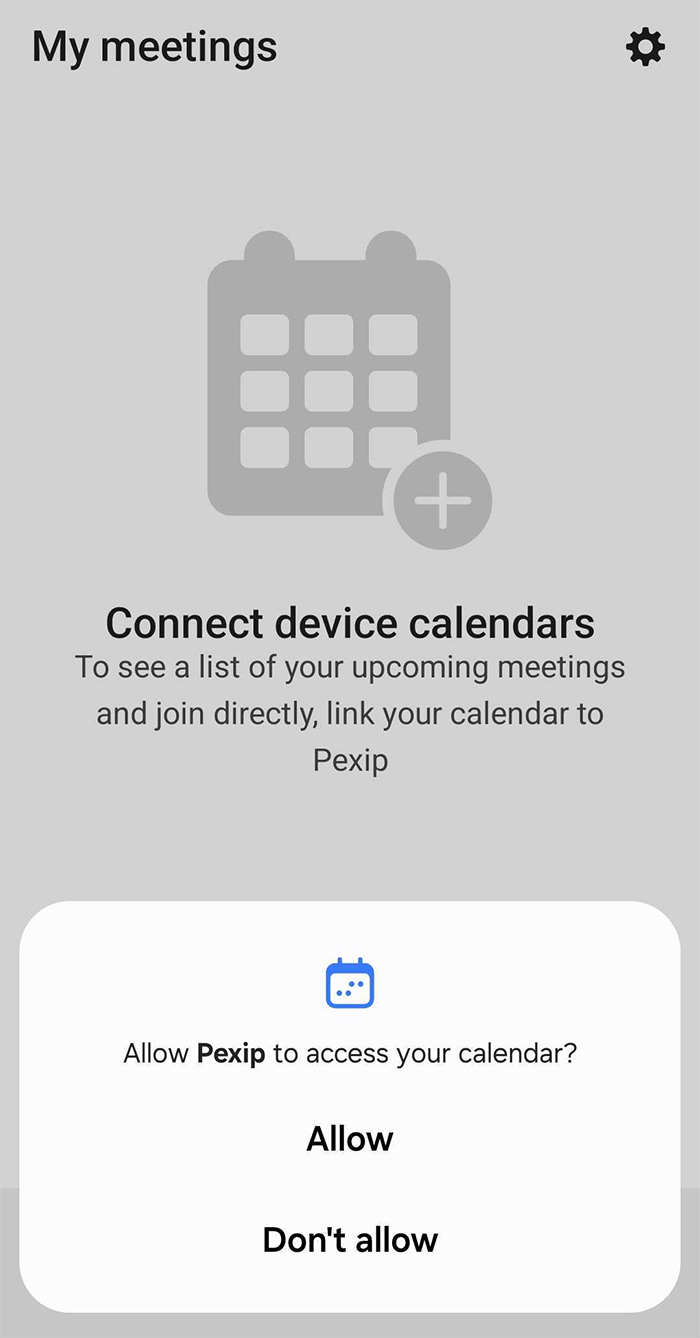
If you deny any of these permission requests, you can change the permissions at a later time by going to your device's permissions settings for the app.
Configuring your mobile app
| Setting | Description |
|---|---|
| Display name | The name that appears to other participants in calls and conferences. |
| Calendar | |
| Calendars | The calendars on your device that are currently connected to the Pexip app. Note: only video meetings are displayed in the Calendar tab. Calendar events with no associated video meeting link in the invite or description will not be displayed in the Pexip app. |
| Connect account calendars | Account calendars are personal or work calendars that are used in other places on your mobile device. If you choose , you can then choose the specific calendars that you want to be "active" and to display video meetings from. |
| Connect Microsoft calendars | Choose to connect or disconnect Microsoft account calendars that are used in other places on your mobile device. |
| Joining | |
| Default join option |
Set your default joining preference to:
|
| Mute camera when joining | Your camera will be turned off by default as you join a meeting. You can turn it back on during the meeting if you need to. |
| Mute microphone when joining | Your microphone will be muted by default as you join a meeting. You can unmute it during the meeting if you need to. |
| Quality | |
| Low / Medium / High / Very high | You may want to reduce the video quality for a smoother call experience when you are experiencing a slow or unstable internet connection. |
| About | |
| Pexip | The Pexip app version that you are currently using. |
| Send feedback | An optional form to send feedback to Pexip about your experience of using the app. |
| Open source licenses | Open source licenses in use by the app. |
| Privacy and analytics | |
| Share logs | If you are having issues with your app, your administrator may ask you to to obtain logging information about the last call. |
| Privacy policy | A link to the Pexip Privacy Notice. |
| Terms of service | A link to the Terms for Pexip Deliverables. |
Joining a meeting
In your app, you can join a meeting or make a call from Calendar, Recent, or Address.

To join a scheduled meeting from your calendar, go to the Calendar tab and select the calendar event from the list of meetings.
To join a scheduled meeting from your recent calls, go to the Recent tab and select the call you want to redial from the list of recents.
To join a meeting using a video address, go to the Address tab. This feature is useful when you want to join a meeting that is not in your calendar, as you may not have been included in the original invite. The video address of a meeting is usually included in the email invite. You can also make point-to-point calls from Address if you know a user's personal video address. Some examples of video addresses are:
alice@example.com
meet.alice@example.com
1234567@example.com
Join options
When you choose to join a meeting or make a call, you are presented with the pre-meeting screen and an opportunity to adjust your audio and video settings, or change the joining method. The default way to join a meeting is Join with video. This allows you to send and receive both audio and video, and you can share content and view content that is being shared.
The Other join options include:
- Audio only: You will not send video or receive video of other participants.
- Presentation only: Join the meeting without sending or receiving audio or video. This option is useful if you want to join the meeting using a video system in the meeting room but still require access to the additional features available to Pexip app users (such as in-call controls, chat, content sharing and viewing, and viewing the participants list) by using the Pexip app to join the meeting without sending or receiving audio or video — in other words, as a presentation-only participant.
- Meeting room: Some physical meeting rooms have a QR code on the screen or wall. You can scan this code to join the meeting room video system from your mobile device. Select in your join options to open your device's camera so that you can scan the QR code.
Are you a host? / Entering the PIN
For some meetings, you are offered the ability to enter a PIN. If this is your VMR, enter your Host PIN. If not, the meeting organizer should have told you the PIN to use. If you haven't been given a PIN, select to join as a Guest.
The PIN determines whether you join the meeting as a Host or Guest. Hosts can control the meeting and manage other participants; Guests cannot control the meeting but can still see and hear the other participants, and share content.
Using in-call controls
When you are in a call, tap on the main video to open the in-call settings and controls:




Using conference controls
The conference and participant controls that are available at any time will depend on your role (Guest or Host), the type of meeting, and the options configured by your administrator.
The following controls may be available when you open the Participants list during the conference. There are individual controls for each participant and global actions you can take that affect all participants in the conference.
| Control | Description |
|---|---|
| Mute / unmute | Mute or unmute an individual participant. |
| Spotlight / Remove spotlight | Spotlight a participant. This locks the participant's video in a primary position in the video layout, ahead of any current speakers. |
| Disconnect | Disconnect / end the call for the participant. |
| Lower hand | Lower the participant's raised hand. |
| Lower all hands | Lower all raised hands in the conference. |
| Admit | Admit a participant who is waiting in the lobby. |
| Admit all | Admit all participants who are waiting in the lobby. |
| Mute / unmute all | Mute or unmute all participants. |
| Allow guests to unmute | Allow or do not allow guests to unmute. |
| Disconnect all | Disconnect all participants from the conference. |