Pexip Infinity and Ali Cloud deployment guide
This guide describes how to install Pexip Infinity on Ali Cloud.
Assumptions and prerequisites
The deployment instructions assume that within Ali Cloud you have:
- Signed up to the Ali Cloud Infrastructure platform and created an account
- Enough available credit in the account
-
Obtained an account ID and shared it with your Pexip Sales Representative:
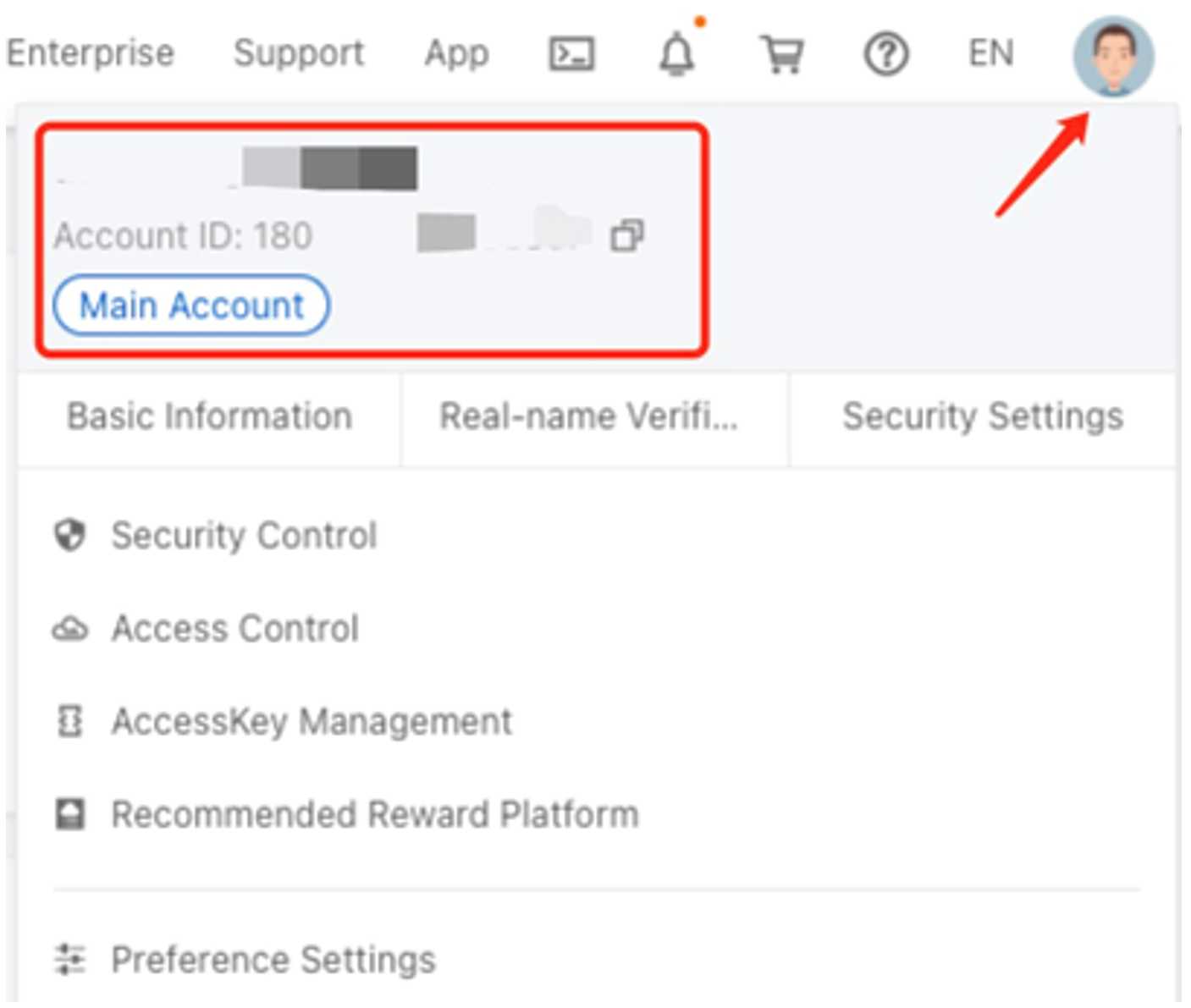
Log in to your Ali cloud and check the account ID: click the account information on the right-upper corner — there is a number for account ID. Provide it to your local sale representative and tell them the Ali region for Pexip installation, they will share the Pexip Infinity software to your Ali account in that specific region.
Deploying a Management Node in Ali Cloud
-
Configure your ECS instances:
- From the Ali ECS Console (ECS stands for Elastic Compute Service), select and click .
-
Enter the Basic Configuration:
Billing method Pay-as-you-go Region The region and zone for this Pexip instance Instance Type 4 vCPU and 4 GB for hardware requirement Quantity 1 units Image Shared image and select the Pexip Software from drop-down list Storage 100 GB and standard SSD 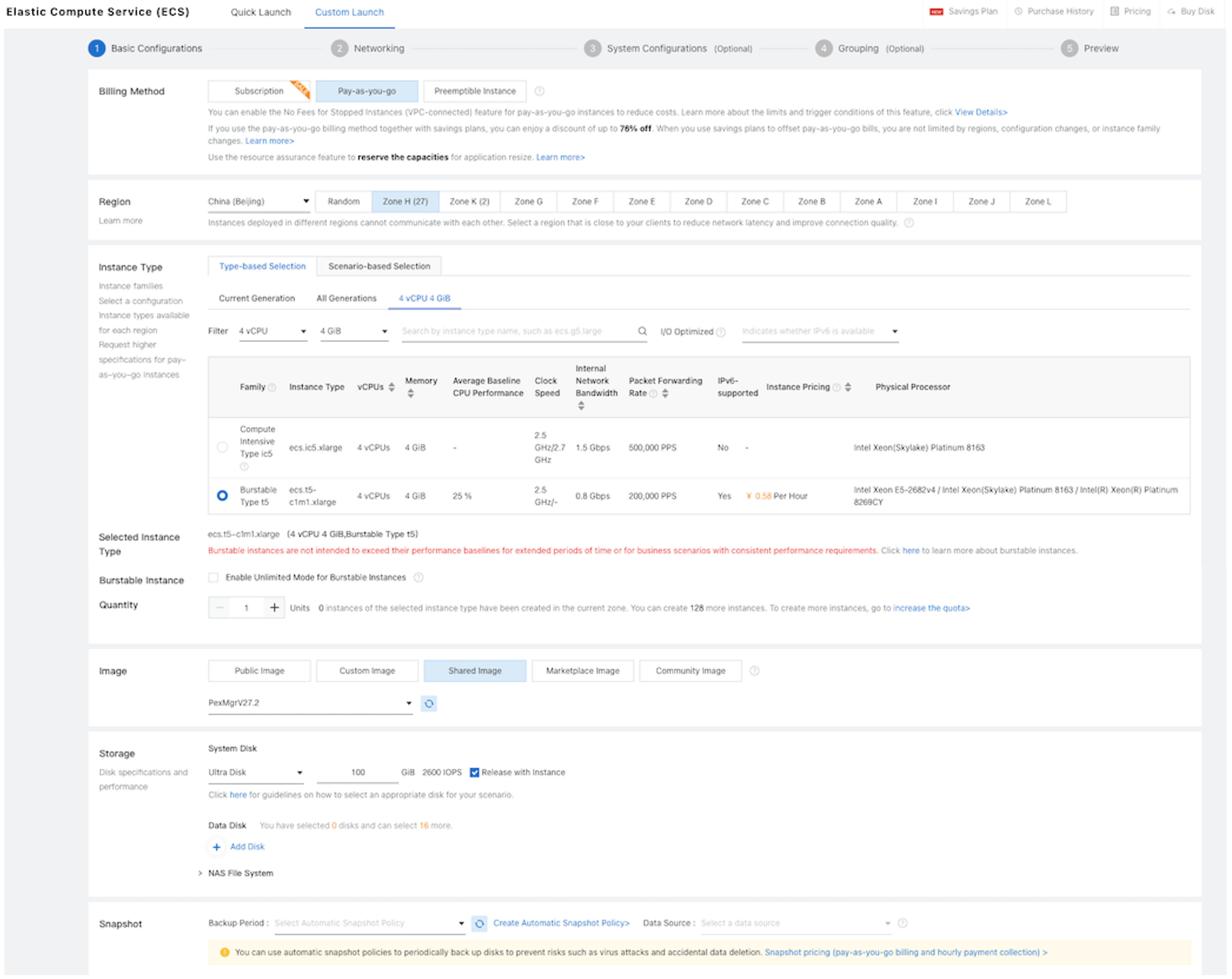
- Click to continue.
-
Configure the Networking settings:
-
Enter the following settings:
VPC Select your current VPC or go to the VPC console to create one Public IP Address Assign Public IPv4 Address Bandwidth Billing Pay-By-Traffic Peak Bandwidth 25M Security Group Create one group for Pexip; both Inbound and Outbound are the same

Elastic Network Interface Your local vSwitch 
- Click to continue.
-
-
Entering the System Configuration:
-
Enter the following settings (leave the rest as default):
Logon credentials Set Later Instance Name A name of your choice, for example "Pexip_mgmt_ali" - Click to continue then .
-
-
After the VM is generated, you can see the node's private IP and public IP in the instance page.
Running the installation wizard
When you open the console window on the Management Node VM, the following prompt appears:pexipmcumgr login:
To run the installation wizard:
-
At the prompt, enter the username admin.
The display reads:
You are required to change your password immediately (administrator enforced)New password: -
Create a password for the Management Node operating system by typing the password, pressing Enter, retyping the password, and pressing Enter again.
-
Ensure you record the password in a secure location. After you have finished running the installation wizard you will not need the password again unless you need to access the Management Node using SSH.
You are presented with another login prompt:
[sudo] password for admin: -
Log in again with the password you just created.
The Pexip installation wizard starts.
-
Complete the installation wizard to apply basic configuration to the Management Node:
IP address
Network mask
GatewayAccept the defaults for the IP address, Network mask and Gateway settings. Hostname
Domain suffixEnter your required Hostname and Domain suffix for the Management Node. DNS servers Configure one or more DNS servers. You must override the default values if it is a private deployment. NTP servers Configure one or more NTP servers. You must override the default values if it is a private deployment. Web administration username
PasswordSet the Web administration username and password. Enable incident reporting Select whether or not to Enable incident reporting. Send deployment and usage statistics to Pexip Select whether or not to Send deployment and usage statistics to Pexip. The DNS and NTP servers at the default addresses are only accessible if your instance has a public IP address.
The installation wizard will fail if the NTP server address cannot be resolved and reached.
The installation begins and the Management Node restarts using the values you have configured.
When the Management Node has restarted the console displays a login prompt:<hostname> login:
At this point you can close the console. All further configuration should now be done (if you encounter SSL connection errors when using the Administrator interface, wait a few seconds to allow the relevant services to start before trying again).
Initial platform configuration
After you have run the installation wizard, you must perform some preliminary configuration of the Pexip Infinity platform before you can deploy a Conferencing Node.
This section lists the configuration required, and provides a summary of each step with a link to further information.
All configuration should be done using the Pexip Infinity Administrator interface.
No changes should be made to any Pexip VM via the terminal interface (other than as described when running the initial Pexip installation wizard) unless directed to do so by Pexip support. This includes (but is not limited to) changes to the time zone, changes to IP tables, configuration of Ethernet interfaces, or the installation of any third-party code/applications.
Accessing the Pexip Infinity Administrator interface
The Pexip Infinity Administrator interface is hosted on the Management Node. To access this:
- Open a web browser and type in the IP address or DNS name that you assigned to the Management Node using the installation wizard (you may need to wait a minute or so after installation is complete before you can access the Administrator interface).
-
Until you have uploaded appropriate TLS certificates to the Management Node, your browser may present you with a warning that the website's security certificate is not trusted. You should proceed, but upload appropriate TLS certificates to the Management Node (and Conferencing Nodes, when they have been created) as soon as possible.
The login page will appear.
- Log in using the web administration username and password you set using the installation wizard.
You are now ready to begin configuring the Pexip Infinity platform and deploying Conferencing Nodes.
As a first step, we strongly recommend that you configure at least 2 additional NTP servers or NTP server pools to ensure that log entries from all nodes are properly synchronized. For details, see Syncing with NTP servers.
You can also configure the Pexip Infinity platform to authenticate and authorize login accounts via a centrally managed LDAP-accessible server, such as a Windows Active Directory LDAP server, and/or an OpenID Connect (OIDC) provider such as Azure.
It may take some time for any configuration changes to take effect across the Conferencing Nodes. In typical deployments, configuration replication is performed approximately once per minute. However, in very large deployments (more than 60 Conferencing Nodes), configuration replication intervals are extended, and it may take longer for configuration changes to be applied to all Conferencing Nodes (the administrator log shows when each node has been updated).
Brief details of how to perform the initial configuration are given below.
Configuring the Pexip Infinity platform
This table lists the Pexip Infinity platform configuration steps that are required before you can deploy Conferencing Nodes and make calls.
| Configuration step | Purpose |
|---|---|
|
1. Enable DNS
|
Pexip Infinity uses DNS to resolve the hostnames of external system components including NTP servers, syslog servers, SNMP servers and web proxies. It is also used for call routing purposes — SIP proxies, gatekeepers, external call control and conferencing systems and so on. The address of at least one DNS server must be added to your system. You will already have configured at least one DNS server when running the install wizard, but you can now change it or add more DNS servers. See Configuring DNS servers for more information. |
|
2. Enable NTP
|
Pexip Infinity uses NTP servers to obtain accurate system time. This is necessary to ensure correct operation, including configuration replication and log timestamps. We strongly recommend that you configure at least three distinct NTP servers or NTP server pools on all your host servers and the Management Node itself. This ensures that log entries from all nodes are properly synchronized. You will already have configured at least one NTP server when running the install wizard, but you can now change it or add more NTP servers. See Syncing with NTP servers for more information. |
|
3. Add licenses () |
You must install a system license with sufficient concurrent call capacity for your environment before you can place calls to Pexip Infinity services. See Pexip Infinity license installation and usage for more information. |
|
4. Add a system location () |
These are labels that allow you to group together Conferencing Nodes that are in the same datacenter. You must have at least one location configured before you can deploy a Conferencing Node. See About system locations for more information. |
|
5. Upload TLS certificates () |
You must install TLS certificates on the Management Node and — when you deploy them — each Conferencing Node. TLS certificates are used by these systems to verify their identity to clients connecting to them. All nodes are deployed with self-signed certificates, but we strongly recommend they are replaced with ones signed by either an external CA or a trusted internal CA. See Managing TLS and trusted CA certificates for more information. |
|
6. Add Virtual Meeting Rooms () |
Conferences take place in Virtual Meeting Rooms and Virtual Auditoriums. VMR configuration includes any PINs required to access the conference. You must deploy at least one Conferencing Node before you can call into a conference. See Configuring Virtual Meeting Rooms (VMRs) for more information. |
|
7. Add an alias for the Virtual Meeting Room (done while adding the Virtual Meeting Room) |
A Virtual Meeting Room or Virtual Auditorium can have more than one alias. Conference participants can access a Virtual Meeting Room or Virtual Auditorium by dialing any one of its aliases. See About aliases and access numbers for more information. |
Deploying a Conferencing Node in Ali Cloud
-
Configure your ECS instances:
- From the Ali ECS Console (ECS stands for Elastic Compute Service), select and click .
-
Enter the Basic Configuration:
Billing method Pay-as-you-go Region The region and zone for this Pexip instance Instance Type 8 vCPU and 16 GB for hardware requirement (more is better) Quantity 1 units Image Shared image and select the Pexip Software from drop-down list Storage 50 GB and standard SSD is preferred 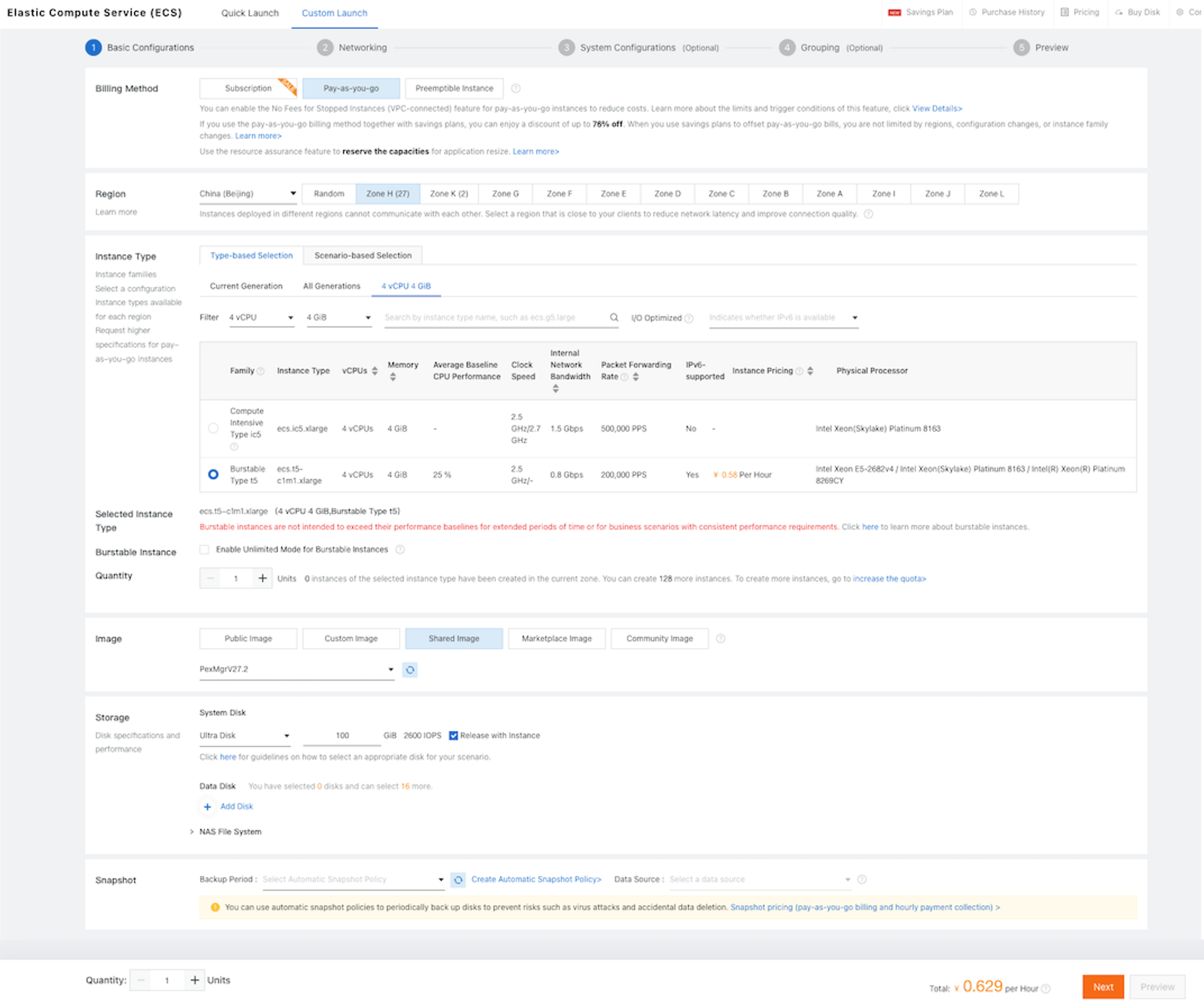
- Click to continue.
-
Configure the Networking settings:
-
Enter the following settings:
VPC Select your current VPC or go to the VPC console to create one Public IP Address Assign Public IPv4 Address Bandwidth Billing Pay-By-Traffic Peak Bandwidth 100M Security Group Create one group for Pexip; both Inbound and Outbound are the same

Elastic Network Interface Your local vSwitch 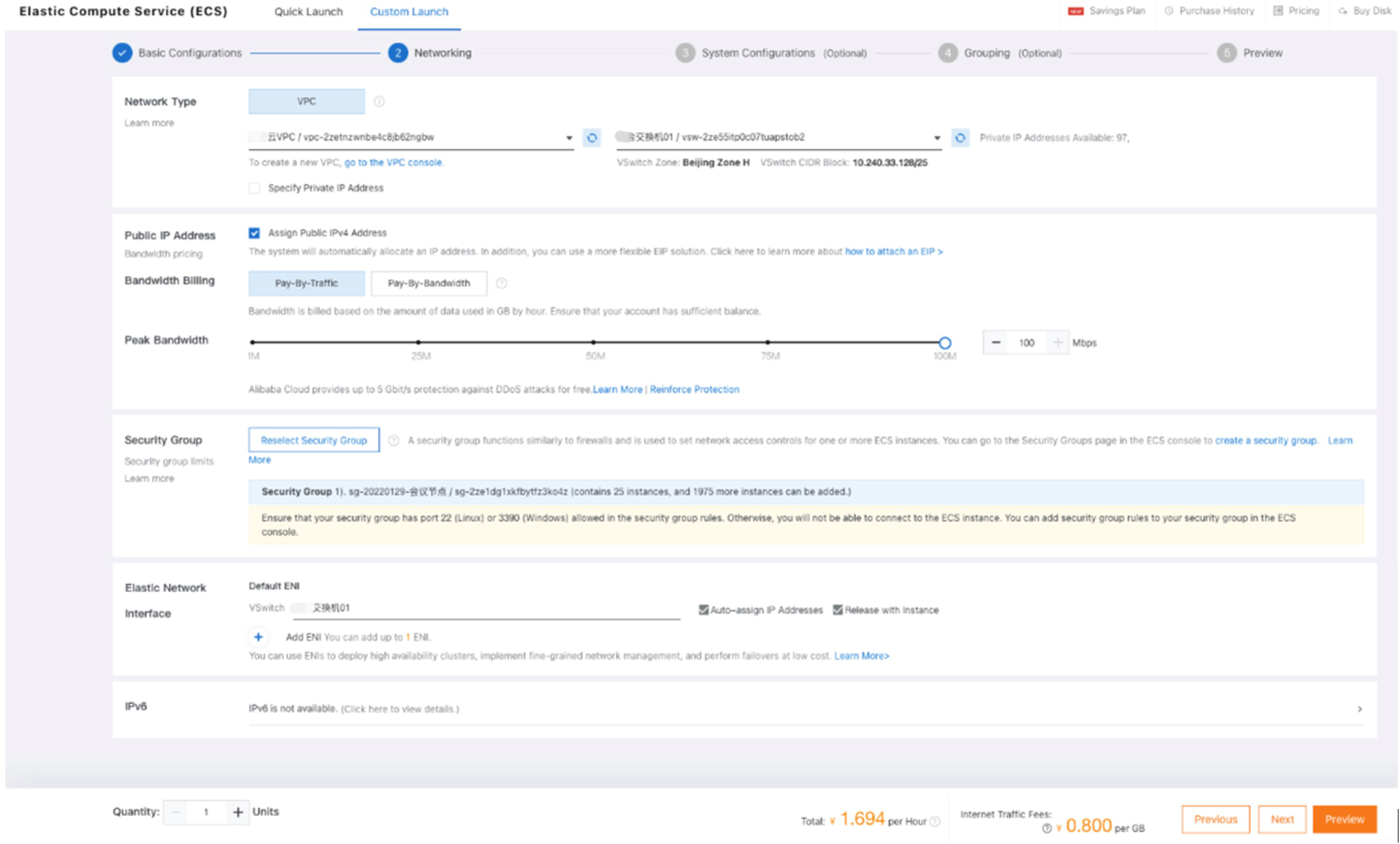
- Click to continue.
-
-
Entering the System Configuration:
-
Enter the following settings (leave the rest as default):
Logon credentials Set Later Instance Name A name of your choice, for example "Pexip_conf_xx_ali" - Click to continue then .
-
-
After the VM is generated, you can see the node's private IP and public IP in the instance page.
Generating, downloading and deploying the configuration file
- From the Pexip Infinity Administrator interface, go to and select .
-
You are now asked to provide the network configuration to be applied to the Conferencing Node, by completing the following fields:
Option Description Name Enter the name to use when referring to this Conferencing Node in the Pexip Infinity Administrator interface. Description An optional field where you can provide more information about the Conferencing Node. Role This determines the Conferencing Node's role:
- Proxying Edge Node: a Proxying Edge Node handles all media and signaling connections with an endpoint or external device, but does not host any conferences — instead it forwards the media on to a Transcoding Conferencing Node for processing.
- Transcoding Conferencing Node: a Transcoding Conferencing Node handles all the media processing, protocol interworking, mixing and so on that is required in hosting Pexip Infinity calls and conferences. When combined with Proxying Edge Nodes, a transcoding node typically only processes the media forwarded on to it by those proxying nodes and has no direct connection with endpoints or external devices. However, a transcoding node can still receive and process the signaling and media directly from an endpoint or external device if required.
Hostname Domain
Enter the hostname and domain to assign to this Conferencing Node. Each Conferencing Node and Management Node must have a unique hostname.
The Hostname and Domain together make up the Conferencing Node's DNS name or FQDN. We recommend that you assign valid DNS names to all your Conferencing Nodes. For more information, see Assigning node hostnames and FQDNs.
IPv4 address Enter the IP address to assign to this Conferencing Node when it is created.
This should be the Private IP Address of the instance.
Network mask Enter the IP network mask to assign to this Conferencing Node.
Typically, this is 255.255.255.0.
Note that IPv4 address and Network mask apply to the eth0 interface.
Gateway IPv4 address Enter the IP address of the default gateway to assign to this Conferencing Node.
This the first host address in the CIDR of the instance's subnet.
Note that the Gateway IPv4 address is not directly associated with a network interface, except that the address entered here lies in the subnet in which either eth0 or eth1 is configured to use. Thus, if the gateway address lies in the subnet in which eth0 lives, then the gateway will be assigned to eth0, and likewise for eth1.
Secondary interface IPv4 address Leave this option blank as dual network interfaces are not supported on Conferencing Nodes deployed in public cloud services.
Secondary interface network mask Leave this option blank as dual network interfaces are not supported on Conferencing Nodes deployed in public cloud services.
Note that Secondary interface IPv4 address and Secondary interface network mask apply to the eth1 interface.
SNMP mode Conferencing Nodes can be monitored using SNMP, and they can also be configured to send SNMP traps to an SNMP Network Management System (NMS). System location Select the physical location of this Conferencing Node. A system location should not contain a mixture of proxying nodes and transcoding nodes.
If the system location does not already exist, you can create a new one here by clicking
 to the right of the field. This will open up a new window showing the page. For further information see About system locations.
Configured FQDN A unique identity for this Conferencing Node, used in signaling SIP TLS Contact addresses. For more information, see Assigning a Configured FQDN. TLS certificate The TLS server certificate to use on this node. This must be a certificate that contains the above Configured FQDN. Each certificate is shown in the format <subject name> (<issuer>). Client TLS certificate The TLS certificate to use on this node when responding to SIP/TLS client certificate challenges. Client TLS certificates are typically not required in most deployments.
IPv6 address The IPv6 address for this Conferencing Node. Each Conferencing Node must have a unique IPv6 address.
Gateway IPv6 address The IPv6 address of the default gateway.
If this is left blank, the Conferencing Node listens for IPv6 Router Advertisements to obtain a gateway address.
IPv4 static NAT address Configure the Conferencing Node's static NAT address, if you have a assigned a public/external IP address to the instance.
This should be the Public IP Address of the instance.
For more information, see Configuring Pexip Infinity nodes to work behind a static NAT device.
Static routes From the list of Available Static routes, select the routes to assign to the node, and then use the right arrow to move the selected routes into the Chosen Static routes list. For more information, see Managing static routes. Enable distributed database This should usually be enabled (checked) for all Conferencing Nodes that are expected to be "always on", and disabled (unchecked) for nodes that are expected to only be powered on some of the time (e.g. cloud bursting nodes that are likely to only be operational during peak times).
Enable SSH Determines whether this node can be accessed over SSH.
Use Global SSH setting: SSH access to this node is determined by the global Enable SSH setting ().
Off: this node cannot be accessed over SSH, regardless of the global Enable SSH setting.
On: this node can be accessed over SSH, regardless of the global Enable SSH setting.
Default: Use Global SSH setting.
SSH authorized keys You can optionally assign one or more SSH authorized keys to use for SSH access.
From the list of Available SSH authorized keys, select the keys to assign to the node, and then use the right arrow to move the selected keys into the Chosen SSH authorized keys list.
Note that in cloud environments, this list does not include any of the SSH keys configured within that cloud service.
For more information, see Configuring SSH authorized keys.
Use SSH authorized keys from cloud service When a node is deployed in a cloud environment, you can continue to use the SSH keys configured within the cloud service where available, in addition to any of your own assigned keys (as configured in the field above). If you disable this option you can only use your own assigned keys.
Default: enabled.
- Select .
-
You are now asked to complete the following fields:
Option Description Deployment type Select Generic (configuration-only).
SSH password Enter the password to use when logging in to this Conferencing Node's Linux operating system over SSH. The username is always admin.
Logging in to the operating system is required when changing passwords or for diagnostic purposes only, and should generally be done under the guidance of your Pexip authorized support representative. In particular, do not change any configuration using SSH — all changes should be made using the Pexip Infinity Administrator interface.
-
Select .
A message appears at the top of the page: "The Conferencing Node image will download shortly or click on the following link".
After a short while, a file with the name pexip-<hostname>.<domain>.xml is generated and downloaded.
Note that the generated file is only available for your current session so you should download it immediately.
-
Browse to https://<conferencing-node-ip>:8443/ and use the form provided to upload the configuration file to the Conferencing Node VM.
If you cannot access the Conferencing Node, check that you have allowed the appropriate source addresses in your
The Conferencing Node will apply the configuration and reboot. After rebooting, it will connect to the Management Node in the usual way.
You can close the browser window used to upload the file.
After deploying a new Conferencing Node, it takes approximately 5 minutes before the node is available for conference hosting and for its status to be updated on the Management Node. Until it becomes available, the Management Node reports the status of the Conferencing Node as having a last contacted and last updated date of "Never". "Connectivity lost between nodes" alarms relating to that node may also appear temporarily.
Configuring Pexip Infinity nodes to work behind a static NAT device
If you need your Pexip Infinity nodes to work behind a static NAT device, see Network routing and addressing options for Conferencing Nodes.