Using Pexip Infinity as a Skype for Business gateway
Pexip Infinity can act as a gateway between Skype for Business and standards-based endpoints. This enables SfB clients to:
- invite H.323/SIP endpoints and registered Pexip apps into a SfB meeting via manual dialout or drag and drop from the contacts list
- use the Infinity Gateway to route incoming calls directly into an ad hoc or scheduled SfB meeting
- when dialed into a Pexip VMR conference, invite other SfB or external contacts into that same Pexip VMR (this creates a new SfB meeting which is merged with the existing Pexip VMR)
- receive and initiate person-to-person calls with standards-based devices, and then optionally add other participants (to escalate to a multipoint SfB meeting).
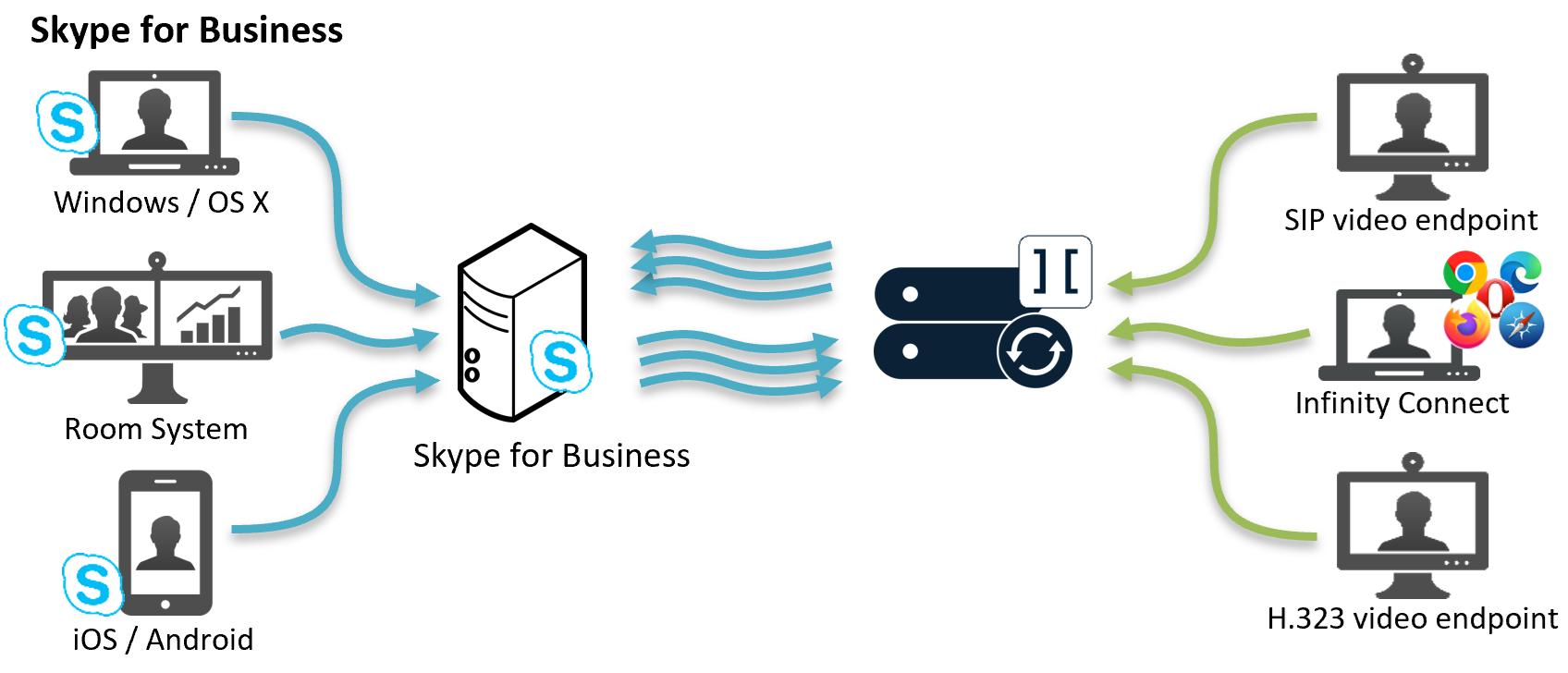
This topic covers:
- Using the Infinity Gateway
- Configuring rules to allow Skype for Business to dial out to other devices via the gateway
- Configuring rules to allow devices to call Skype for Business clients via the gateway
- Configuring rules to use Pexip Infinity as a gateway into SfB meetings
- Ensuring each Conferencing Node's TLS FQDN is set (all gateway scenarios)
SfB clients can also use the Infinity Gateway service to dial out to an RTMP streaming or recording service from within a SfB meeting.
Using the Infinity Gateway
The Infinity Gateway is configured as a series of Call Routing Rules that specify which calls should be interworked and to where.
Incoming calls received by Pexip Infinity are routed as follows:
- Pexip Infinity receives an incoming call via one of its Conferencing Nodes.
- It checks whether the destination alias belongs to a Virtual Meeting Room, Virtual Auditorium, Virtual Reception, scheduled conference, Media Playback Service, or Test Call Service; if so, it directs the call to that service.
- If the alias does not belong to any of the above services, Pexip Infinity checks the Call Routing Rules to see if the alias matches any rules specified there for incoming calls. If so, it places an Infinity Gateway call to the destination alias according to the rule's call target settings (which protocol, location and call control system to use, whether to route to registered devices only, etc).
This means that if an alias matches both a Virtual Meeting Room and a Call Routing Rule, the former will always take precedence and the call will be routed to the Virtual Meeting Room. You must therefore ensure that any regular expressions used in a Call Routing Rule do not unintentionally overlap with any aliases used by a Virtual Meeting Room, Virtual Auditorium, Virtual Reception, scheduled conference, Media Playback Service, or Test Call Service.
If you configure your Infinity Gateway to support all of the SfB scenarios described here, you will have Call Routing Rules similar to those shown below:
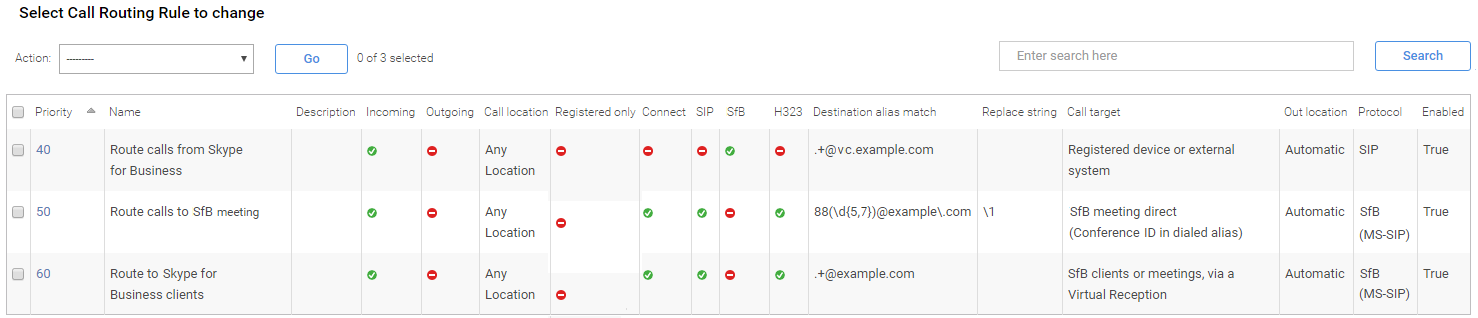
Example routing rules
 Configuring rules to allow Skype for Business to dial out to other devices via the gateway
You can configure a Call Routing Rule that enables SfB clients to initiate point-to-point calls with standards-based devices or other external platforms, and to invite other endpoints into a SfB meeting.
To configure the rule:
- Go to and select .
-
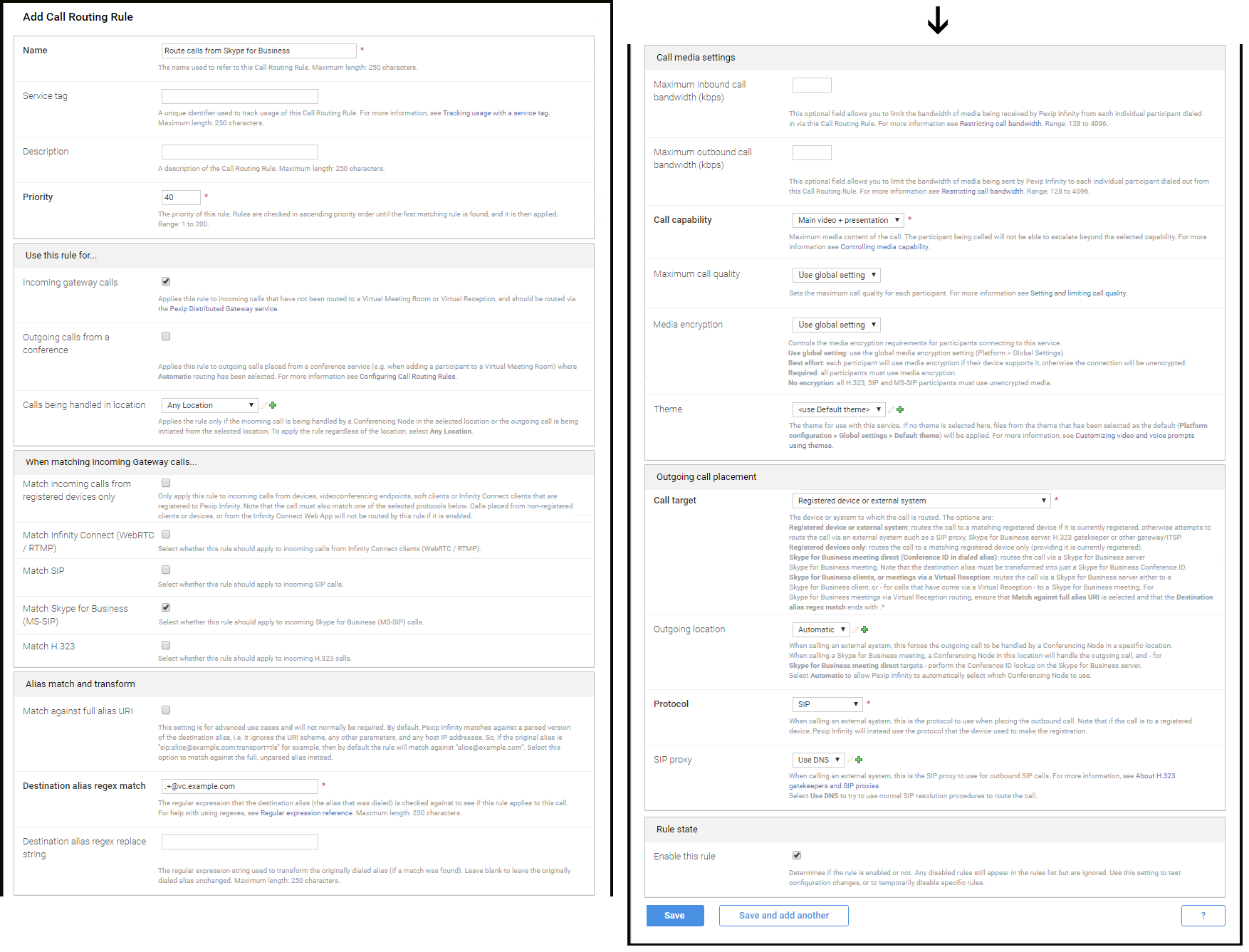
Configure the following fields (leave all other fields with default values or as required for your specific deployment):
Option Description Name The name you will use to refer to this rule. Priority Assign the priority for this rule. Incoming gateway calls Ensure this option is selected. Outgoing calls from a conference Leave unselected. Match Infinity Connect (WebRTC / RTMP)
Match SIP
Match Skype for Business (MS-SIP)
Match H.323
Match TeamsSelect Match Skype for Business (MS-SIP) and leave the other protocols unselected.
(This rule is only handling call requests received from the SfB environment.)
Match against full alias URI Leave unselected. Destination alias regex match Enter a regular expression that will match the calls received from the SfB environment. For example, to match any alias in the vc.example.com domain:
.+@vc.example.com
Destination alias regex replace string If required, enter the regular expression string to transform the originally dialed (matched) alias into the alias to use to place the outbound call. If you do not need to change the alias, leave this field blank. Call target Select either Registered device or external system or Registered devices only, or an external platform such as Google Meet meeting, depending upon your requirements. Protocol The protocol used to place the outgoing call. This will be either SIP or H.323.
If you want to place the call over both SIP and H.323, you will need to create 2 rules, one per protocol.
Note that if the call is being placed to a registered device, such as a Pexip desktop app, Pexip Infinity will always use the protocol that the device used to make the registration.
SIP Proxy You can optionally specify the SIP Proxy to use to place an outgoing SIP call. H.323 Gatekeeper You can optionally specify the H.323 Gatekeeper to use to place an outgoing H.323 call. - Select .
Configuring rules to allow devices to call Skype for Business clients via the gateway
You can configure a Call Routing Rule that enables non-SfB devices, such as SIP and H.323 endpoints or Pexip apps, to make point-to-point calls to SfB clients.
To configure the rule:
- Go to and select .
-
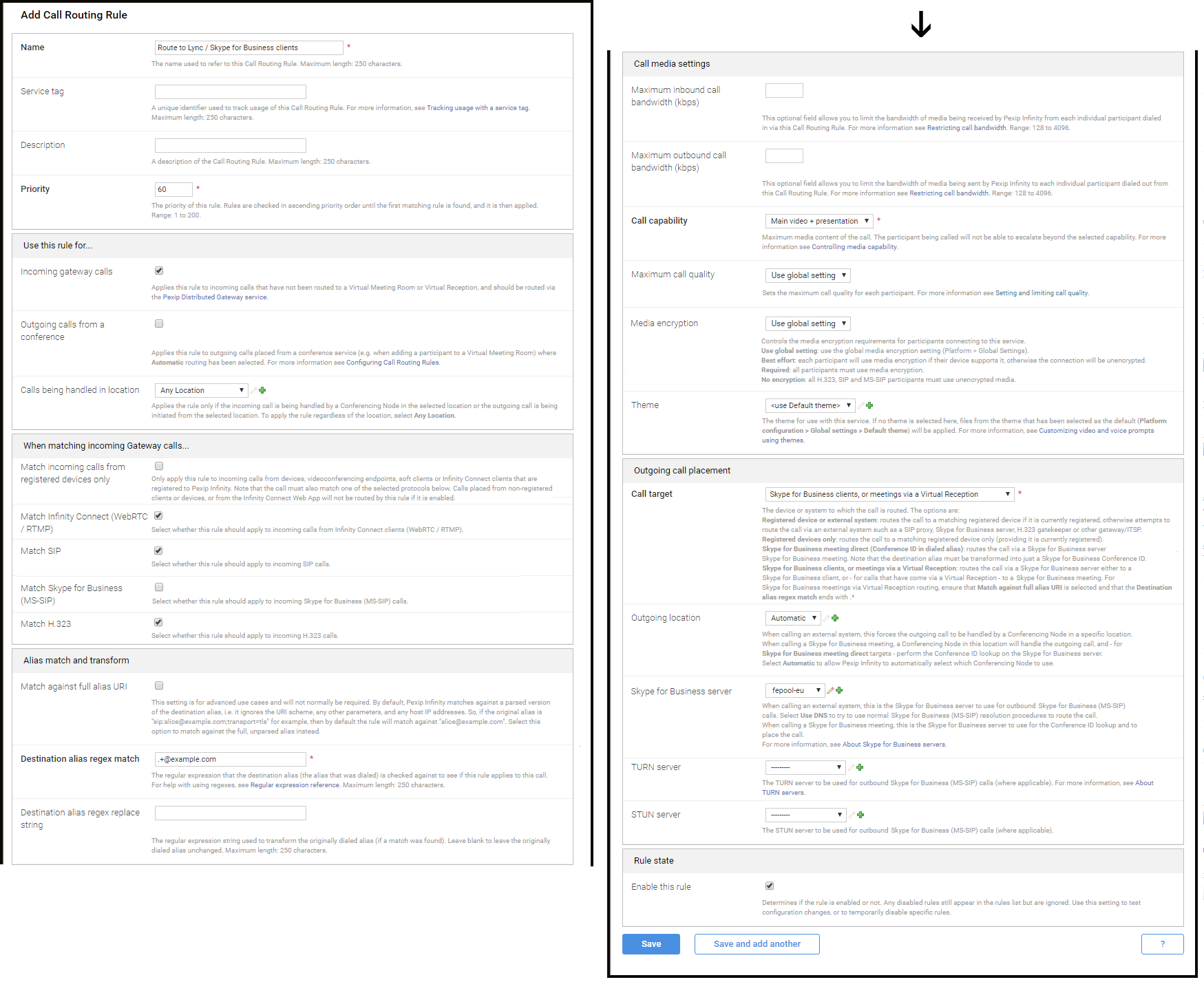
Configure the following fields (leave all other fields with default values or as required for your specific deployment):
Option Description Name The name you will use to refer to this rule. Priority Assign the priority for this rule. Incoming gateway calls Ensure this option is selected. Outgoing calls from a conference Leave unselected. Match Infinity Connect (WebRTC / RTMP)
Match SIP
Match Skype for Business (MS-SIP)
Match H.323
Match TeamsSelect one or more of Match Infinity Connect (WebRTC / RTMP), Match SIP, Match H.323 and Match Teams as appropriate.
(Do not select Match Skype for Business (MS-SIP) as this rule is only handling call requests received from outside the SfB environment.)
Match against full alias URI Leave unselected. Destination alias regex match Enter a regular expression that will match the calls to be sent to the SfB environment. For example, to match any alias in the example.com domain:
.+@example.com
Destination alias regex replace string If required, enter the regular expression string to transform the originally dialed (matched) alias into the alias to use to place the SfB call. If you do not need to change the alias, leave this field blank.
Call target Select clients, or meetings via a Virtual Reception (we want to route the calls to SfB clients via an external SfB server). Outgoing location If required, you can ensure that the outgoing call to SfB is handled by a Conferencing Node in a specific location.
If an outgoing location is not specified, the call is placed from a Conferencing Node in the ingress location (the same location as the Conferencing Node that is handling the incoming call).
Skype for Business server Select the SfB server that you want to use to handle the call, for example fepool-eu. - Select .
Configuring rules to use Pexip Infinity as a gateway into SfB meetings
In addition to Pexip Infinity acting as a point-to-point gateway between non-SfB devices (such as SIP and H.323 endpoints or Pexip apps) and SfB clients, you can also configure the Infinity Gateway so that it can route calls from those external devices directly into ad hoc or scheduled SfB meetings.
All calls are routed into the SfB meetings by means of the SfB Conference ID that is associated with the SfB meeting. The SfB Conference ID is typically a 5-7 digit number. For scheduled meetings it will normally be included in the meeting invitation.
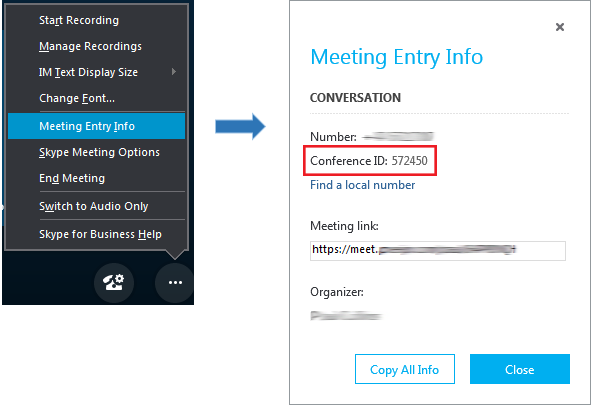
For ad hoc conferences, existing SfB participants in the conference can find the Conference ID by selecting the option (see picture).
There are two ways you can configure these gateway calls within Pexip Infinity:
- Routing indirectly via a Virtual Reception: here you configure Pexip Infinity to act as a SfB IVR gateway or "lobby" by configuring a Virtual Reception to prompt the caller to enter the Conference ID of the required conference, and then use a Call Routing Rule to route the call into the SfB meeting.
- Routing directly via the Infinity Gateway: here you use a single Call Routing Rule to route incoming calls for specific alias patterns — that will typically include the Conference ID — directly into the relevant SfB meetings.
You can use either or both of these two methods, depending upon your requirements. The configuration required for these methods is explained below (see Routing indirectly via a Virtual Reception (IVR gateway) and Routing directly via the Infinity Gateway). Also included are some guidelines for SfB configuration to use Pexip Infinity as a SfB gateway.
Note that:
- Routing into an ad hoc or scheduled SfB meeting via its Conference ID is only supported within on-premises SfB deployments, as the Conferencing Nodes must be trusted applications within the SfB environment.
- Non-SfB video callers will see a holding screen until a SfB client joins the conference with video.
- No indicators or name overlays are included in the external device's video stream that is sent to the SfB meeting.
- Each participant who is gatewayed via Pexip Infinity into a SfB meeting consumes two call licenses (one for the inbound leg of the call and one for the outbound leg, as is standard for calls via the Infinity Gateway calls). Any external participants who are connected directly to the SfB meeting do not consume a license. When viewing the status of the gateway call (), the tab also lists the other participants in the conference. Note that only the gatewayed participant is shown as consuming a license. The outbound leg of the gateway call (into the SfB meeting), which consumes the second license of each gateway call, is not represented in the participant list.
Routing indirectly via a Virtual Reception (IVR gateway)
To route calls to SfB meetings via a Virtual Reception (IVR gateway) you need:
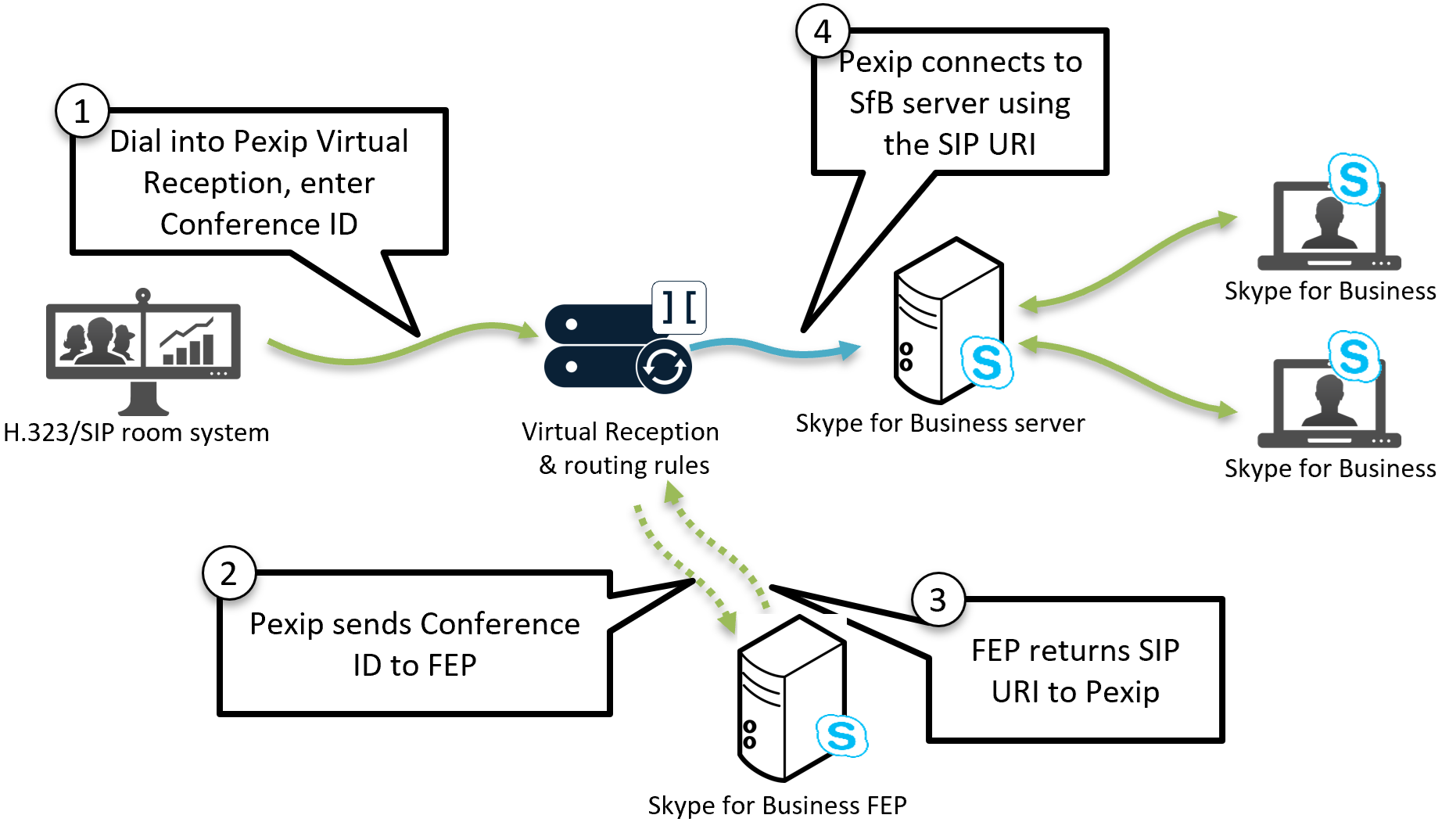
- A Virtual Reception configured specifically to handle SfB meetings.
- A Call Routing Rule to route the calls handled by the Virtual Reception into the relevant SfB meeting (typically you will adapt your existing rule configured above that routes point-to-point calls to SfB clients).
The Virtual Reception requests the caller to enter the SfB Conference ID (typically a 5-7 digit number) which it then uses to retrieve the full conference URI from the SfB server. The Infinity Gateway then matches this conference URI and routes the caller to the appropriate SfB meeting.
To configure the Virtual Reception:
- Go to and select .
-
Configure the following fields (leave all other fields with default values or as required for your specific deployment):
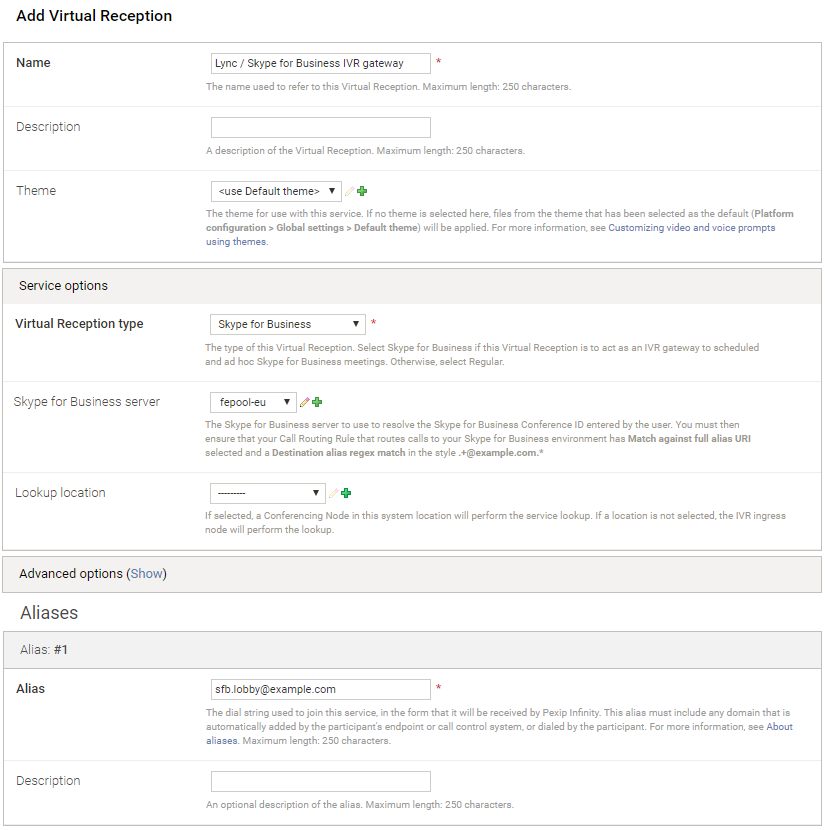
Option Description Name The name you will use to refer to this Virtual Reception, for example "Skype for Business IVR gateway". Theme Optionally, you may want to assign a specific theme to this Virtual Reception to brand it as the gateway to SfB conferences, for example by customizing the voice prompts. Virtual Reception type Select . Skype for Business server Select the SfB server to use to resolve the SfB Conference ID, for example fepool-eu. Lookup location You can optionally specify the system location that will perform the SfB Conference ID lookup on the SfB server. If a location is not selected, the IVR ingress node will perform the lookup.
This can assist in scenarios where an external device connects to a Virtual Reception via a Conferencing Node in the DMZ and that node is not trusted by the SfB FEP. This allows you to nominate the location (in which the Conferencing Nodes are trusted by SfB) to perform the lookup.
Alias Enter the alias that users will dial to use this SfB gateway Virtual Reception, for example sfb.lobby@example.com. - Select .
To configure the Call Routing Rule:
- Go to .
- Select the existing Call Routing Rule that currently routes calls to your SfB clients (as configured in Configuring rules to allow devices to call Skype for Business clients via the gateway above).
-
Modify the following fields (leave all other fields unchanged):
Option Description Match against full alias URI Select this option.
(The alias of the SfB conference contains various parameters that must not be stripped away.)
Destination alias regex match Amend the regular expression to also match against aliases that contain parameters after the domain portion, for example:
.+@example\.com(;.*)?
Note that this rule will still continue to support the routing of point-to-point calls to SfB clients. This modification just enhances the scope of the rule to also include routing to SfB meetings.
- Select .

Using the SfB IVR gateway service
After the Virtual Reception and Call Routing Rule have been configured, non-SfB users can now dial the alias of the Virtual Reception (e.g. sfb.lobby@example.com) and then, when prompted by the IVR service, enter the SfB Conference ID of the conference they want to join.
The Infinity Gateway will then route the call into the appropriate SfB conference.
Note that:
-
SIP and H.323 endpoints can bypass having to enter the destination alias via DTMF tones. They would do this by including the SfB Conference ID in their dial string when dialing the Virtual Reception. The dial string should be in the format: <reception_alias>**<conference_id>@<domain>.
For example, if the alias of the Virtual Reception is sfb.lobby@example.com and the SfB Conference ID is 572450, then the endpoint can dial sfb.lobby**572450@example.com to be transferred directly into the SfB conference.
-
web app users can also be provided with a preconfigured link URL that, when clicked, will automatically provide the SfB Conference ID to the Virtual Reception and take the user directly into the SfB conference. The URL needs to be in the format:
https://<address>/webapp/conference/<reception_alias>?name=<name>&extension=<Conference ID>
for example https://vc.example.com/webapp/conference/sfb.lobby@example.com?name=Alice&extension=572450
Routing directly via the Infinity Gateway
To route calls to SfB meetings directly via the Infinity Gateway you need:
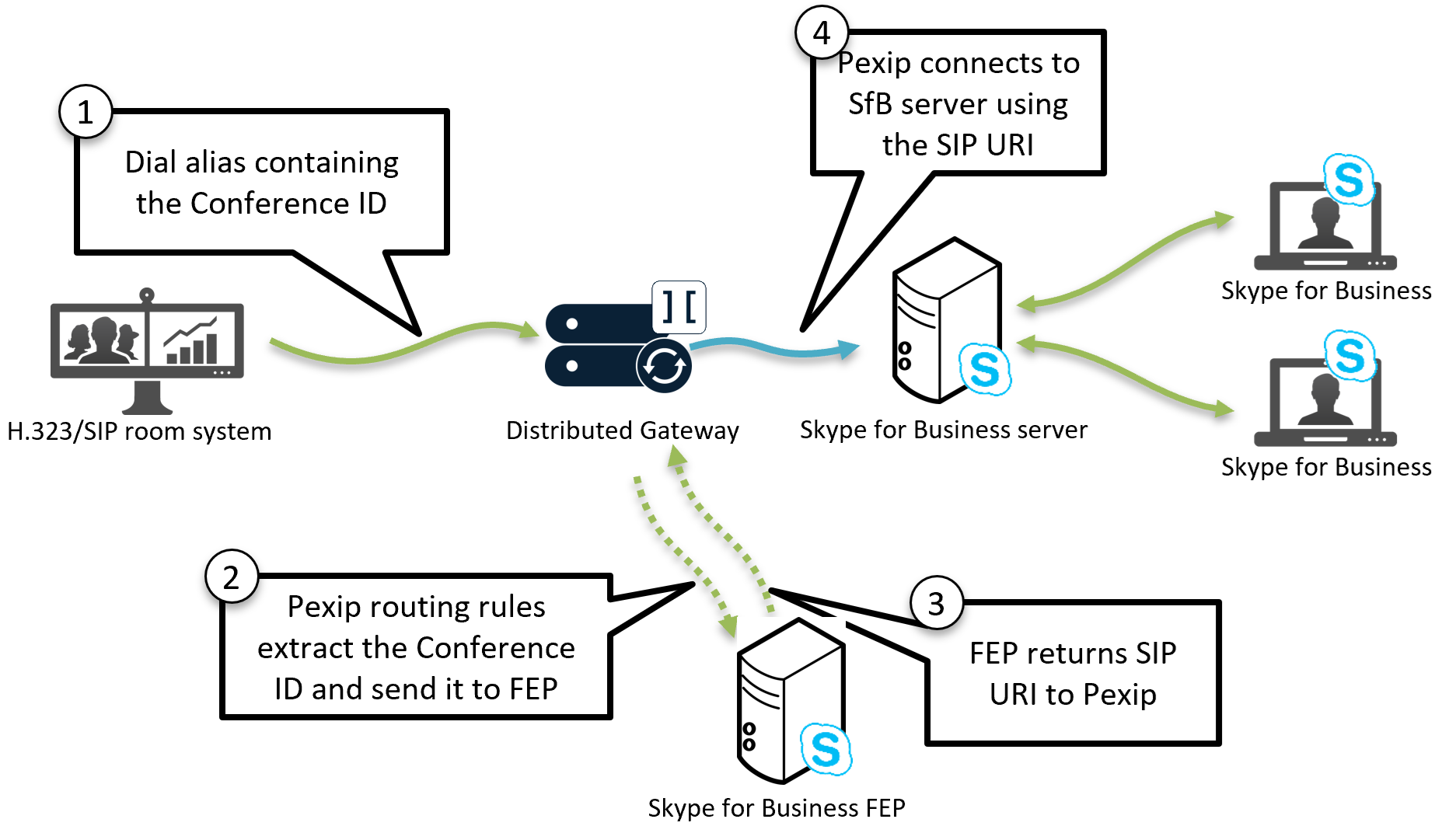
- To decide on an alias pattern that participants will dial to access the SfB meetings. The alias pattern will typically include the SfB Conference ID, for example the pattern could be: 88<ConferenceID>@example.com i.e. a prefix of 88 followed by the Conference ID, and thus the participant would dial 8812345@example.com to access a SfB meeting with a Conference ID of 12345. Note that a prefix is only required if you have a conflicting dial plan on your video conferencing side that could clash with your SfB Conference IDs.
- A Call Routing Rule that matches that alias pattern and transforms it such that it contains just the SfB Conference ID which it can then pass on to the target SfB server.
To configure the rule:
- Go to and select .
-
Configure the following fields (leave all other fields with default values or as required for your specific deployment):
Option Description Name The name you will use to refer to this rule. Priority Assign the priority for this rule. Incoming gateway calls Ensure this option is selected. Outgoing calls from a conference Leave unselected. Match Infinity Connect (WebRTC / RTMP)
Match SIP
Match Skype for Business (MS-SIP)
Match H.323
Match TeamsSelect one or more of Match Infinity Connect (WebRTC / RTMP), Match SIP, Match H.323 and Match Teams as appropriate.
(Do not select Match Skype for Business (MS-SIP) as this rule is only handling call requests received from outside the SfB environment.)
Match against full alias URI Leave unselected. Destination alias regex match Enter a regular expression that matches the calls to be sent to the SfB meeting. For example, to match any alias in the style of 88<ConferenceID>@example.com you could use:
88(\d{5,7})@example\.com
Note that \d{5,7} which matches the numeric 5-7 digit Conference ID, is enclosed in a ( ) group.
Destination alias regex replace string This must transform the dialed alias so that it only contains the Conference ID.
In our example, to extract the Conference ID from the dialed alias we would use: \1
which replaces the originally dialed alias with just the Conference ID group from the regex match field.Call target Select meeting direct (Conference ID in dialed alias).
This type of call target is specifically designed to take the Conference ID (that we extracted via the regex strings) and send it to the nominated SfB server so that the call can be routed into the SfB meeting.
Outgoing location If required, you can ensure that the outgoing call to SfB is handled by a Conferencing Node in a specific location. If an outgoing location is not specified, the call is placed from a Conferencing Node in the ingress location (the same location as the Conferencing Node that is handling the incoming call).
Skype for Business server Select the SfB server that you want to use to perform the Conference ID lookup and to handle the call, for example fepool-eu.
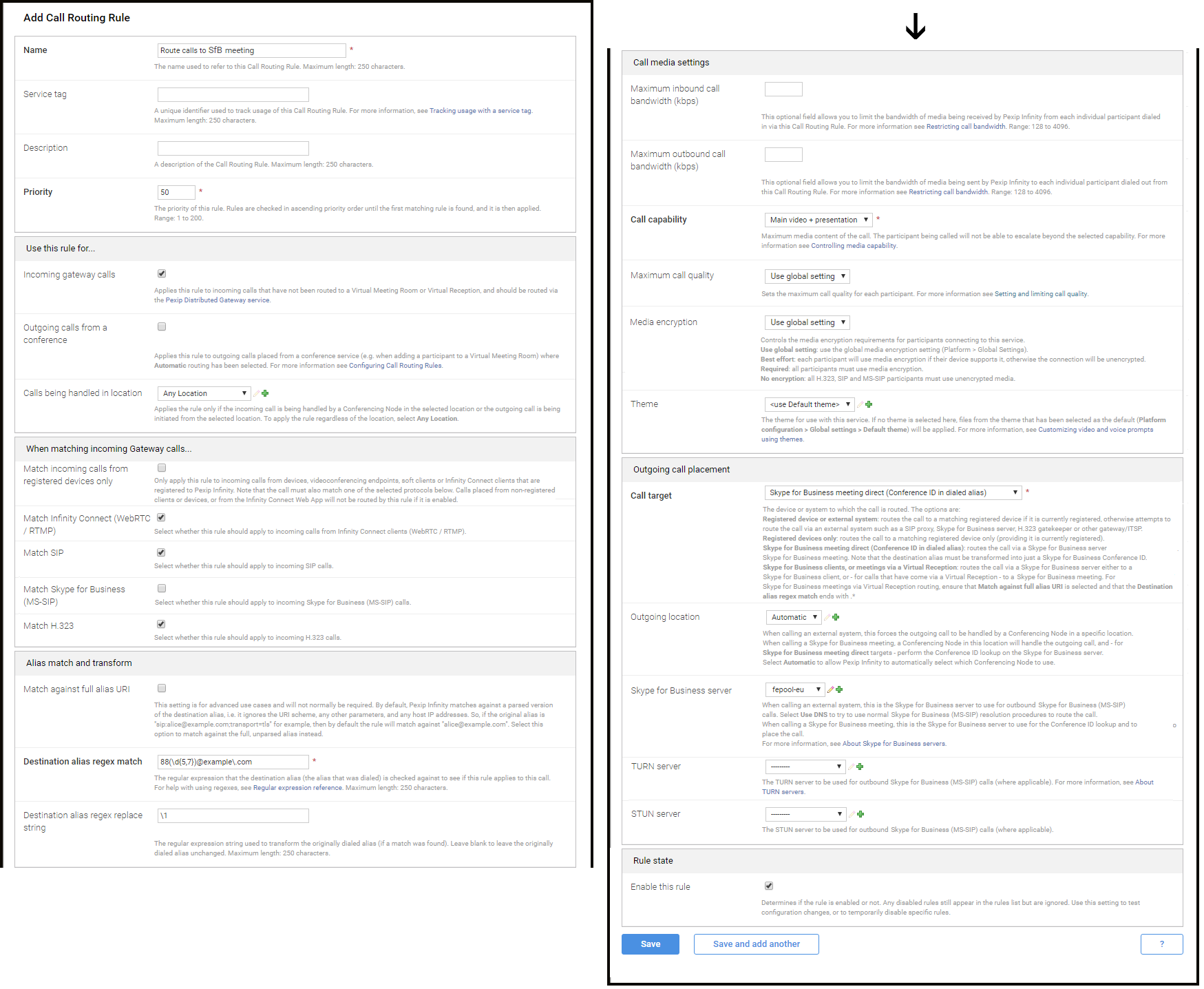
Using the direct SfB gateway service
After the Call Routing Rule has been configured, non-SfB users can now dial an alias that matches your specified pattern (e.g. 8812345@example.com) to be routed directly into the appropriate SfB meeting (in this example the SfB meeting with a Conference ID of 12345).
SfB configuration to use Pexip Infinity as a SfB gateway
Ensuring that SfB is configured with a dial-in access number
To ensure that a numeric SfB Conference ID is generated, your SfB environment must be configured with a conferencing dial-in access number.
Waiting in SfB's meeting lobby
Participants joining the SfB meeting may also be held in a Skype for Business meeting lobby.
Custom footer for meeting invites
You may also want to add a custom footer to the meeting invites that are sent out for scheduled conferences, so that it includes the alias details for the Pexip Infinity Virtual Reception that users will need to call (and from where they will enter the Conference ID).
Trusting Conferencing Nodes
When calling into a SfB meeting, by default, the SfB Conference ID lookup is invoked from the ingress node (the same Conferencing Node that is handling the incoming call) and the call to SfB is placed from the ingress location (the same location as the Conferencing Node that is handling the incoming call). In both cases you can override the default behavior by specifying the location that will perform the Conference ID lookup and the location that will place the outbound call.
The nodes that perform the lookup and place the call must be trusted by the Front End Pool to ensure call success.
Anonymous (unauthenticated) participant timeout
There is a SfB setting (AnonymousUserGracePeriod) that represents the amount of time an anonymous (unauthenticated) user, such as a gateway participant, can remain in a SfB meeting without an authenticated user being present in that same meeting. The default value is 90 minutes.
You can check the current value by using the following PowerShell command: Get-CsUserServicesConfiguration and you can set the timeout value with: Set-CsUserServicesConfiguration
For more information, see https://docs.microsoft.com/en-us/powershell/module/skype/Set-CsUserServicesConfiguration.
Ensuring each Conferencing Node's TLS FQDN is set (all gateway scenarios)
For any Pexip Infinity and SfB integration, you must ensure that each Conferencing Node is configured with its respective DNS hostname as the Configured FQDN. Pexip Infinity will present this as being the server name, and it must match the name on the certificate installed on the node. Each Conferencing Node must have a unique Configured FQDN.
This is done on the Management Node, by going to , choosing each node in turn and populating the Configured FQDN field.

The example above shows the Configured FQDN for the conf01 Conferencing Node, which is set to conf01.vc.example.com.
The Configured FQDN must be set even if you are using a TCP connection to SfB.