Configuring Pexip Infinity for Pexip Secure Scheduler for Web
This section explains how to configure Pexip Infinity for Scheduler for Web, certificate and network considerations, and other requirements. These steps must be completed before you proceed to Scheduler for Web installation.
Installing Pexip Infinity
You need to perform a basic installation and configuration of Pexip Infinity. Any of Pexip Infinity's deployment models may be used (on-premises, cloud-hosted etc). See Installation overview for more information.
Your Pexip Infinity platform does not have to be dedicated to Scheduler for Web — it can be used for other conferencing scenarios (subject to call capacity etc).
You must be using Pexip Infinity version 35 or later.
To enable RTMP streaming with Pexip Secure Scheduler for Web, a configuration change is currently required on your Pexip Infinity deployment. For information on the required change, please contact your Pexip authorized support representative with the reference GH-38804. Note that this modification must be reapplied after every upgrade of your Pexip Infinity platform.
Network and firewall requirements
- You must have one or more publicly-reachable Conferencing Nodes.
- Ensure that you have permitted an HTTPS, port 443 connection from the Pexip InfinityConferencing Nodes to the Scheduler for Web external policy server.
License requirements
Ensure that you have sufficient concurrent licenses (port) available () so that you have enough capacity to support the number of meetings and participants that will be joining. See Licenses for more information.
Configuring global settings
From the Pexip Infinity Administrator interface, go to and review and modify the settings where required.
Ensure that you select Enable Breakout Rooms in Breakout Rooms.
See Global Settings for more information.
Theme
Ensure that you create a suitable theme for your Scheduler for Web interactions.
Configuring Call Routing Rules
You must configure at least one Call Routing Rule to route calls within your deployment:
- If SIP dial-out is required, a mandatory general call rule: to route outgoing calls from a conference to a permitted SIP domain.
- An optional streaming/recording rule: to support streaming/recording that is initiated via the plugin.
- An optional streaming/recording rule: to route outgoing calls from a conference to any other permitted RTMP streaming platform that is initiated via the option within the web app.
To configure your Call Routing Rules:
- Go to and select .
-
The following table shows the fields to configure for your Call Routing Rules:
(Leave all other fields with default values or as required for your specific deployment.)
Option General call rule (mandatory) Plugin-initiated streaming/recording rule (optional) "Add participant"-initiated streaming/recording rule (optional) Name The name of the rule, e.g. " The name of the rule, e.g. " The name of the rule, e.g. " Priority Assign the priority for this rule. If you have other Call Routing Rules for other conferencing purposes you must ensure that an appropriate priority is set, in accordance with the Destination alias regex match settings of all of your rules, to ensure that these rules are applied for Scheduler for Web calls.
If you are specifying a plugin-initiated streaming/recording rule then set this to a higher priority (lower number) than any other rule that can match "rtmps://courts-core.stream/[0-4]".
Incoming gateway calls Leave unselected for all rules. Outgoing calls from a conference Ensure this option is selected for all rules. Calls being handled in location Typically you can select Any Location for all rules. Match against full alias URI Leave unselected. Select this option. Select this option. Destination alias regex match Enter a regular expression to match the calls to send to a session. For example:
(.*)@pexample.com
Use the following regular expression:
rtmps://courts-core.stream/[0-4]
You can use the following regular expression:
rtmps?://(.*)
however you may want to refine the regex for your specific recording/streaming solution.
Destination alias regex replace string Leave this field blank for all rules. Call capability Select Main video + presentation for all rules. Maximum call quality Typically you can select Use global setting for all rules. Media encryption Typically you can select Use global setting for all rules. Theme Select the theme you created for your Scheduler for Web interactions for all rules. Call target Select Registered device or external system for all rules. Outgoing location Choose a location used by the external policy server for all rules. Protocol Select SIP. Select RTMP (streaming). Select RTMP (streaming). SIP Proxy Select Use DNS for all rules. - Select .
- Repeat the above steps adding your second and subsequent rules as appropriate.
Authentication
For detailed information about managing administrator access via OIDC to the Pexip Infinity Administrator interface, go here.
The following instructions are an example for setting up Azure as an OIDC provider for your Pexip Infinity and Scheduler for Web deployment. If you wish to use a different Identity Provider, contact your Pexip authorized support representative. Authentication for the Scheduler for Web portal is configured separately after installation of the Scheduler for Web application.
-
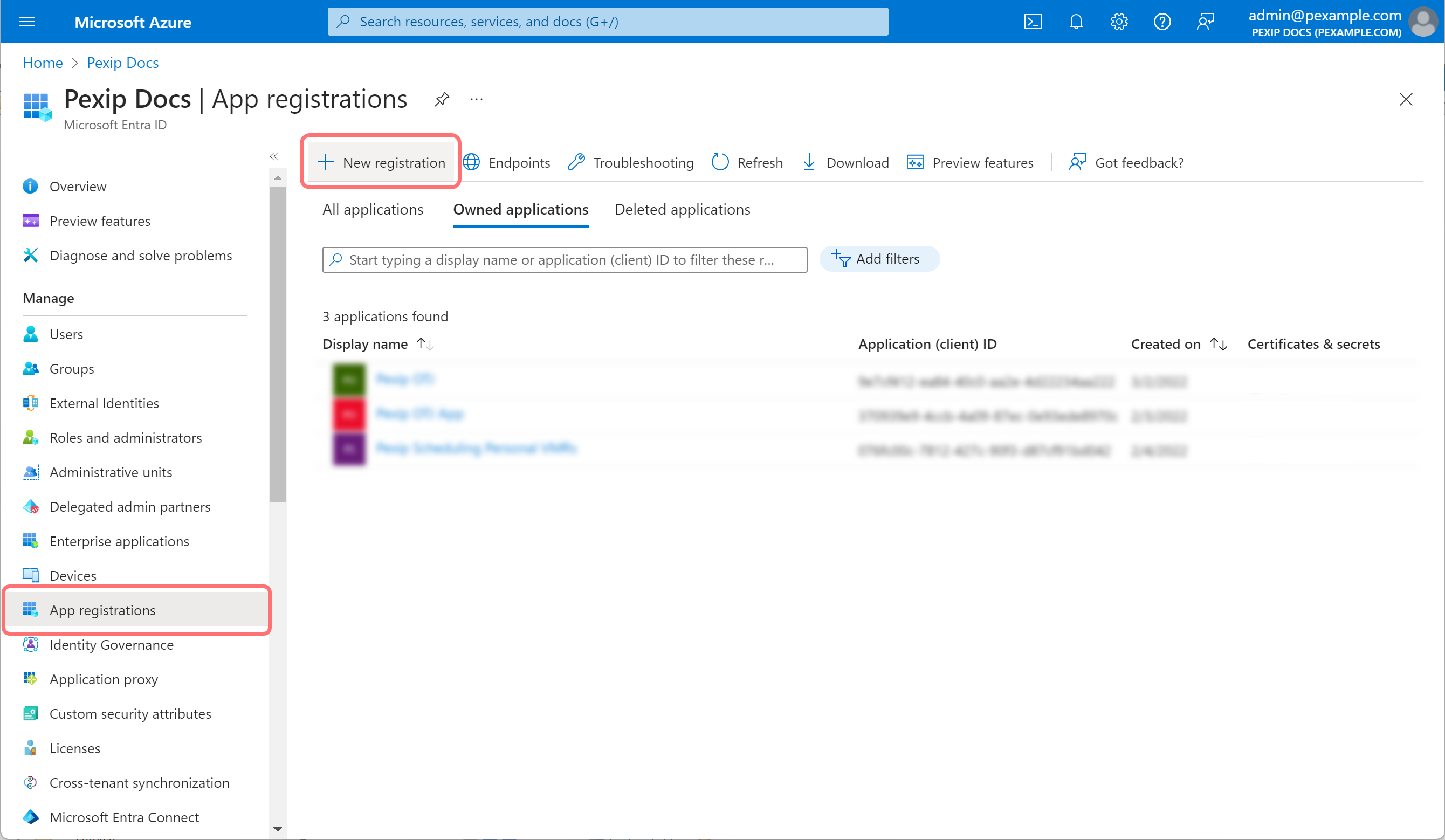
Log in to the Azure portal and select Microsoft Entra ID. From the panel on the left select App registrations and then select New registration:
-
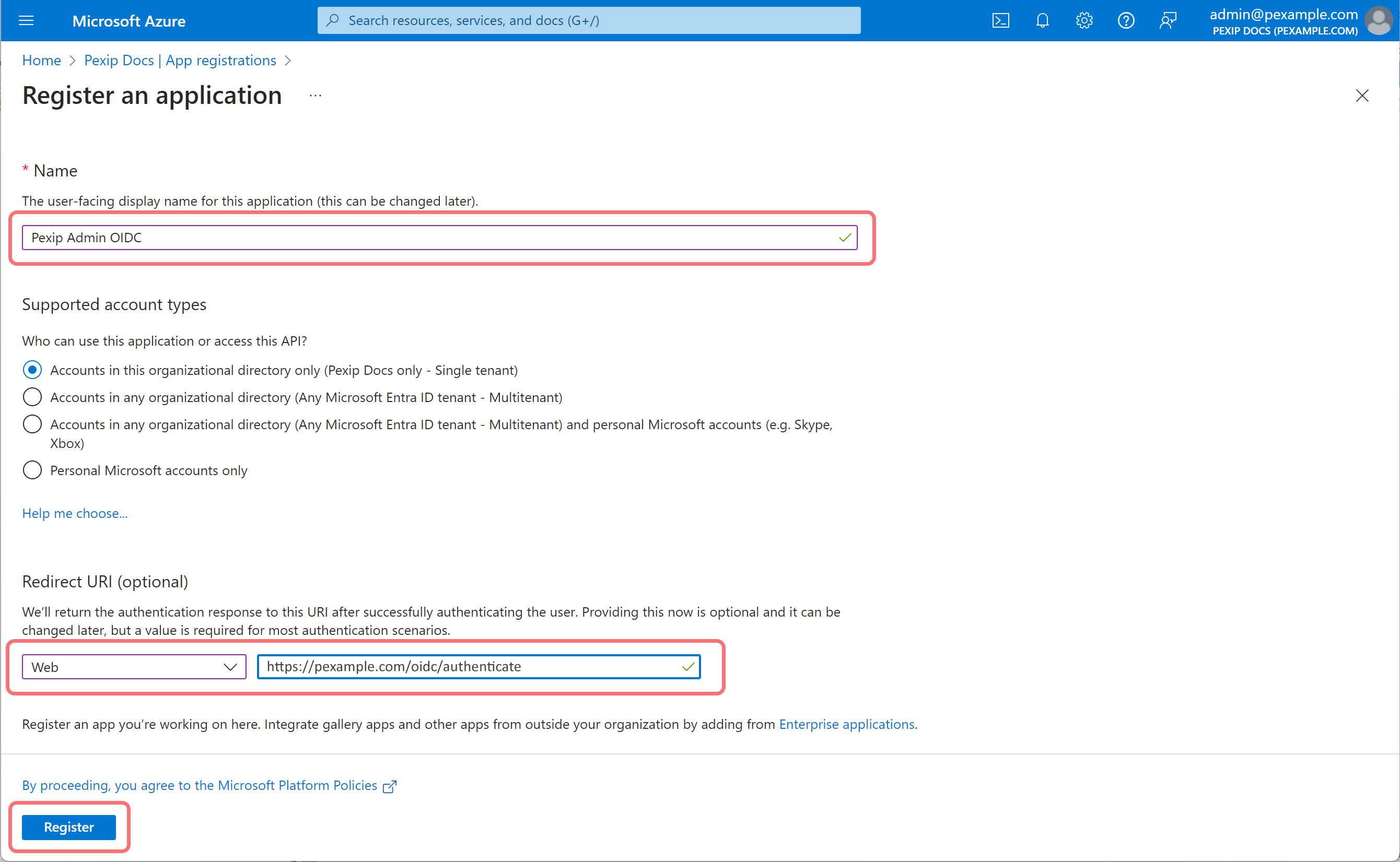
On the Register an application page:
-
Enter an appropriate Name
-
In the Redirect URI section, from the drop-down options select Web and enter a redirect URI in the format
-
Select:
-
-
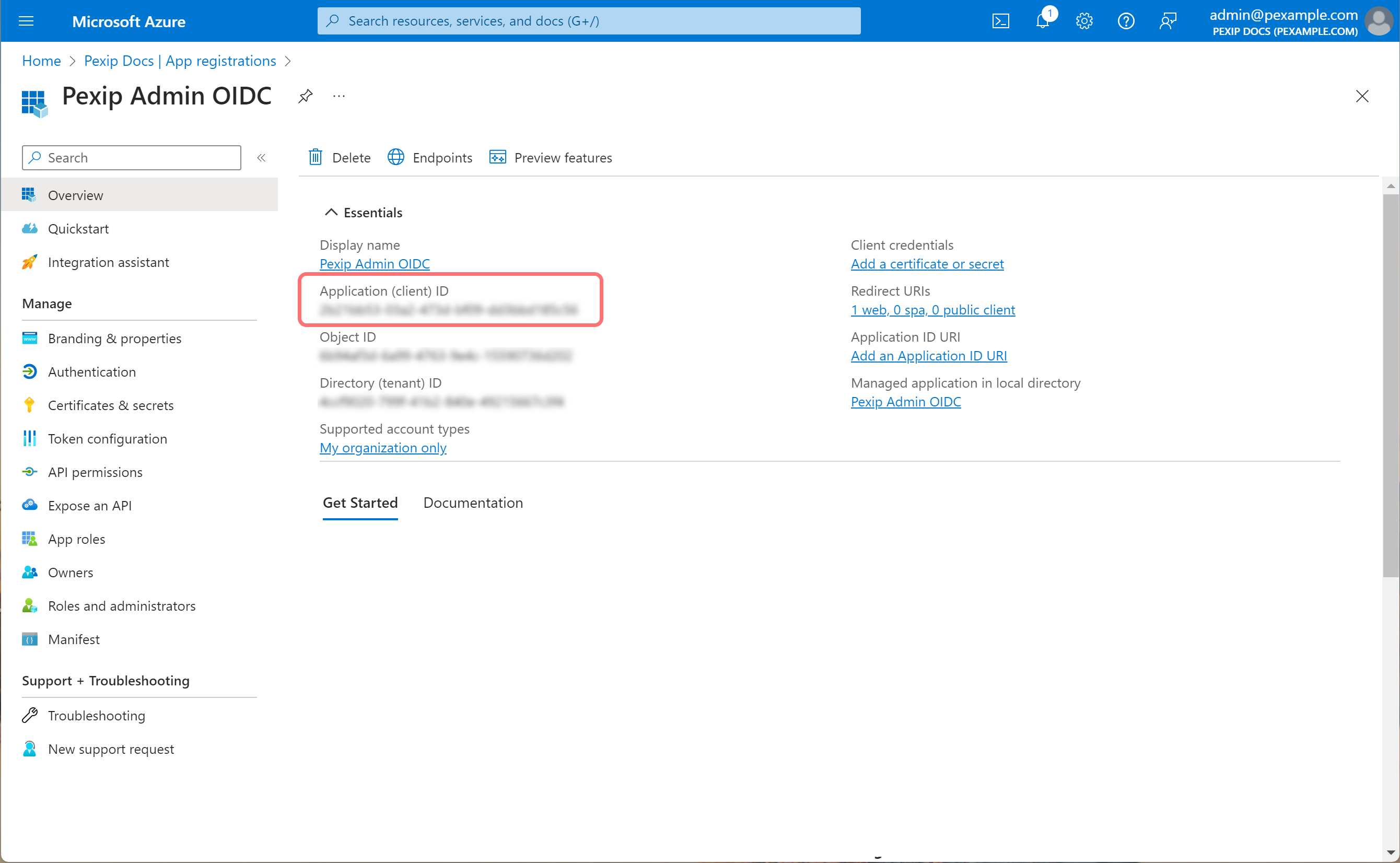
Note the Application (client) ID. You must enter this as the
-
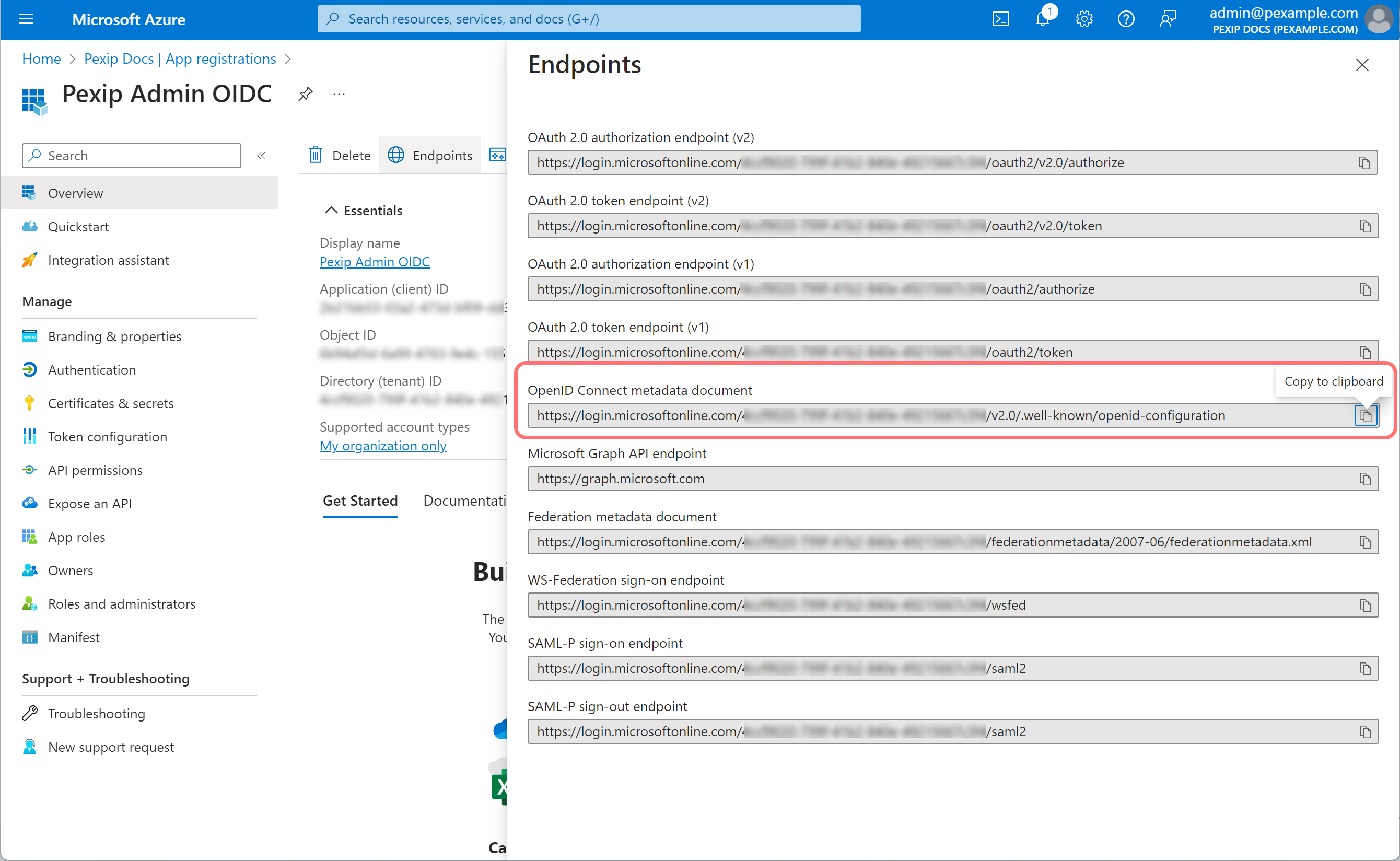
Select the Endpoints tab, and copy the OpenID Connect metadata document (this ends in openid-configuration). You must enter this as the
-
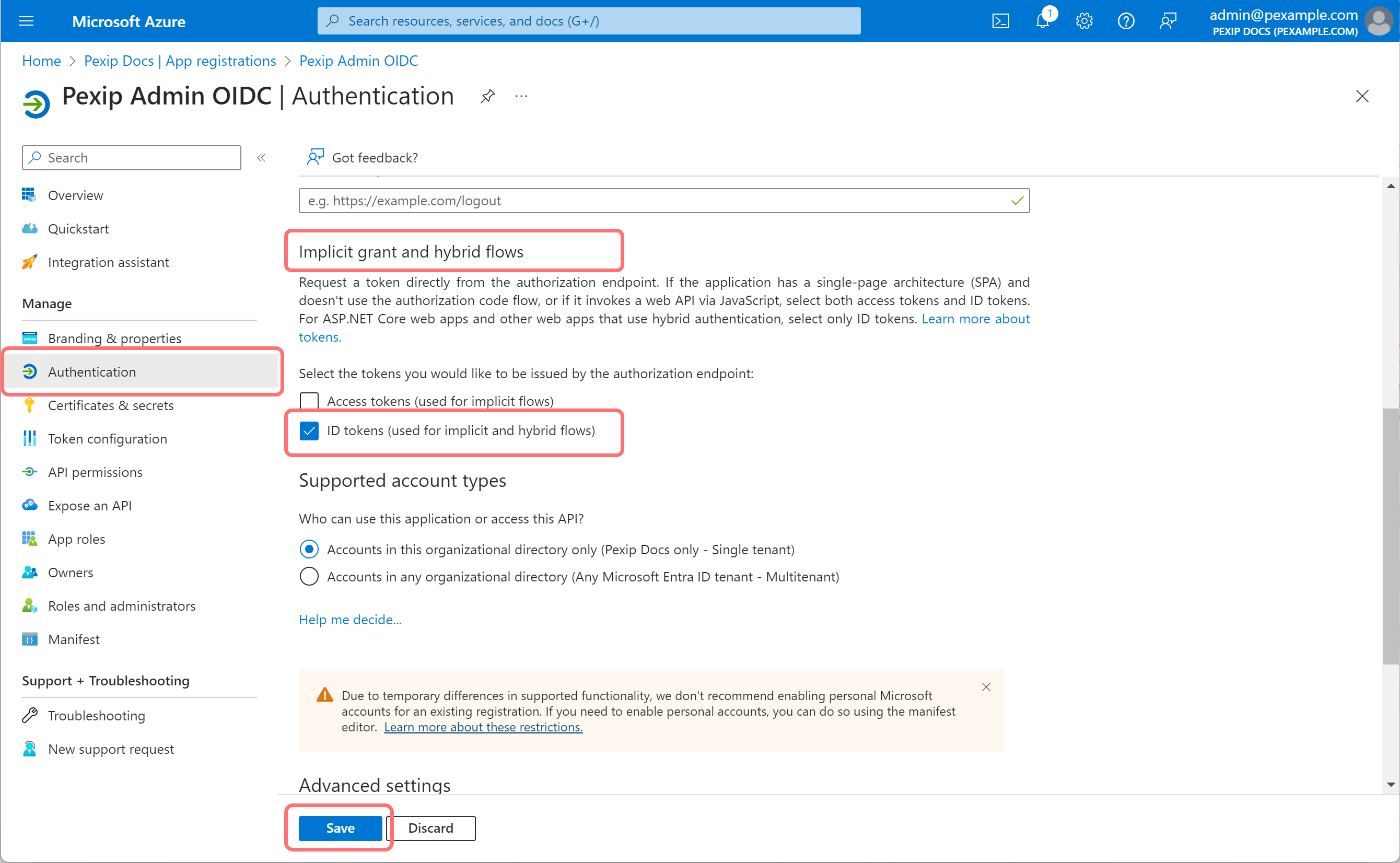
From the panel on the left, select Authentication and scroll down to Implicit grant and hybrid flows. Select ID tokens and then select :
-
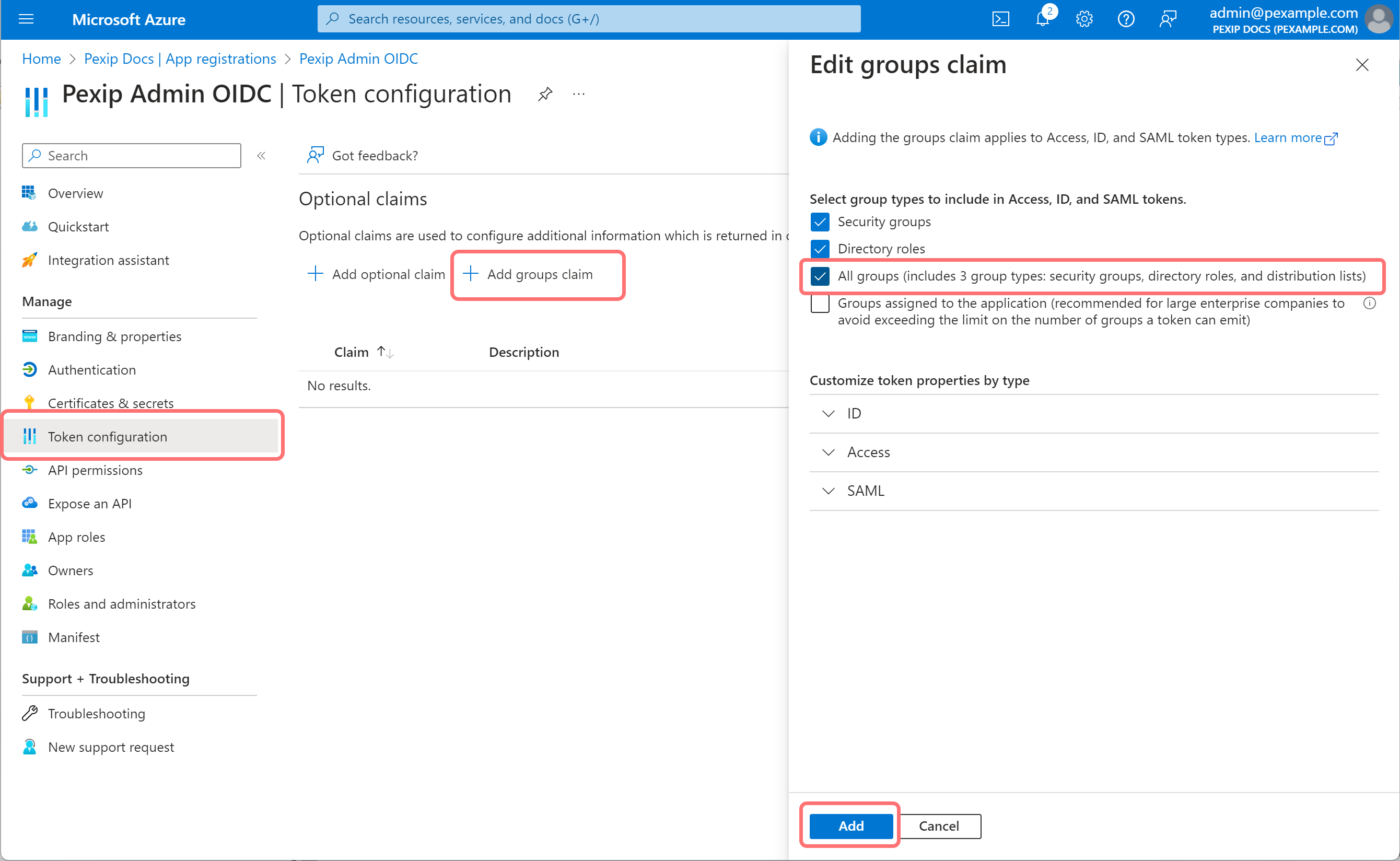
From the panel on the left, select Token configuration. Select , select All groups..., and then select :
-
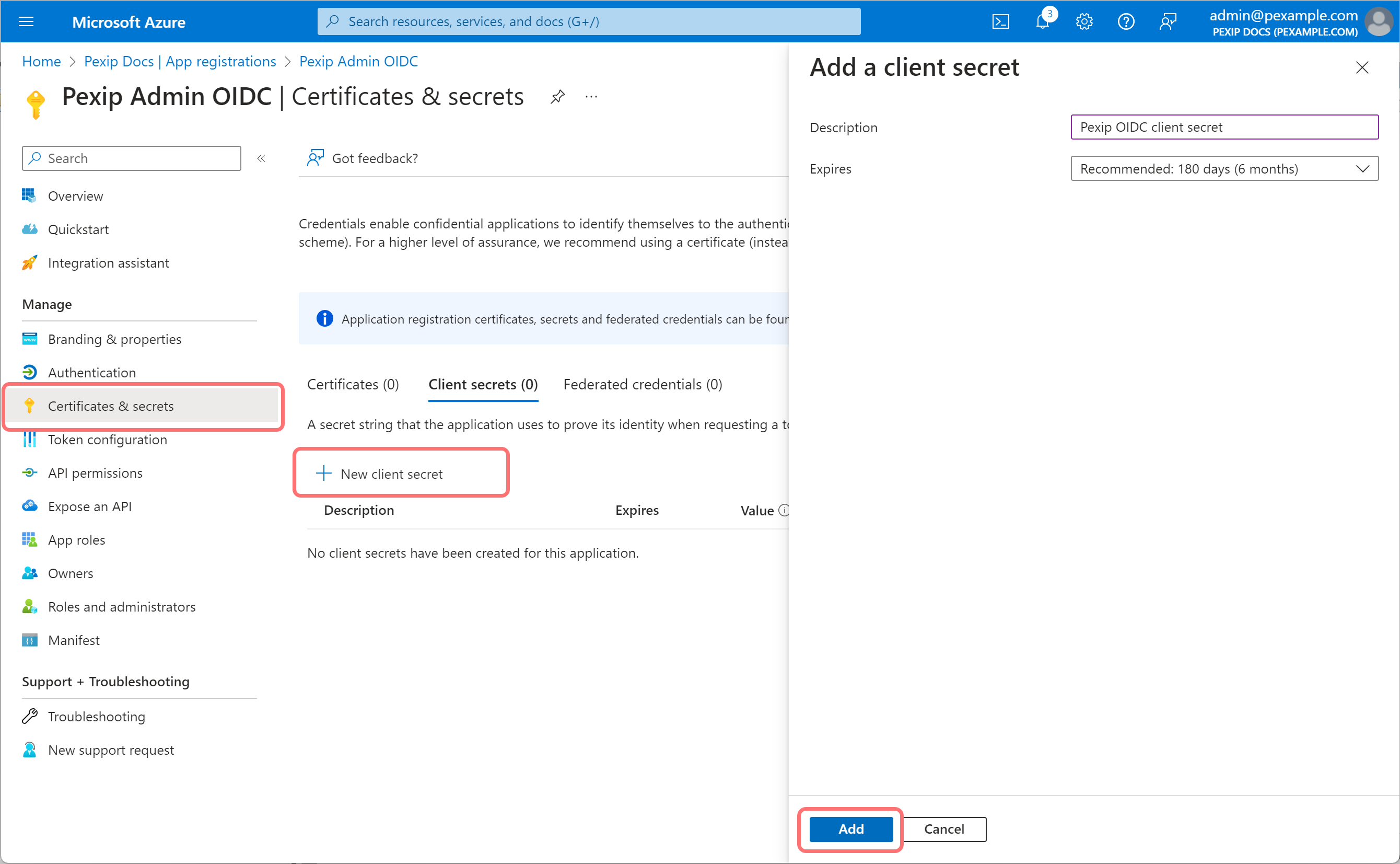
From the panel on the left, select Certificates & secrets. Select , complete the fields, and then select :
-
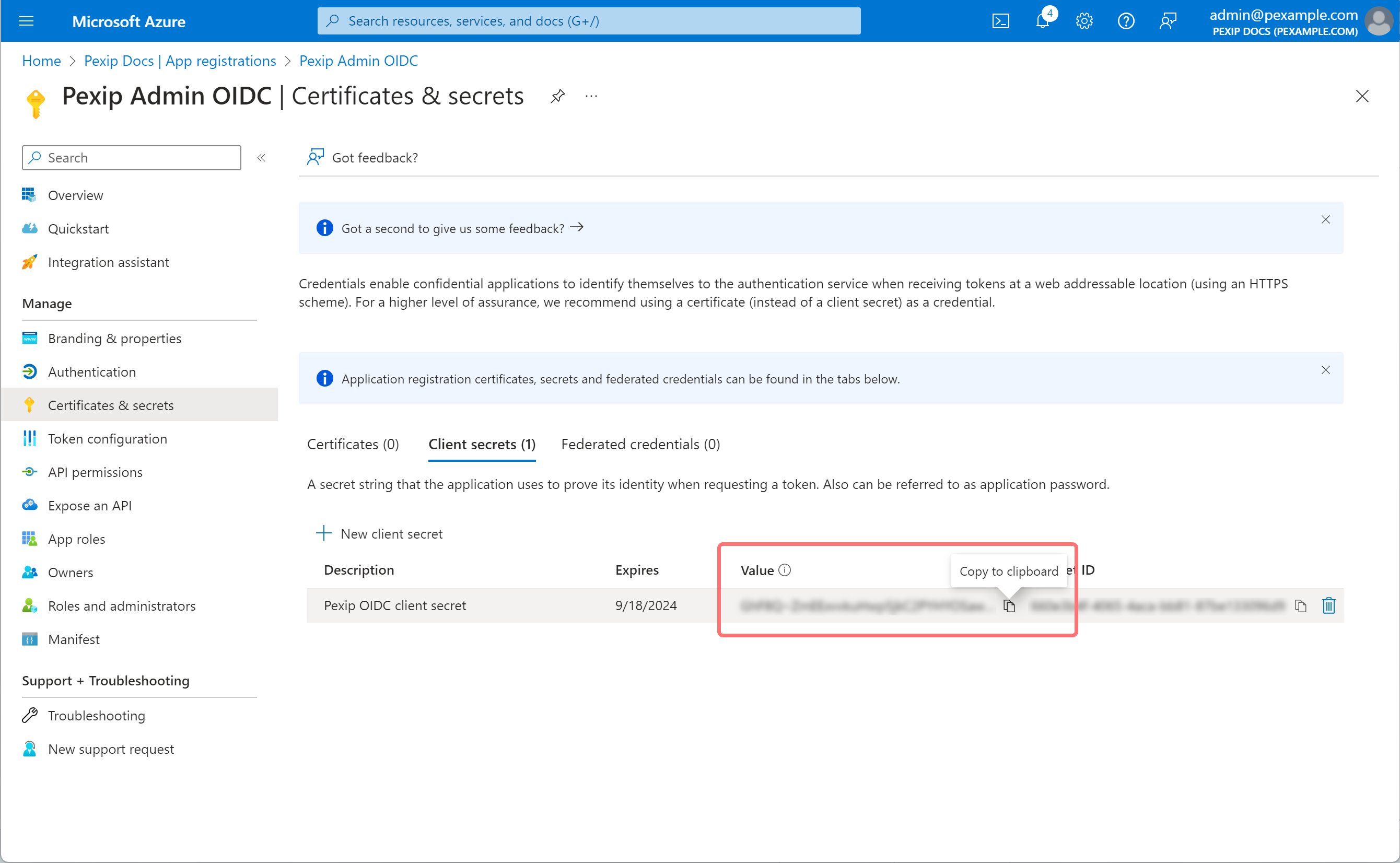
Before you navigate away from the page you must copy the string in the Value field (do not copy the string in the Secret ID field). You must enter this as the
For further information about configuring administrator access via OIDC to the Pexip Infinity Administrator interface, go here.