Creating preconfigured links to launch conferences via Pexip apps
You can construct URLs or hyperlinks that may be used to automatically launch the Pexip app and take the user directly into a specific conference. These URLs can also pass in any additional information specific to that call, such as the caller's name or the PIN needed to enter the meeting.
The URLs are in two formats: one that can be used to launch the web app, and one for use with the desktop and mobile clients.
Alternatively, you can construct a URL that directs the user to a webpage
Security considerations
Although embedding information such as participant names and conference PINs into the URL can make it easier for participants to join conferences, note that these parameters are included in the URL in human-readable format. This means that if a user shares the URL — such as in a screen shot of their meeting invitation — and the URL includes the PIN, anyone with access to the URL can deduce the PIN and enter (and control, if it is a Host PIN) the meeting.
When a user follows a link to join a conference via the web app, any join parameters, such as a conference PIN, are automatically removed from the URL that is displayed in the browser's address bar.
Links to the web app
Links to the home screen
To open an instance of the web app in the user's default browser and take them to the home screen (not into a specific meeting), use the following link:
https://<address>/<path>
where:
| <address> | is the IP address or domain name of the Conferencing Node (or reverse proxy if, for example, it is being used to host a customized version of the web app). |
| <path> |
is an optional parameter that specifies the branding path to use. If no path is specified, users are redirected to the default path for Webapp3. For more information, see Default paths and default branding. |
Links to a specific meeting with no additional parameters
To provide users with a URL that, when clicked, directs them to a specific meeting, but still requires them to enter any information such as their name and the PIN, and does not control their camera or mic mute, use the format:
https://<address>/<path>/m/<alias>
where:
| <address> | is the IP address or domain name of the Conferencing Node (or reverse proxy if, for example, it is being used to host a customized version of the web app). |
| <path> | specifies the branding path to use. |
| <alias> | is one of the aliases for the conference or service the user will join. |
Links to a specific meeting with additional parameters included
To provide users with a URL that, when clicked, takes them straight into a specific conference and also determines in advance settings including their role, the PIN, their camera and mic mute state, construct a URL in the format:
https://<address>/<path>/m/?conference=<alias>&name=<name>&pin=<pin>&role=<role>&muteMicrophone=<muteMicrophone>&muteCamera=<muteCamera>&callType=<callType>&callTag=<callTag>&extension=<extension>&bandwidth=<bandwidth>&join=<join>&lng=<lng>
where:
| <address> | is the IP address or domain name of the Conferencing Node (or reverse proxy if, for example, it is being used to host a customized version of the web app). |
| <path> |
is an optional parameter that specifies the branding path to use. If no path is specified, users are redirected to the default path for Webapp3. For more information, see Default paths and default branding. |
| <alias> | is one of the aliases for the conference or service the user will join. |
| <name> | is the name of the user who is joining the conference. |
| <pin> |
is either the Host PIN or Guest PIN, if required pin=none can be used if the conference does not have a Guest PIN and you want the user to automatically join as a guest participant (in which case the URL must also include role=guest). |
| <role> |
For Webapp3 participants, if role=guest is included in the URL, they will be offered an alternative join flow that takes them through the setup of their camera, microphone and speakers before they are able to the meeting. For more information, see Support for first-time and infrequent users. When using role=guest, if the conference does not have a Guest PIN and you want the user to automatically join as a guest participant you should also include pin=none. |
| <muteMicrophone> | is true to join without sending audio (the user will still receive audio, and send and receive video). Note that this setting can be overridden by the enforceAudioMute setting in the application manifest. |
| <muteCamera> | is true to join without sending video (the user will still receive video, and send and receive audio). Note that this setting can be overridden by the enforceVideoMute setting in the application manifest. |
| <callType> |
Determines whether the user will be able to send or receive audio, video and presentation when joining the call. See Call types for valid parameters. |
| <callTag> | Assigns a call tag for this participant, which is included in logs, policy requests, and participant lists. |
| <extension> | is the Virtual Reception extension, or the Microsoft Skype for Business Conference ID. |
| <bandwidth> | is the maximum bandwidth for the call, and the bandwidth at which the initial call attempt will be made, in kbps. It can be any number between 256 and 6144. |
|
<join> |
is 1 if you want the participant to automatically join the conference, bypassing the option to check their devices. |
| <lng> | is the code for one of the supported languages, in order to display Webapp3 in that language. Note that this will override any of the user's own browser language settings. |
To ensure backwards compatibility, existing URLs that use /#/ instead of /m/ are also supported when additional parameters are included.
The URL is case-sensitive, so for example you must use pin=123456 not PIN=123456.
Examples
Assuming the domain name of your Conferencing Node is vc.pexample.com, and there is a Virtual Meeting Room with the alias meet.alice, which has no PIN:
-
the basic URL for someone to join the VMR directly would be:
https://vc.pexample.com/webapp/m/?conference=meet.alice
-
to set the display name for a participant e.g. "Bob", the URL would be:
https://vc.pexample.com/webapp/m/?conference=meet.alice&name=Bob
(Note that if you shared this same link with many participants, they would all join with their display name set to "Bob".)
If we then gave the same Virtual Meeting Room a Host PIN of 123456, and allowed Guests to join without a PIN:
-
the URL for Bob to join it directly as a Host would be:
https://vc.pexample.com/webapp/m/?conference=meet.alice&name=Bob&pin=123456
-
the URL for Bob to join it directly as a Guest would be:
https://vc.pexample.com/webapp/m/?conference=meet.alice&name=Bob&role=guest
Links to the Pexip app for Windows
You can create a URL that, when clicked, opens the Pexip app for Windows on that device and provides an invitation to join the nominated conference. This URL can be included in web pages, instant messages or emails (but note that some versions of Outlook and Gmail email clients will strip them out for security reasons).
The Pexip app for Windows must already be installed on the device.
The URL is in the format:
pexip://<alias>?host=<domain>&name=<name>&pin=<pin>&role=<role>&muteMicrophone=<muteMicrophone>&muteCamera=<muteCamera>&extension=<extension>&bandwidth=<bandwidth>
where:
| <alias> | is one of the aliases for the conference or service the user is invited to join. |
| <domain> | is the IP address or domain name of the Conferencing Node (or reverse proxy if, for example, it is being used to host a customized version of the web app) the client should connect to in order to place the call. |
| <name> | is the name of the user who is joining the conference. |
| <pin> |
is either the Host PIN or Guest PIN, if required pin=none can be used if the conference does not have a Guest PIN and you want the user to automatically join as a guest participant (in which case the URL must also include role=guest). |
| <role> | is guest if you want to allow Guests to join a conference without having to enter a PIN (providing the conference allows Guests and has no Guest PIN). In all other cases, participants are asked to enter a PIN to join the conference (unless there is no Host PIN, or the URL already specifies a <pin>); the PIN determines the participant's role and the <role> is ignored. Note that if role=host, participants are still prompted to enter the Host PIN to join the conference; this parameter cannot be used to bypass PIN entry requirements. |
| <muteMicrophone> | is true to join without sending audio (the user will still receive audio, and send and receive video). Note that this setting can be overridden by the enforceAudioMute setting in the application manifest. |
| <muteCamera> | is true to join without sending video (the user will still receive video, and send and receive audio). Note that this setting can be overridden by the enforceVideoMute setting in the application manifest. |
| <callTag> | Assigns a call tag for this participant, which is included in logs, policy requests, and participant lists. |
| <extension> | is the Virtual Reception extension, or the Microsoft Skype for Business Conference ID. |
| <bandwidth> | is the maximum bandwidth for the call, and the bandwidth at which the initial call attempt will be made, in kbps. It can be any number between 256 and 6144. |
Example - email footer
For example, Alice's personal meeting room has the alias meet.alice@pexample.com so she includes the following text in her email footer:
- Video: <a href="pexip://meet.alice@pexample.com">meet.alice@pexample.com</a>
which displays as:
- Video: meet.alice@pexample.com
Now, when someone who has a Pexip app for Windows installed on their device clicks on the link in Alice's email, their client will open automatically with an invitation to join meet.alice@pexample.com, and all they need to do is select whether they want to join with , , or only.
Example - Guest PIN
Alice's personal meeting room has a Guest PIN of 123456. When Alice is chatting with a colleague using an instant messaging client and she wants to move the conversation to video, she sends them the message pexip://meet.alice@pexample.com?pin=123456, which automatically appears as a hyperlink. Her colleague clicks on the link and is invited to join Alice's personal meeting room as a Guest.
Example - always join with microphone muted
If you want the participant to join a meeting with a PIN of 123456, and you want their microphone to be muted on joining, the URL would be: pexip://meet.alice@pexample.com?pin=123456&muteMicrophone=true
Links to a join instructions page
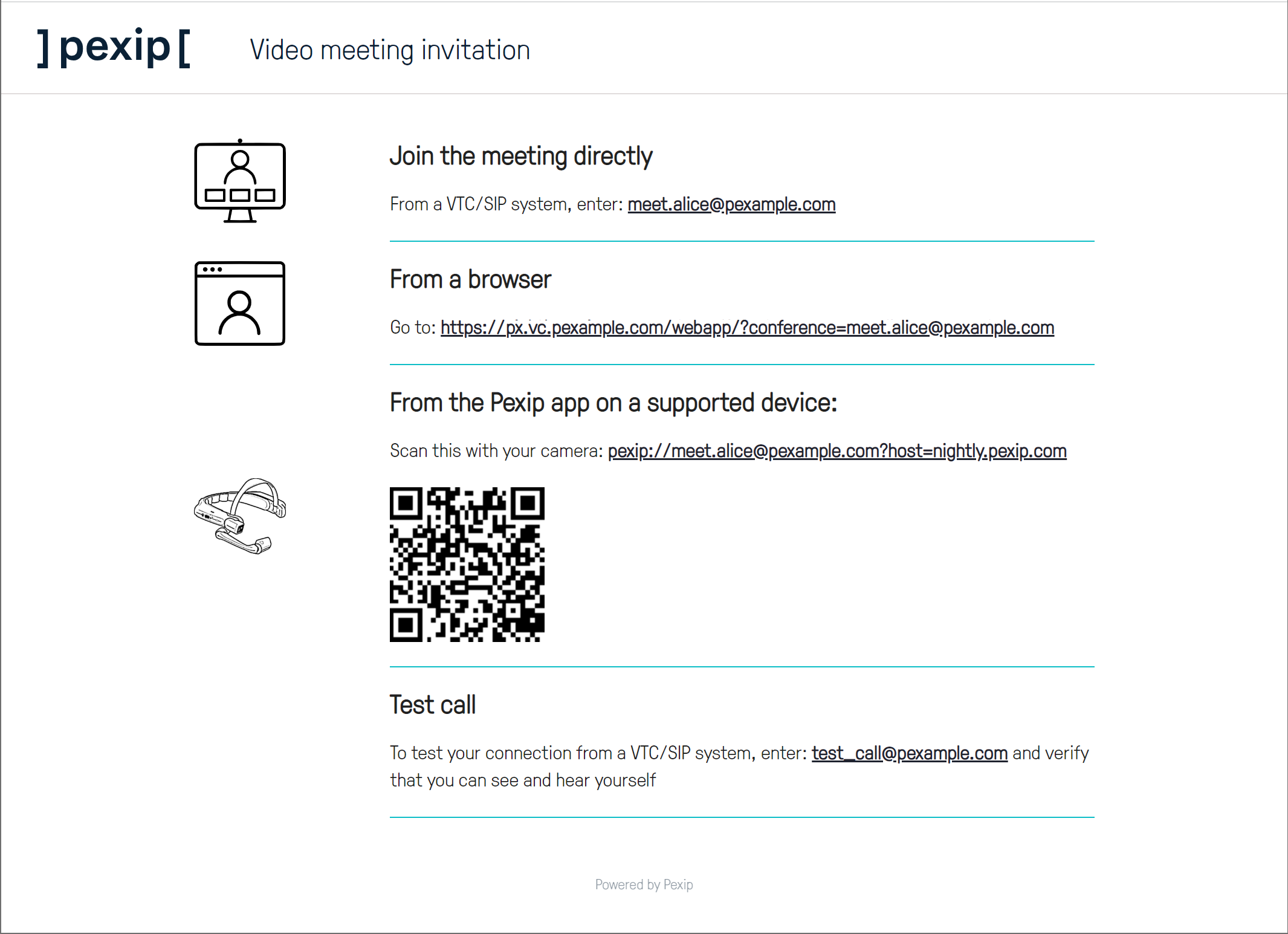
You can generate a URL to a webpage
The format of the link is described below.
- To include this URL in invitations to meetings scheduled using Secure Scheduler for Exchange, you must edit the Personal VMR joining instructions template or the Single-use VMR joining instructions template to include the link.
- To include this URL in emails sent when a VMR is provisioned, you must edit the VMR email body template to include the link.
-
To include this URL elsewhere, for example within your email footer, include it within a hyperlink tag, e.g.
<a href="https://px.vc.pexample.com/teams/join.html?conf=meet.alice&d=pexample.com&test=test_call&w&qrcode">Contact me on video</a>
Formatting the URL
The URL takes the format:
https://<node_address>/teams/join.html?conf=<alias>&d=<domain>&test=<test_call_alias>&w&qrcode
where <node_address> is an FQDN that resolves to your Pexip Conferencing Nodes (it can also be the FQDN or IP address of an individual Conferencing Node). Note that:
- To view this webpage, the client application used to view the invitation must be able to access the specified Conferencing Nodes (or alternative server) on HTTPS 443/TCP.
- You must ensure that the FQDN used here is resolvable by any internal or external client applications that may be used to view the invitation i.e. that they can access the webpage on the nodes referenced by the FQDN. This means that if these nodes have private addresses, then depending on your internal network routing, you may need appropriate local DNS resolution for the <node_address> FQDN for internally-based clients, in addition to external DNS resolution for that FQDN for externally-based clients.
The other parameters are:
| Parameter | Mandatory | Description |
|---|---|---|
| conf | Yes | An alias that can be used to join the meeting. |
| d | Yes | The domain name of your Pexip Infinity platform e.g. pexample.com. This is used as the domain for all of the URI-style addresses that are displayed on the webpage. |
| test | No |
Includes a "Test call" option on the webpage, where the value of this parameter is the name part of the alias to dial e.g. test_call. Do not include the domain — this is the d parameter above. This uses Pexip Infinity's inbuilt Test Call Service; therefore you must ensure that <test@d>, e.g. test_call@pexample.com, matches the name of the alias configured in Pexip Infinity for the test call service. |
| w | No |
Displays the "From a browser" access details on the webpage. There is no value associated with this parameter. |
| qrcode | No |
Includes a QR code on the webpage, which when scanned by a device with a supported Pexip app installed (such as the Pexip app for mobile) will open the meeting directly in that app. There is no value associated with this parameter. |
An example URL value could be: https://px.vc.pexample.com/teams/join.html?conf=meet.alice&d=pexample.com&test=test_call&w&qrcode
and that would produce the following webpage: