Managing meetings on the web app
This feature is technology preview only and may be subject to change.
On this page:
- About Meeting Manager
- Joining a conference as a Meeting Manager
- Using participant and meeting controls
- Joining the same conference with video and audio
- Known limitations
About Meeting Manager
Meeting Manager is a participant type designed for someone who needs to join a meeting via the web app as a control participant only and does not need to present, view presentation, or send and receive audio and video. The Meeting Manager participates in the meeting simply to manage the participants and control the conference — for example by muting participants, lowering raised hands, admitting participants who are waiting in the lobby, and locking the meeting.
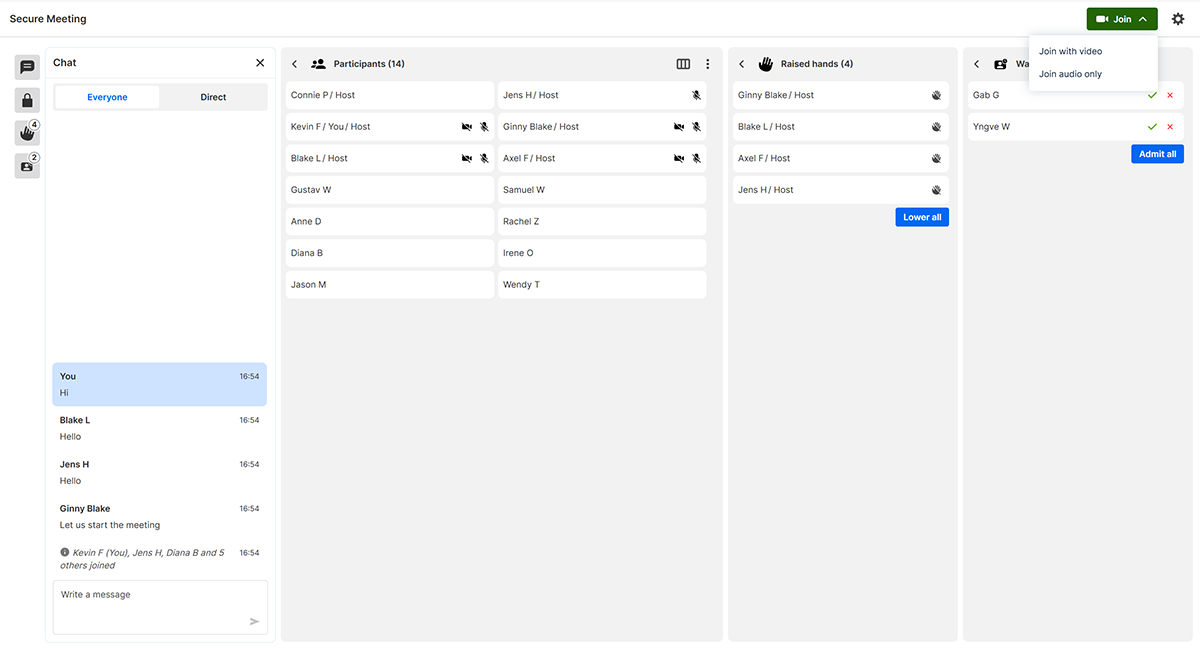
Example of the Meeting Manager view
The Meeting Manager sees a user interface specifically designed for managing meetings. This is different to the view that normal video (or audio only) participants see. Follow the instructions in Joining a conference as a Meeting Manager to learn more.
If you want to see the normal meeting view as a control-only participant (rather than joining as a Meeting Manger), you can use a callType of "none", included in either the preconfigured conference link or via the branding manifest. A control-only participant who joins in this way does not send or receive audio, video, or presentation but can still access conference controls.
Meeting Manager is not currently supported on the Pexip apps for Windows or mobile.
License and resource usage
A Meeting Manager participant is an API-only participant. As such, the Meeting Manager participant does not consume a license or port and does not use any transcoding resource. It does however count towards any participant limits.
Joining a conference as a Meeting Manager
Only Hosts can join a conference as a Meeting Manager.
To launch a conference in the web app and join as a Meeting Manager, a user must use a conference link that contains /mm at the end of the path, but before any query parameters.
The format is:
https://<address>/<path>/m/<alias>/mm
For example:
- https://vc.pexample.com/webapp/m/meet.alice/mm
- https://vc.pexample.com/webapp/m/meet.alice/mm?pin=123456
When a user selects this link, they follow the usual joining flow of entering their name (and Host PIN, if applicable and not included in the link).
For information about creating different types of web app conference links and supported parameters, see Creating preconfigured links to launch conferences via Pexip apps.
Using participant and meeting controls
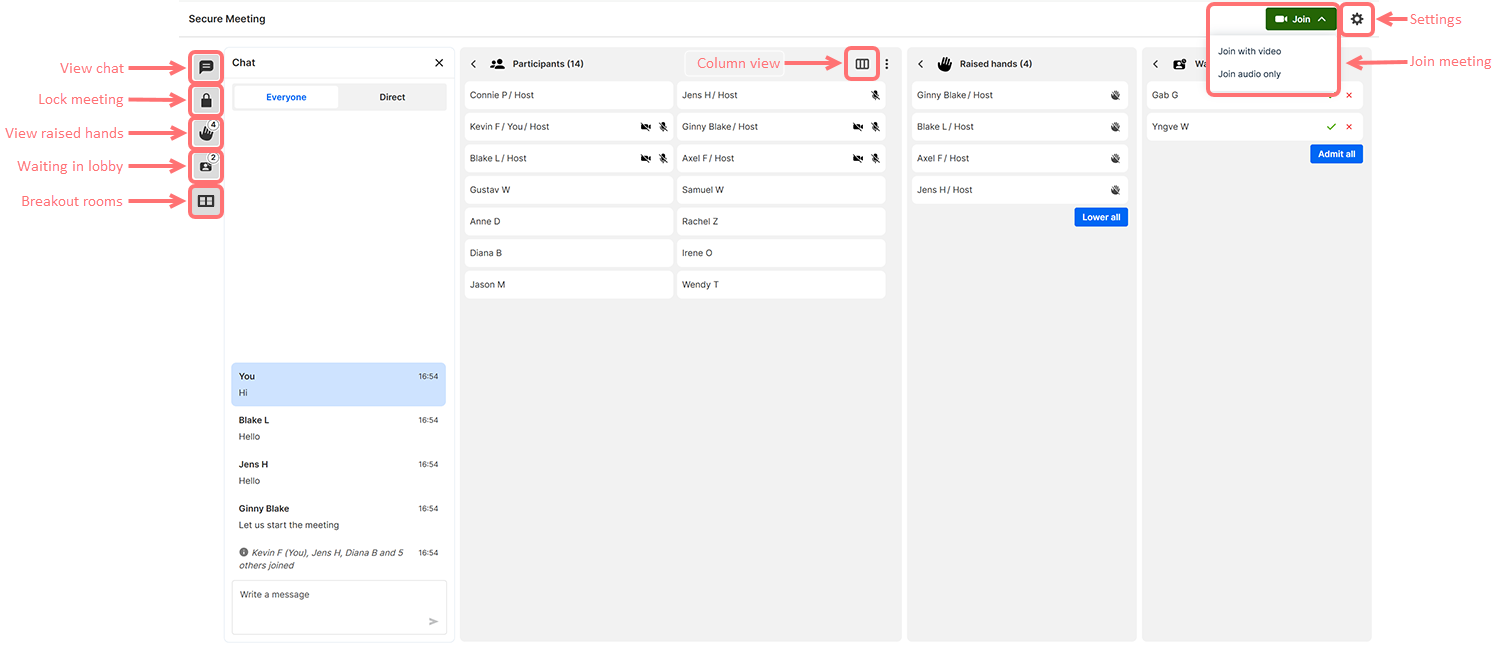
Toolbar
When a Meeting Manager first joins the conference, the Participants panel is automatically expanded. Other panels can be expanded by selecting the appropriate icon from the toolbar at the left of the screen.
 Participants Participants |
View a list of all participants and:
|
 Participant controls (individual) Participant controls (individual) |
Control an individual participant:
|
 Chat Chat |
Type a message and choose to send it to Everyone or Direct to an individual. |
 Lock meeting Lock meeting |
Toggle between locking and unlocking the meeting. |
 Raised hands Raised hands |
View a list of participants who have raised their hands and:
|
 Waiting in lobby Waiting in lobby |
View a list of participants in the lobby waiting to join and:
|
 Breakout rooms Breakout rooms |
View all Breakout rooms and:
|
 Column view Column view |
Adjust the layout view of the Participants, Raised hands, and Waiting to join columns between:
|
Settings
The  menu at the top right of the screen provides the following conference settings:
| Joining | ||
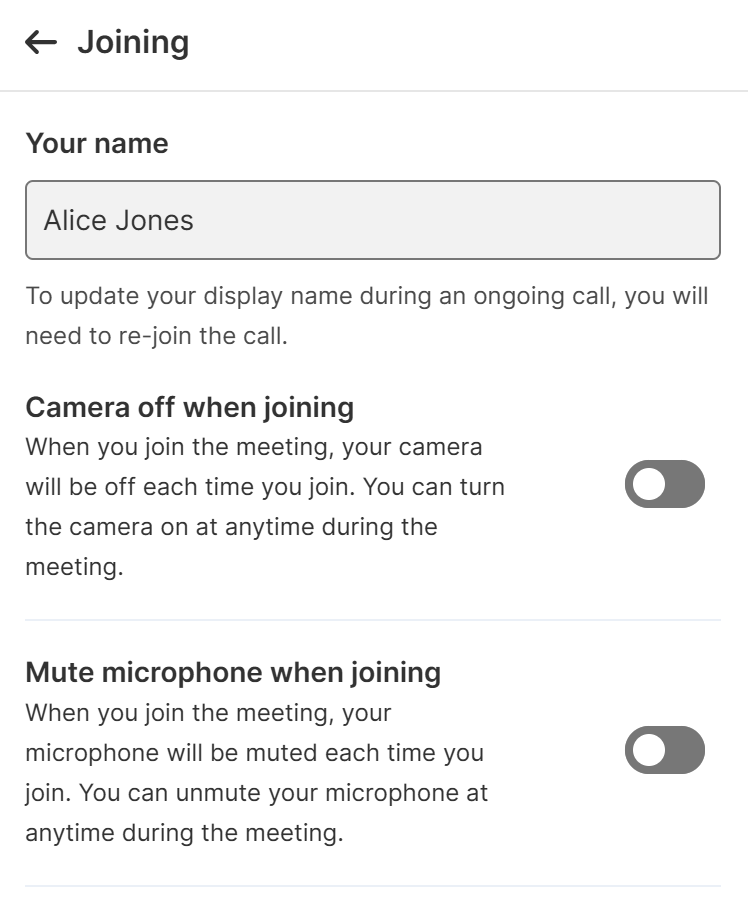
| Your name |
Enter the name you wish to use as your display name when joining meetings. Note that if you are joining a meeting that requires authentication, the authentication process may provide a name for you that you won't be able to change. |
|
| Camera off when joining | Enable this option to have your camera turned off by default when joining meetings. | |
| Mute microphone when joining | Enable this option to have your microphone turned off by default when joining meetings. | |
| Meeting layout | ||
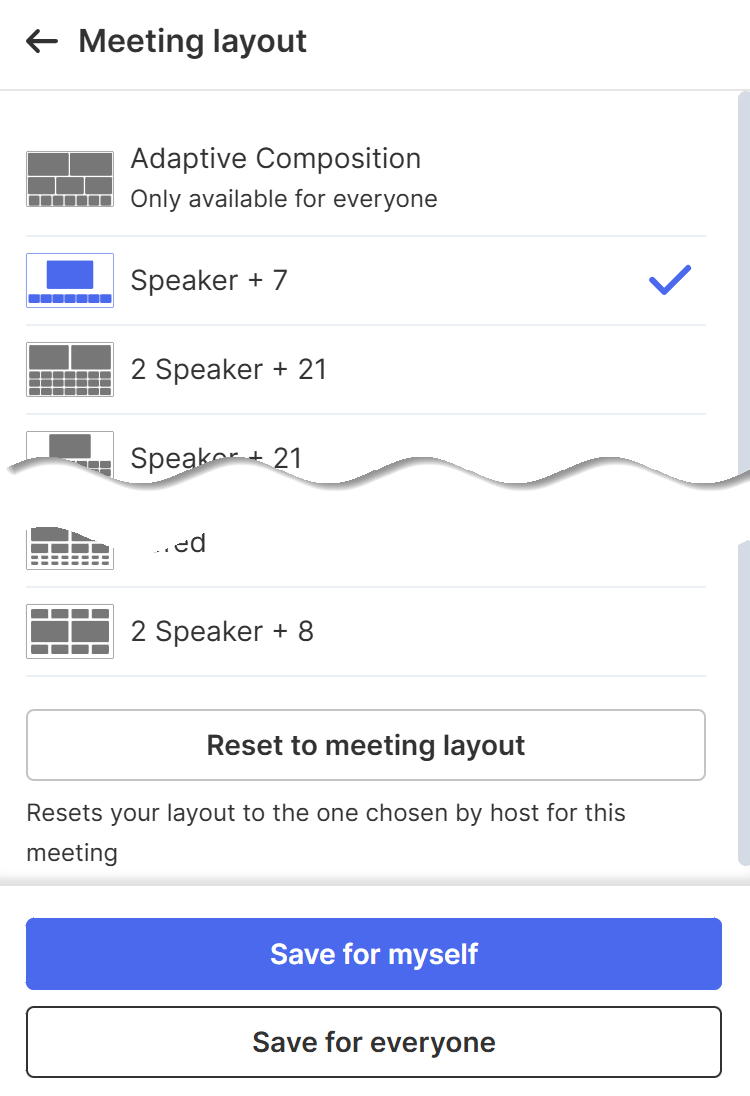
| Meeting layout |
The option allows:
When changing the layout:
|
|
| Advanced | ||
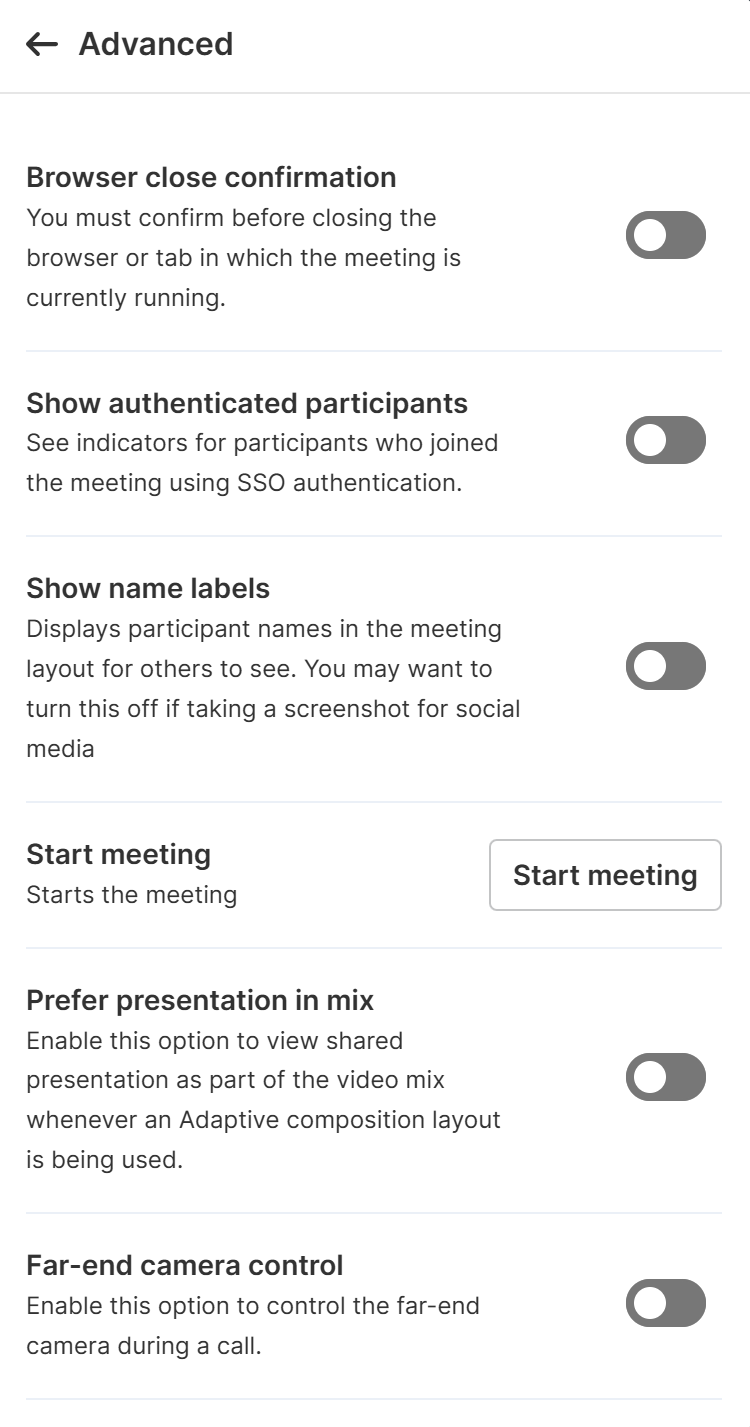
| Browser close confirmation |
(Not supported in Safari on iOS) Enable this option to be asked to confirm before closing the browser or tab in which the meeting is currently running. This stops you from accidentally leaving a meeting. This option is disabled by default. |
|
| Show authenticated participants |
If your deployment uses SSO authentication for participants, you can enable this option to see which Pexip app participants joined the meeting via SSO authentication. You will also see which participants did not authenticate before joining, such as mobile app users or those using SIP or H.323 endpoints, who may have been manually admitted from the waiting room by a Pexip app user. When enabled, each participant's authentication status is indicated by a For more information about participant authentication via SSO, see About participant authentication. |
|
| Show name labels | When enabled, all participants in the meeting see the names of all other participants as an overlay at the bottom of each participant's video image. | |
| Start meeting |
In most cases, when a Host joins a meeting Guest participants can then join it. However this does not apply to Hosts who have joined without audio or video (for example, by using a callType of none, by electing to join as presentation-only, or by joining as a Meeting Manager). If no other Hosts have joined the meeting, the Meeting Manager can select the option to to allow Guests to join. |
|
| Prefer presentation in mix |
Enable this option to view shared presentation as part of the video mix whenever an Adaptive Composition layout is being used. When disabled, any presentation being shared by another participant is shown in a thumbnail at the top of the screen, and you can toggle between the presentation and the main video. This option is disabled by default. |
|
| Far-end camera control |
This setting controls whether the currently selected camera can be controlled (if it supports pan/tilt/zoom, or zoom-only) by another participant The web app requires Chrome version 87 or later. You can go to chrome://media-internals/ to check if your device's camera supports pan/tilt/zoom. Your browser will also ask for permission to allow your camera to be controlled:
This option is disabled by default. |
|
| Languages | ||
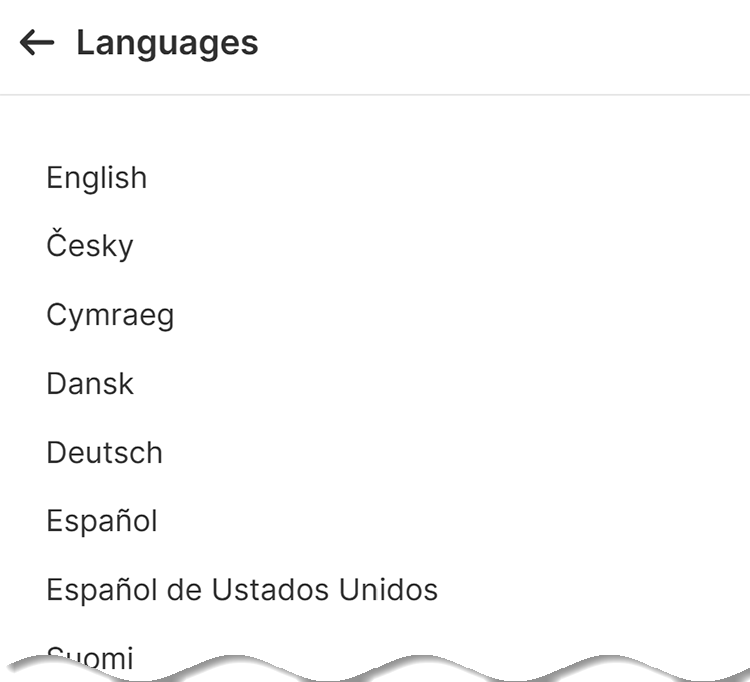
| Change your language |
Lets you select the language used throughout the web app. Changing this affects your web app only. For more information, see Managing meetings on the web app. |
|
| Accessibility | ||
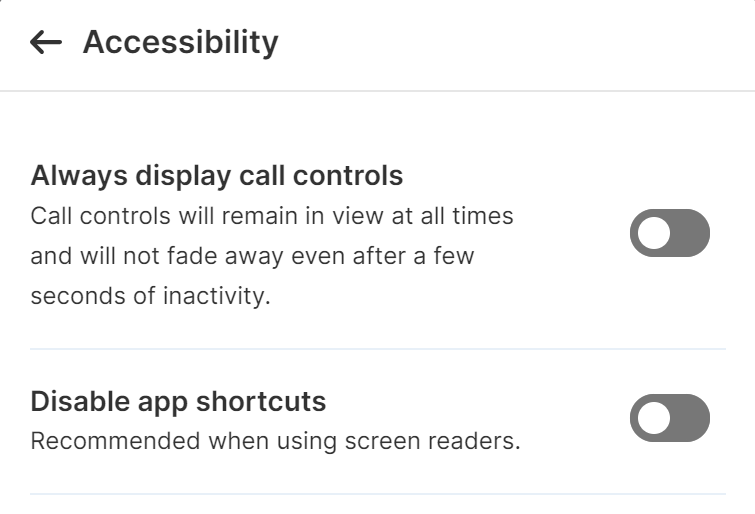
| Always display call controls | By default, call controls fade away after a few seconds of inactivity, to avoid clutter on the screen. When this option is enabled, call controls remain on the screen at all times. |
|
| Disable app shortcuts | Some web app controls can be activated using keyboard shortcuts. However, these shortcuts may conflict with those used with some screen readers. We therefore recommend that if you are using a screen reader, you select the option to Disable app shortcuts. | |
| Download log | ||
| This option downloads a file locally with information about the last call. Your administrator may ask you for this if you are having issues with your Pexip web app. | ||
| About | ||
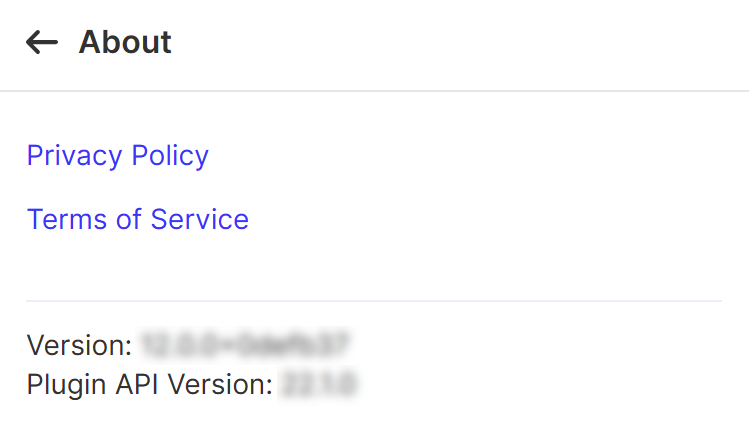
| The option provides links to the and . It also shows the versions of the Webapp and Plugin API currently in use. |
|
|
| Send feedback | ||
|
This option takes you to a link on Pexip's website where you can provide feedback on the web app directly to our development teams. The link is also shown after you have left a meeting. |
||
 or
or  next to their name in the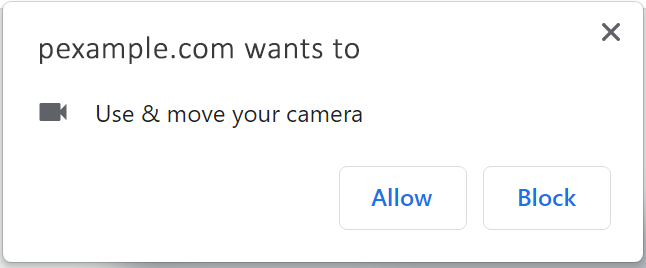
Joining the same conference with video and audio
If you have joined a conference as a Meeting Manager, you can simultaneously join the conference as a video or audio-only participant.
In the Meeting Manager view, from the top right select the button and then select either:
-
(to join with full video and audio), or
-
(to join with audio but no video).
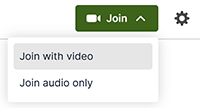
A new browser tab opens, offering the usual participant join flow. The Meeting Manager view remains open in the original tab.
Joining breakout rooms
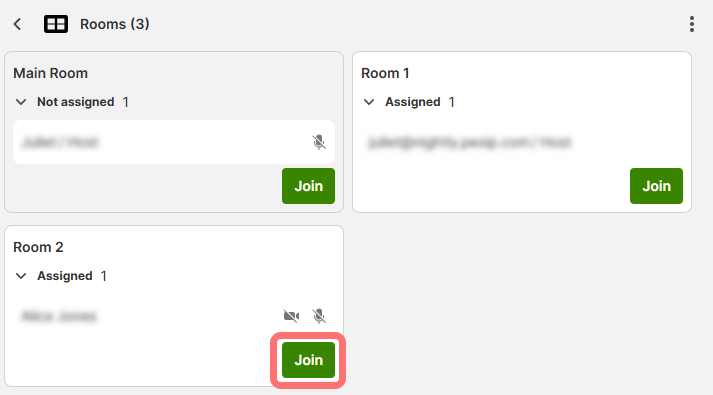
When breakout rooms are enabled, you have the option to join the main room or individual meeting rooms directly from the Meeting Manager view using the button that appears for each room. When you use this option, a new browser tab opens and you join as an additional audio/video Host participant:
Known limitations
| Ref # | Limitation |
|---|---|
| The Meeting Manager interface does not offer the option to create or add Breakout rooms (all other options to manage, join and close are available). | |
| GL‑5399 | If a VMR requires SSO authentication with an IdP that has pop-up windows disabled, participants attempting to join the VMR as a Meeting Manager will instead join as a standard meeting participant with no camera or microphone enabled. |
| GL‑5381 | Guests participants can join conferences as a Meeting Manager but do not have access to conference controls. In a future version, only Host participants will be able to join as a Meeting Manager. |
| If you are creating and deploying Pexip web app plugins, note that floating widgets are not supported in Meeting Manager. |