Pexip Web App release notes
This topic describes the new features
On this page:
New features
Following are the new features and changes in the Pexip Web App in Pexip Infinity version 39:
| Feature | Description | More information |
|---|---|---|
| New and improved features | ||
| Custom background image deletion | Users can now delete a custom background image that they had previously uploaded. | Blurring or replacing your background |
| Additional join options |
Prior to joining a meeting, participants can now open and select from a list of alternative joining methods. By default the options are Video, Audio-only and Presentation only. Administrators can disable this feature, and change the options that are offered and the order in which they appear, via the new availableCallTypes setting in the defaultUserConfig section of the branding manifest. Additionally, administrators can change the text that is used to describe each option via the new joining-options[...] tokens within the media section of the language file. |
Joining a meeting |
| Live captions speaker diarization |
The Live Captions History panel now includes the name of the participant who spoke. | View a live transcription of the meeting |
| Meeting Manager: breakout room support |
Meeting Managers can now manage breakout rooms. They also have the option to join the main room or individual breakout rooms directly as an additional audio/video Host participant. | Managing meetings on the web app |
| Participant search | The now includes a search box, allowing users to find a participant by entering the start or part of their display name. | Search for a participant |
| Support for personal layouts | When personal layouts are enabled by an administrator, the menu now allows participants to select a layout that applies only to themselves. | Meeting layout |
| Additional media statistics | The Media statistics dialog includes additional information such as average encode and decode time, time to capture statistics, and quality limitation information. | View diagnostic information |
| Spotlight indicator | Participants who are currently spotlighted now have a  icon next to their name in the Participants panel. icon next to their name in the Participants panel. |
View a participant's status |
| Changes in functionality | ||
| Settings menu |
The options under the menu have been reorganized and added to:
|
|
| callType changes |
Previously, the callType option (which determined whether the participant was able to send or receive audio or video) was specified via a numerical list that mapped on to the available combinations. Now, this list uses enumerations, and presentation is also included as an option. callType is used when customizing the default user settings and in preconfigured URLs to specify the call type used when joining a call. It is also used when specifying the options available when using the new availableCallTypes setting. The previous numerical format will continue to be supported to provide backwards compatibility. |
Call types |
| Order of participants | Within the , all Hosts now appear first (in alphabetical order), followed by all Guests (in alphabetical order). | |
| Camera released when muted |
When a participant mutes their video, their camera is released and no longer appears as still in use (according to the camera's indicators and the device's OS), thus reassuring users that they are no longer sending video. When video is re-enabled, the camera is requested again. However, this does mean that another application may take over use of the camera while it is muted. This option is enabled by default, but there is a new option to disable this feature via customization, using the stopCameraAsMute setting within defaultUserConfig. |
stopCameraAsMute |
|
|
||
Known limitations
| Ref # | Limitation |
|---|---|
| GL4797 | The Browser close confirmation option is shown to users of Safari on iOS, even though it is not fully supported and therefore does not take effect. |
 New features in previous versions
New in v38
| Feature | Description | More information |
|---|---|---|
| New and improved features | ||
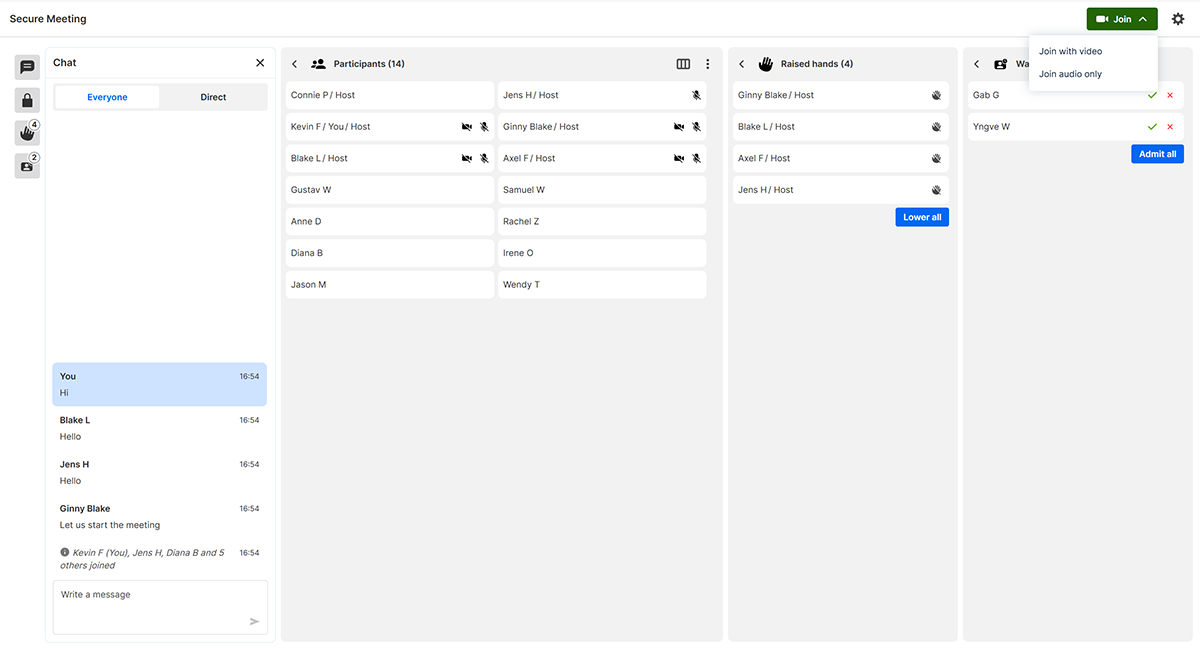
| Meeting Manager (Control view) |
Meeting Manager is a The Meeting Manager view is a columned layout of Participants, Raised hands, Waiting to join, and expandable settings. A participant joins a conference as a Meeting Manager by using a preconfigured conference link with /mm at the end of the URL.
|
Managing meetings on the web app Creating preconfigured links to launch conferences via Pexip apps |
| Built-in support for Arabic and Hebrew | Arabic and Hebrew are now included in the available languages and can be selected in the web app itself. | Languages/text used in labels and messages |
| Support for right-to-left (RTL) languages |
The web app interface |
Languages/text used in labels and messages |
| Background blur and replacement improvements | Improved visual experience and responsiveness when blurring or replacing your background during a meeting. | Blurring or replacing your background |
| Large meeting performance improvements | Improved stability and performance of meetings with a large number of participants. | |
| Tablet mode improvements | Improvements to the user experience on foldable Windows laptops that can also act as a tablet. | |
| Accessibility improvements | General improvements to the user interface to increase accessibility. | |
| Changes in functionality | ||
| Updates to callType parameter options for preconfigured conference links |
If you use the callType parameter in preconfigured links to launch conferences via Pexip apps, note the following changes:
|
Creating preconfigured links to launch conferences via Pexip apps |
| Updates to callType values for advanced web app customization |
All callType values in the defaultUserConfig, used for manually customizing the user-configurable settings for sending and receiving audio, video, and presentation, have been updated. The value descriptions such as "audioonly" have not changed from the descriptions in Pexip Infinity 37 and earlier. If you have applied custom branding that includes callType values from an earlier Pexip Infinity version, these values will no longer work upon upgrading. You must manually update the defaultUserConfig section of the application manifest file with the following values: If this value is not set, or is set to a value other than one listed above, the default 126 (full send and receive video and audio) is used. |
|
| Variable name change in language file | Within the language .json file, the variables {{firstDisplayName}}, {{previousSecondDisplayName}} and {{newDisplayName}} have been replaced by {{first}}, {{second}} and {{third}} respectively. If you use any customized language files, you must update these to use the new variable names after upgrading to v38. | Variable substitutions |
|
|
||
New in v37
| Feature | Description | More information |
|---|---|---|
| New features | ||
| Direct chat | Participants can now send chat messages directly to other individual participants in the meeting, in addition to the existing option to send a message to all participants. | Send and receive chat messages |
| Maximize self-view on mobile | Participants on mobile devices can maximize their self-view, allowing them to see clearly the image they are sending to other participants. | Self view window |
| Live captions transcripts | Participants can now view an historical transcript of the live captions shown to them during a call. | View a live transcription of the meeting |
| Safari background effects | The background blur and background replace features are now supported on Safari browsers. | Blurring or replacing your background |
| disconnectDestination parameters | The disconnectDestination customization option now supports variables that can be replaced with contextual information about a specific call, such as the alias that was dialed. | disconnectDestination |
| Changes in functionality | ||
| Plugin framework improvements | We have made improvements to the Webapp3 plugin framework and its iframe manager concept. As part of these changes, the security of the Plugin API has been improved by making the default sandbox policy for iframes more restrictive. As a result, certain plugins (including those provided by Pexip for the VMR self-service portal, Pexip Secure Scheduler for Web, Pexip Secure Meetings for Justice and Rocket.Chat integrations) may lose functionality, but this can be mitigated by setting additional sandbox values in the plugin manifest. For full instructions, see the Pexip developer portal. | |
New in v36.1
| Feature | Description | More information |
|---|---|---|
| New features | ||
|
Camera off when joining Mute microphone when joining |
Users can now choose to have their camera and/or microphone turned off by default when joining meetings. There are two new options in Additional settings: and . These controls will override <muteMicrophone> and <muteCamera> parameters in pre-configured links for launching conferences. If these parameters are set to false, the user configuration for Camera off when joining and Mute microphone when joining will take priority. Admins can configure the initial state of the toggles via advanced customization, using enforceAudioMute and enforceVideoMute. If these flags are set to true the settings will be enabled by default for each user until they are deactivated in Additional settings. |
|
| Changes in functionality | ||
| Large conference improvements | Improvements to Webapp3's performance during conferences with a large number of participants. | |
New in v36
| Feature | Description | More information |
|---|---|---|
| New features | ||
| Pop-up-free authentication | Administrators can now opt to remove the use of pop-up windows for Webapp3 participants when authenticating using SSO in order to join a meeting. | About pop-up windows |
| Participant authentication indicator | Webapp3 users can enable an option that indicates to them which participants were required to authenticate using SSO in order to join the meeting. | Show authenticated participants |
| Option to disable keyboard shortcuts | Users can now disable keyboard shortcuts to avoid potential conflicts with screen readers. The default setting for this option is configurable via customization. |
Customization option: disableKeyboardShortcuts |
| Changes in functionality | ||
| Mute sync improvements |
|
|
| Participants panel improvements |
|
Participants panel |
| Chat panel improvements |
|
View information about participants joining and leaving the meeting |
| Direct media improvements |
When a call changes from a being a direct media call to a transcoded call and vice versa:
|
|
| Default branding colors | Some colors used in the default branding package have been updated. | Default branding packages |
Fixed issues in previous versions
Fixed in v38.1
| Ref # | Resolution |
|---|---|
|
45991 GL5505 |
Fixed an error in the translation file that caused placeholder values to appear in place of participant names in the chat panel when multiple participants joined or left the meeting. |
| 45785 | Guest participants in a direct media call are now able to share presentation. |
|
45091 GL5377 |
When using Chrome and selecting an alternative camera to the system default, the camera selection is now remembered when connecting to a subsequent meeting. |
Fixed in v38.0
| Ref # | Resolution |
|---|---|
|
44581 GL5333 |
Fixes an issue in breakout rooms that allowed Guests to see control-only Host participants in the participants list of the breakout room they were in. Guests can no longer see control-only Host participants in their breakout room's participant list. |
|
43864 GL5276 |
Fixes an issue that caused an error message to incorrectly appear in white text even though the Webapp3 theme included "overlay": "light". Now, when the theme includes "overlay": "light", the message is in dark text. |
|
42958 GL5202 |
Fixes an issue that caused live captions to obstruct the in-meeting buttons when using the web app in landscape mode on mobile. |
| GL5233 | Fixes an issue that could cause the web app to stop sending video when the close browser confirmation was rejected while background blur was enabled. |
|
GL5386, GL5387, GL5388, GL5389, GL5390, GL5391 |
General fixes and improvements to the user interface for accessibility. |
Fixed in v37.0
| Ref # | Resolution |
|---|---|
|
43292 GL5245 |
Fixed an issue where the app did not request microphone access if there was no camera device attached. |
| GL5190 | Fixed an issue where, in certain circumstances, it was not possible to join a VMR through a Virtual Reception if the VMR had a PIN. |
|
42474 GL5174 |
In previous versions, when using &callType=audiovideorecvonly as a parameter in a preconfigured link for joining a conference, Webapp3 failed to send the video_muted signal and the non-video participant could appear as a full tile in the conference layout. This has now been fixed. |
| GL5158 | Fixed an issue on Webapp3 when used in a browser on a mobile device, where self-view could sometimes disappear when the user flipped their camera. |
| GL5157 | When using Firefox, some Webapp3 calls failed to connect when the microphone and camera selection was remembered based on previous permissions granted by the user. This has now been fixed. |
| GL5151 | Fixed an issue on Webapp3 when used in a browser on a mobile device where maximizing self-view during a conference could cause the self-view video to turn black. |
| GL5139 | The button now has an associated data-testid, so can be hidden via customization using the hiddenFunctionality setting. |
| GL5120 | Fixed an issue where an end user in a direct media call had to select live captions twice for it to be successfully enabled. |
| GL5090 | Fixed a misspelling in the German translation for "noise suppression". |
| GL4613 | In previous versions, an unusable Chat panel could be opened by users in a conference waiting room. This panel can no longer be opened. |
|
35820 GL4422 |
When SIP devices that are joining a meeting from an IVR are shown in the Participants panel, they now have and buttons next to their name. |
| GL3740 | Previously, users with a backslash ( \ ) in their display name could not be displayed in the participants list. This has now been fixed. |
Fixed in v36.1
| Ref # | Resolution |
|---|---|
| 41886 | Resolved an issue that caused an "Invalid PIN" error when certain combinations of <PIN> and <role> parameters were used in preconfigured links for launching conferences in Webapp3. |
| 41820 | Resolved an issue that caused Webapp3 to become unresponsive in conferences with over 500 participants. |
| 41560 | Resolved an issue where presentation may have be sent to endpoints at a very low frame rate. |
| 39045 | Resolved an issue that sometimes caused users of Chromium-based browsers on Windows devices with an Intel GPU to experience black video or frozen self-view when enabling background effects such as blur or replacement. |
Fixed in v36.0
| Ref # | Resolution |
|---|---|
|
40796 GL5045 |
Resolved an issue whereby a Webapp3 participant whose video or audio was administratively muted and who then experienced connectivity issues would subsequently start sending video or audio. |
|
39138 GL4902 |
Resolved an issue that affected direct media conferences joined via a webapp3 path with branding applied which included shouldMaskConference, whereby if a third participant joined, none of the participants received media after it was escalated to a transcoded conference. |
|
38808 GL4871 |
When a Webapp3 participant joins a conference with their bandwidth set to `Auto`, change their bandwidth to a different setting, and then change their bandwidth back to `Auto`, the correct bandwidth limitations are now applied. |
|
37887 GL4743 |
There is now a differentiation between administrative muting and self-muting of participants, and these states are now controlled separately. |